EasyManua.ls Logo

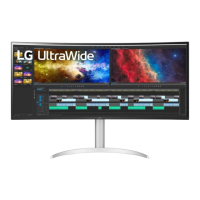
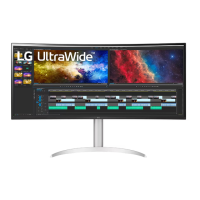
LG 38WR50MS-B - User Manual

LG 38WR50MS-B
73 pages
Print Icon
To Next Page IconTo Next Page
Loading...
www.lg.com
OWNER’S MANUAL
MONITOR SIGNAGE
38WR50MS
Please read this manual carefully before operating your set and retain it
for future reference.
MONITOR SIGNAGE MODELS
ENG
ENGLISH

Questions and Answers

  • A
    Anthony ElliottSep 14, 2025
    Why is the power indicator amber on my LG Digital Signage?
    • B
      Brittany HarperSep 14, 2025
      If the power indicator is amber on your LG Digital Signage, the product may be in power saving mode. Try moving the mouse or pressing any key. If that doesn't work, turn both the device and the connected device off and then back on.
  • B
    Brittany AlvarezAug 25, 2025
    How to fix the audio on my LG 38WR50MS-B?
    • D
      Daniel EvansAug 25, 2025
      If the audio function on your LG Monitor isn't working, first check if the audio cable is connected properly. Then, adjust the volume settings and ensure the sound is set appropriately. You might also want to select the appropriate equalizer sound.
  • J
    Joseph MorganAug 25, 2025
    Why is my LG 38WR50MS-B operation not working normally?
    • J
      Jordan BakerAug 26, 2025
      If your LG Monitor isn't operating normally, check if the sleep timer is set or review the power control settings. A power interruption could also be the cause.
  • B
    Bridget WoodsAug 26, 2025
    What to do if the screen image looks abnormal on my LG 38WR50MS-B?
    • J
      jasonleblancAug 27, 2025
      If the screen image looks abnormal on your LG Monitor when using a D-Sub analog signal, press the "AUTO" button in the remote control to automatically select the optimal screen status. If adjustment is not satisfactory, use the Position, Clock or Phase OSD menu. Ensure the proper input signal is connected to the signal port by connecting the signal cable that matches the source input signal.
  • A
    Alison BrownSep 14, 2025
    Why is the screen abnormally displayed on my LG Digital Signage?
    • O
      ojohnsonSep 14, 2025
      If the screen is displayed abnormally, the proper input signal may not be connected to the signal port. Connect the signal cable that matches with the source input signal.
  • B
    ballardfrankSep 23, 2025
    How to fix poor color resolution on LG Digital Signage?
    • M
      Michele WelchSep 23, 2025
      If the screen has poor color resolution (16 colors), set the number of colors to more than 24 bits (true color). In Windows, select Control Panel - Display - Settings - Color Table menu.
  • S
    Shawn MooreSep 7, 2025
    What to do if my LG Digital Signage displays 'No signal'?
    • S
      Sarah BooneSep 7, 2025
      If your LG Digital Signage displays a 'No signal' message, it could be due to a disconnected signal cable between your PC and the display. First, check the signal cable to ensure it is properly connected. If the cable is connected, press the 'INPUT' menu on the remote control to verify the input signal source.
  • L
    Lindsay SullivanSep 8, 2025
    How to fix no sound on LG Digital Signage?
    • K
      Karen MillerSep 8, 2025
      If there is no sound on your LG Digital Signage, check the following: * Ensure the audio cable is properly connected. * Adjust the volume to an audible level. * Verify that the sound settings are configured correctly.
  • C
    Christine PetersSep 23, 2025
    Why do black spots appear on my LG Digital Signage screen?
    • M
      Michael BoydSep 23, 2025
      Several pixels (red, green, white or black color) may appear on the screen, which can be attributable to the unique characteristics of the LCD panel. It is not a malfunction of the LCD.
  • J
    Jennifer KingAug 31, 2025
    How to turn off key lock on LG Digital Signage?
    • A
      Anna ChanAug 31, 2025
      The 'Key Lock On' message on your LG Digital Signage indicates that the OSD settings are locked to prevent accidental changes. To unlock, go to Menu, then Option, and disable the Key Lock option.

LG 38WR50MS-B Specifications

General IconGeneral
Screen Size38 inches
Resolution3840 x 1600
Panel TypeIPS
Aspect Ratio21:9
Brightness300 cd/m²
Contrast Ratio1000:1
ConnectivityHDMI, DisplayPort, USB-C
VESA Mount CompatibleYes
HDR SupportHDR10
Ports2 x HDMI, 1 x DisplayPort, 1 x USB-C, 2 x USB 3.0
VESA Mount100 x 100 mm
CurvedYes
Viewing Angle178º
Color GamutsRGB 99%
Response Time5ms (GTG)

Related product manuals