EasyManua.ls Logo

LG 43MU79 - User Manual

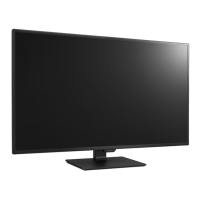
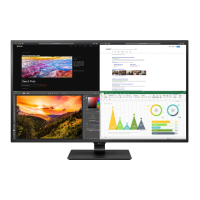
LG 43MU79
39 pages
Print Icon
To Next Page IconTo Next Page
Loading...
www.lg.com
Please read the safety information carefully before using the product.
IPS LED Monitor (LED Monitor) Model List
Owner's Manual
IPS LED MONITOR
(LED MONITOR*)
*LG LED Monitors are LCD Monitors with LED Backlighting.
43UD79
43MU79
43UD79T

Questions and Answers

  • J
    Jennifer PerkinsJul 27, 2025
    What to do if nothing is displayed on my LG Monitor screen?
    • T
      Tonya HarrisJul 27, 2025
      If nothing is displayed on your LG Monitor, ensure the power cord is correctly plugged into the outlet and the power cable is properly connected. Press the power button. Also, verify that the connected input is enabled by navigating to Menu > Input > Input list. If the issue persists and the signal from your PC is out of the monitor's frequency range, refer to the Product Specification section of this manual to set the appropriate frequency. Finally, check the signal cable between the PC and the monitor to make sure it is properly connected.
  • C
    Casey EllisJul 31, 2025
    Why is my LG 43MU79 screen display unstable and shaky?
    • G
      Gina MartinJul 31, 2025
      If your LG Monitor's screen display is unstable and shaky, especially with shadow trails, and the selected resolution is HDMI 1080i 60/50 Hz (interlaced), the screen may be flickering. Change the resolution to 1080P or the recommended resolution to resolve this issue.
  • B
    Brandi RodgersAug 4, 2025
    How to fix no sound from LG 43MU79 Monitor headphone port?
    • S
      Sean JenningsAug 4, 2025
      If there is no sound from the headphone port or speaker on your LG Monitor, first try increasing the volume using the button on the monitor. Also, ensure that the audio output of your PC is set to the monitor. On Microsoft Windows, go to Control Panel > Hardware and Sound > Sound and set the monitor as the default device.
  • J
    John ShafferAug 8, 2025
    What to do if my LG 43MU79 screen retains an image?
    • K
      Keith DuncanAug 8, 2025
      Displaying a still image for a prolonged time may cause damage to the screen of your LG Monitor, resulting in image retention. To extend the monitor's lifetime, use a screensaver.
  • B
    Billy SteeleAug 13, 2025
    Why is the display color abnormal on my LG Monitor?
    • C
      Caitlin MackAug 13, 2025
      If the display color on your LG Monitor is abnormal, first set the color to 24 bit (true color) or higher by going to Control Panel > Display > Settings > Color Quality in Windows. Also, check the signal cable connection; try reconnecting the cable or reinserting the PC's graphics card. Note that pixilated spots (red, green, blue, white, or black) may appear, which is normal for an LCD screen and not related to the monitor's performance.
  • S
    Steven HumphreyAug 17, 2025
    How to fix 'Unrecognized monitor' message on LG 43MU79?
    • D
      Douglas MoralesAug 17, 2025
      If you see an 'Unrecognized monitor, Plug&Play (VESA DDC) monitor found' message on your LG Monitor, install the display driver from the CD or diskette that came with your display. You can also download the driver from the LG website. Additionally, ensure that your video card supports the Plug&Play function.
  • S
    Sara SnyderAug 21, 2025
    How to turn off OSD lock on LG 43MU79 Monitor?
    • N
      nbishopAug 21, 2025
      If the OSD lock message is displayed on your LG Monitor, go to Menu > General and set OSD Lock to Off. This should remove the OSD lock.

Summary

ASSEMBLING AND PREPARING

Installing the Monitor

Guides on how to assemble and install the monitor stand for specific models.

Assembling the stand base

Guides on how to assemble the monitor stand base for specific models.

Installing onto a table

Steps for placing and connecting the monitor on a table.

USING THE MONITOR

PC Connection Methods

Guides on connecting the monitor to a PC via DisplayPort and HDMI.

USER SETTINGS

Accessing and Navigating Menus

Explains how to activate and use the monitor's main menu and its features.

Menu Settings Categories

Overview of main settings categories: Quick Settings, Input, Picture, and General.

Picture Adjustments

Detailed settings for brightness, contrast, sharpness, and color.

Color Adjustments

Advanced color adjustments including Gamma, Hue, and Saturation.

TROUBLESHOOTING

Display and Signal Troubleshooting

Solutions for when the monitor screen is blank or shows no signal.

SPECIFICATIONS

General Monitor Specifications

Covers screen type, resolution, signal, connectors, power, and dimensions.

LG 43MU79 Specifications

General IconGeneral
DDC/CIYes
Color gamut72 %
Screen shapeFlat
Response time8 ms
Display diagonal43 \
Display technologyLED
Native aspect ratio16:9
Vertical scan range56 - 61 Hz
Contrast ratio (typical)1000:1
Display number of colors-
Display brightness (typical)350 cd/m²
Supported graphics resolutions3840 x 2160
Tilt angle range-5 - 10 °
Number of OSD languages17
Panel mounting interface200 x 200 mm
AC input voltage100 - 240 V
AC input frequency50 - 60 Hz
Power consumption (off)0.3 W
Power consumption (standby)0.5 W
Power consumption (typical)70 W
USB hub version3.2 Gen 1 (3.1 Gen 1)
HDMI ports quantity4
USB upstream port typeUSB Type-C
RMS rated power20 W
Number of speakers2
Sustainability certificatesEPEAT Gold
CertificationCB, FCC-B, CE, ROHS, REACH,
Product colorBlack
Weight and Dimensions IconWeight and Dimensions
Width (without stand)- mm
Weight (without stand)- g

Related product manuals