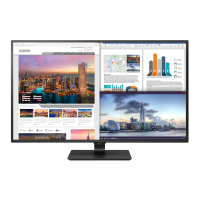
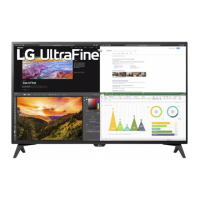
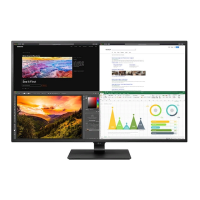
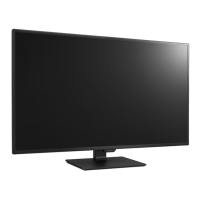
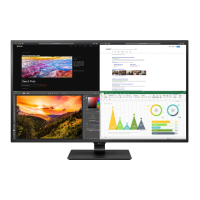
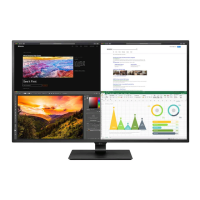
This document describes the LG SMART Display, model 43SQ700S, an owner's manual providing essential information for operating and maintaining the device. It covers safety precautions, installation instructions, connection guides, and troubleshooting tips.
Function Description
The LG SMART Display is a monitor designed for various uses, including video conferencing, PC display, and general smart display functionalities. It supports external device connections, including cameras, PCs, and other multimedia devices, offering a versatile user experience. The display features a user-friendly interface accessible via a remote control, allowing for easy navigation through menus, input selection, and volume adjustments. It is designed to integrate into a smart home or office environment, providing a central hub for visual and audio content.
Usage Features
The display offers several features to enhance usability and performance:
- Installation Flexibility: The monitor can be placed on a table, requiring at least 100 mm (3.9 inches) of space from the wall for proper ventilation. It is crucial to ensure the surface is flat and stable to prevent accidental drops.
- Angle Adjustment: The screen's angle can be adjusted from -5° to 10° for comfortable viewing. Users should avoid holding the lower part of the monitor's frame or pressing the screen area when adjusting the angle to prevent injury or damage.
- Kensington Lock Support: For security, the monitor can be secured to a table using a Kensington security system cable, which is an optional accessory.
- Webcam Connectivity: The display supports an optional webcam, which can be connected to the upper USB-C port for video conferencing. To enable this feature, users must connect their PC to the lower USB-C port and select the camera device through the monitor's settings.
- HDMI Connection: The monitor supports HDMI connections for high-quality video and audio from external devices like PCs, DVD players, and HD receivers. It is recommended to use certified High Speed HDMI®/™ cables (shorter than 3 m or 9.84 feet) for optimal performance and to avoid display or connection errors. The monitor supports various HDMI audio formats, including Dolby Digital and PCM.
- USB-C Connection: The USB-C port transmits digital video and audio signals from a PC to the monitor. It supports PD (Power Delivery) and DP Alternate Mode (DP over USB-C). Users should use a certified USB-C cable (1.5 m or less) for proper functionality. Note that USB-C does not support fast charging, and gender converters for fast charging are not supported.
- USB Hub Functionality: The USB port on the product acts as a USB hub, allowing connection of peripheral devices like keyboards, mice, or USB storage devices. For USB Downstream port functionality, the monitor's Upstream port must be connected to a Host PC using a USB C-C or USB C-A cable.
- Remote Control: The display comes with a remote control for convenient operation. It features buttons for power, input selection, volume control, mute, channel navigation, back, home, settings, direction, and quick access to streaming services, home dashboard, user guide, and favorite channels.
- Menu Navigation: The menu system allows users to adjust various settings, including input settings for HDMI/USB-C Deep Color, which can affect picture clarity.
- Smart Display Features: The display supports smart functionalities, including access to a Home Dashboard and app lists, enhancing its utility beyond a standard monitor.
Maintenance Features
Proper maintenance is crucial for the longevity and optimal performance of the LG SMART Display:
- General Precautions: Users should read the manual thoroughly before operation and retain it for future reference. The manual, including installation, usage, troubleshooting, specifications, and license information, can also be downloaded from the LG website.
- Power Management: Always unplug the power cord before moving, installing, or cleaning the monitor to prevent electric shock. Ensure the power cord is fully inserted into the AC adapter and use only LG Electronics-approved power cords and AC adapters. Avoid bending or damaging the power cord, and do not place heavy objects on it. If the product will not be used for a long time, unplug the power cable to prevent dust accumulation and insulation deterioration.
- Cleaning: When cleaning the product, unplug the power cord and gently scrub with a soft cloth. Do not use wet cloths, spray water, or other liquids directly onto the product. Avoid chemicals like benzene, paint thinners, or alcohol. For the front frame, spray water onto a soft cloth 2 to 4 times and wipe in one direction.
- Environmental Considerations: Keep the product away from heat sources, open flames, water, high temperatures, and humidity. Do not store flammable substances near the product. Install the product in a neat and dry place, away from direct sunlight, and ensure proper ventilation (at least 10 cm or 3.9 inches from the wall) to prevent overheating.
- Handling and Moving: When moving or lifting the monitor, place it in its original box or packing material. Disconnect all cables. Hold the bottom and side of the monitor frame firmly, with the screen facing away from you. Avoid shocking or excessively vibrating the monitor. Do not turn it on its side or tilt it sideways. If necessary, disassemble the head and stand separately. Do not apply excessive pressure to the frame chassis or touch the screen, as this can cause damage.
- Screen Care: To prevent persistent image retention or stains, avoid displaying still images for prolonged periods. Use a screen saver and power off the product when not in use. Do not press on the panel with hands or sharp objects. Pixelated spots (red, green, blue, white, or black) on the screen are normal for LCDs and do not indicate a defect.
- Battery Replacement: When replacing the remote control battery (CR2025/3V), ensure the + side is aligned with the label in the battery compartment. Do not expose batteries to excessive heat, direct sunlight, or fire.
- Troubleshooting: If issues arise, such as no display, unstable screen, or image retention, consult the troubleshooting section of the manual. Ensure the power cord is connected, signal cables are secure, and the appropriate resolution is selected. If the "Unrecognized monitor, Plug and Play" message appears, install the display driver from the LG website. For 4K/5K resolution issues, check cable connections, resolution settings, and ensure the external device supports 4K/5K, and the [HDMI/USB-C Deep Color] function is enabled.

 Need help?
 General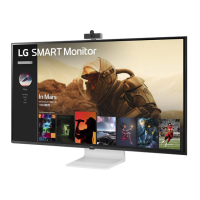

 To Next Page