EasyManua.ls Logo

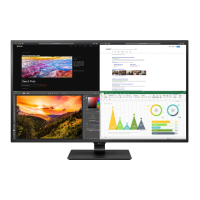
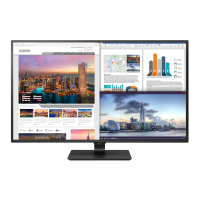
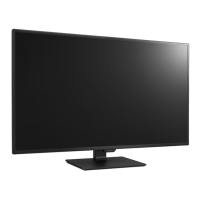
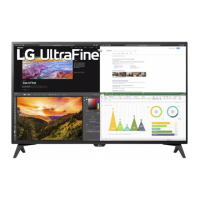
LG 43UN700 - User Manual

LG 43UN700
38 pages
Print Icon
To Next Page IconTo Next Page
Loading...
www.lg.com
Please read the safety information carefully before using the product.
IPS LED Monitor (LED Monitor) Model List
Owner's Manual
IPS LED MONITOR
(LED MONITOR*)
*LG LED Monitors are LCD Monitors with LED Backlighting.
43UN700
43BN70U
43UN700T

Other manuals for LG 43UN700

Questions and Answers

  • R
    Ryan GarrettJul 27, 2025
    How to fix an LG Monitor when nothing is displayed on the screen?
    • V
      vnguyenJul 27, 2025
      If nothing is displayed on your LG Monitor screen, first, ensure the power cord is correctly plugged into the outlet. Next, check the power cable connection and press the power button. Then, verify that the connected input is enabled in the monitor's settings (Settings > Input > Input list). Also, check the cable and reconnect it. If the problem persists, the signals from your PC might be out of the monitor's frequency range; refer to the Product Specification section of the manual to set the appropriate frequency.
  • S
    Shelley ConleyJul 31, 2025
    How to troubleshoot no sound from the headphone port or speaker on an LG 43UN700 Monitor?
    • D
      Donald SmithJul 31, 2025
      If you are experiencing no sound from the headphone port or speaker on your LG Monitor, first, try increasing the volume using the button on the monitor. If that doesn't work, set the audio output of your PC to the monitor you are using by going to Control Panel > Hardware and Sound > Sound on Microsoft Windows, and then set the monitor as the default device.
  • R
    Randy LopezAug 5, 2025
    Why is the display color abnormal on my LG Monitor and how can I fix it?
    • M
      Mr. Jonathan SmithAug 5, 2025
      If the display color on your LG Monitor appears abnormal, first, set the color to 24 bit (true color) or higher via Control Panel > Display > Settings > Color Quality in Windows. Also, check the signal cable connection; reconnect the cable or reinsert the PC's graphics card. Note that pixilated spots (red, green, blue, white, or black) may appear, which is normal for an LCD screen and not a defect.
  • M
    mccallchristopherAug 9, 2025
    What to do if my LG 43UN700 screen display is unstable and shaky?
    • K
      katherine80Aug 9, 2025
      If your LG Monitor displays an unstable and shaky screen, or images leave shadow trails, and the selected resolution is HDMI 1080i 60/50 Hz (interlaced), the screen may be flickering. Try changing the resolution to 1080P or the recommended resolution.
  • S
    stephaniehopkinsAug 14, 2025
    Why does the screen of my LG 43UN700 retain an image, and what can I do?
    • T
      Thomas CantuAug 14, 2025
      Displaying a still image for a prolonged time may cause damage to the screen of your LG Monitor, resulting in the retention of the image. To extend the lifetime of the monitor, use a screensaver.
  • C
    campbellmichaelAug 18, 2025
    Why am I seeing an "Unrecognized monitor, Plug&Play (VESA DDC) monitor found" message on my LG 43UN700 Monitor?
    • A
      Amy SanchezAug 18, 2025
      If you are getting an "Unrecognized monitor, Plug&Play (VESA DDC) monitor found" message on your LG Monitor, ensure you install the display driver from the LG website: http://www.lg.com. Also, verify that your video card supports the Plug&Play function.
  • R
    Robert WeberAug 22, 2025
    How to turn off the OSD lock message on an LG 43UN700 Monitor?
    • E
      erika53Aug 22, 2025
      If the OSD lock message is being displayed on your LG Monitor, navigate to Settings > General and set OSD Lock to Off.

Summary

ASSEMBLING AND PREPARING

Supported Drivers and Software

Lists drivers and software available for download from the LG website.

Component and Button Description

Details the physical components and buttons of the monitor.

Moving and Lifting the Monitor

Provides instructions for safely moving and lifting the monitor.

Installing onto a table

Explains how to place the monitor on a table with ventilation guidelines.

REMOTE CONTROL

Remote Control Operation

Explains how to use the remote control and its buttons for monitor functions.

USING THE MONITOR

Connecting to a PC

Describes how to connect the monitor to a PC via HDMI, DisplayPort, and USB-C.

Connecting to AV Devices

Instructions for connecting audio/video devices using HDMI.

Connecting Peripherals

Information on connecting USB peripherals like keyboards and mice.

USER SETTINGS

Activating the Main Menu

Step-by-step guide to access and navigate the monitor's main menu.

Menu Settings Overview

Details on navigating and configuring various menu settings like Quick Settings and Input.

Picture and Color Adjustments

Comprehensive settings for adjusting picture quality, game modes, and colors.

General Settings

Configuration options for language, sound, energy saving, and OSD.

TROUBLESHOOTING

No Display or Signal Issues

Solutions for common problems like no image or "No Signal" messages.

Screen Image and Stability Problems

Addresses image retention, flickering, and screen stability issues.

Display Color and Connectivity Issues

Troubleshooting steps for discolored display, unrecognized monitors, and no sound.

SPECIFICATIONS

LCD Screen and Resolution Details

Technical specifications for the LCD screen type and supported resolutions.

Power and Environmental Specifications

Information on power requirements, operating/storing conditions, and dimensions.

Display Timing and Support Modes

Details on HDMI timing and supported resolutions/frequencies for HDMI and DisplayPort.

EXTERNAL CONTROL DEVICE SETUP

Communication Parameters and Transmission

Technical parameters and protocol for controlling the monitor externally.

Command Reference List

A comprehensive list of commands for external control and their data.

BEEP GUIDE

Menu Navigation Using Beep Codes

Guides on navigating various menus and settings using beep codes.

Picture and Color Settings Navigation

Specific guidance for navigating picture and color adjustment menus via beep codes.

General and Language Settings Navigation

Guidance for navigating general, language, and sound settings via beep codes.

LG 43UN700 Specifications

General IconGeneral
Screen Size43 inches
Resolution3840 x 2160 (4K UHD)
Panel TypeIPS
Aspect Ratio16:9
Refresh Rate60 Hz
Contrast Ratio1000:1
Viewing Angle178° (H) / 178° (V)
Speakers10W x 2
HDR SupportHDR10
VESA Mount200 x 200 mm
Color GamutsRGB 99% (CIE1931)
Response Time8 ms
PortsHDMI x2, DisplayPort, USB-C, USB 3.0 x2, Headphone Out
Weight15.5 kg (with stand)

Related product manuals