KEY CHANGER
You can adjust the key to 9 steps (4 steps higher, 4
steps lower and the original key).
y
To sharp the key one by one, press the KEY
CHANGER( ) on the remote control repeatedly
during playback.
y
To atten the key one by one, press the KEY
CHANGER( ) on the remote control repeatedly
during playback.
y
This function is available CD, USB or BT
(Bluetooth) Function.
y
If a microphone is not connected, “NOT
SUPPORT” appears in the display window.
y
To initialize it, change the Function, disconnect
the microphone or change the music.
y
This function may not be initialized depending
on the status of connected devices.
,
Note
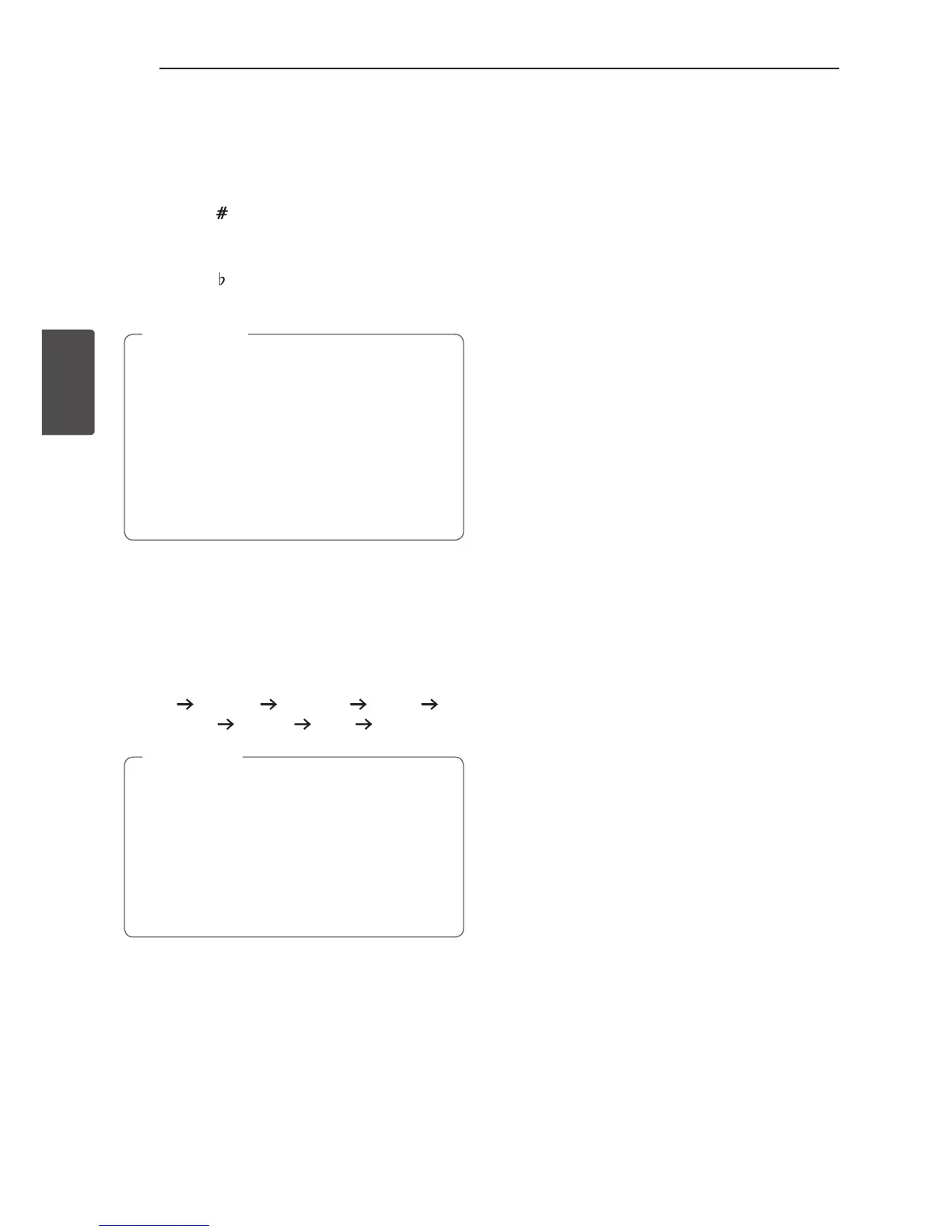
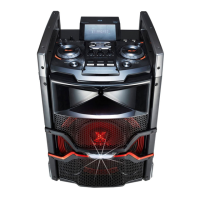
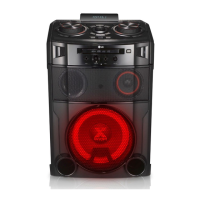
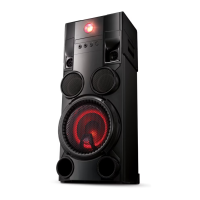
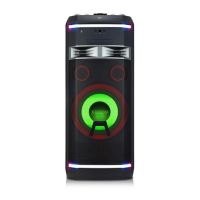
LIGHTING
The function is to create a Club like atmosphere by
operating speaker lighting.
1. Press LIGHTING / X-BOOM PLUS on the unit.
The mode changes each time you press it :
OFF SPARKLE VOLCANO POLICE
THUNDER PSYCHE CAOS OFF
y
Lighting function is available in all functions.
y
Lighting mode retains its previous mode
when you rst press LIGHTING / X-BOOM
PLUS, press again to change modes.
y
Operation may be different depending on the
played music, connected device or setting
status.
,
Note
Setting the Clock
1. Turn the unit on.
2. Press and hold CLOCK.
3. Select time mode by pressing
C/V
on the
remote control.
- AM 12:00 (for an AM and PM display) or 0:00
(for a 24 hour display)
4. Press SET to confirm your selection.
5. Select the hours by pressing
C/V
on the
remote control.
6. Press SET.
7. Select the minutes by pressing
C/V
on
the remote control.
8. Press SET.
Setting the Clock through
“Music Flow Bluetooth” App
Install “Music Flow Bluetooth” app on your Android
device. (Refer to page 20)
Your unit’s clock will be automatically synchronized
with your device by activating Bluetooth connection
through “Music Flow Bluetooth” app.


 To Next Page