EasyManua.ls Logo

LG SH72TZ-S - User Manual

LG SH72TZ-S
32 pages
Print Icon
To Next Page IconTo Next Page
Loading...
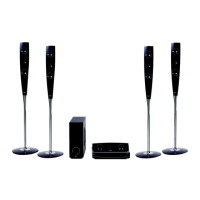
DVD KARAOKE RECEIVER
OWNER’S MANUAL
MODEL: XH-TK762TZ
XH-TK762TZ
SH72TZ-S
SH72TZ-C
SH72TZ-W
Before connecting, operating or adjusting this product, please read
this instruction booklet carefully and completely.
The working life of this product is 7 years since the date of
purchase.
HT762TZ_XK_WRUSLLK_ENG_1154
R
Downloaded From TheatreSystem-Manual.com Manuals

Other manuals for LG SH72TZ-S

Questions and Answers

  • K
    Kelly AlvarezSep 8, 2025
    How to eliminate loud hum or noise from LG SH72TZ-S Receiver?
    • J
      Joseph VargasSep 8, 2025
      To address loud humming or noise from your LG Receiver: * Clean the disc, as it may be dirty. * Ensure the speakers and components are securely connected. * Move the TV away from the audio components, as the DVD/CD Receiver might be located too close to the TV.
  • W
    William TaylorAug 25, 2025
    What to do if DVD/CD will not play on LG Home Theater System?
    • M
      Matthew BoothAug 25, 2025
      If your LG Home Theater System isn't playing DVDs or CDs, first, make sure a disc is actually inserted and that it's a playable disc (check the disc type, colour system, and regional code). Ensure the disc is placed correctly with the label side up. If a menu is open, press SETUP to close it. Also, check if a parental lock is enabled, and if so, enter your password or adjust the rating level.
  • C
    Carrie CameronAug 25, 2025
    What to do if there is no sound from my LG SH72TZ-S Receiver?
    • C
      Charles CoxAug 26, 2025
      If there is no sound or very low sound from your LG Receiver, consider the following: * Ensure that the equipment connected with the audio cable is set to the correct input mode to receive the audio signal from the DVD/CD Receiver. * Check that the audio cables are securely connected. * Make sure that the connected equipment is turned on. * If the audio connecting cable is damaged, replace it.
  • J
    Jonathan CampbellSep 18, 2025
    Why is my LG Karaoke System remote not working?
    • A
      Angela NealSep 18, 2025
      If the remote control for your LG Karaoke System isn't working correctly, try these steps: 1. Point the remote control directly at the remote sensor on the DVD/CD Receiver. 2. Make sure you are within 23 ft (7 m) of the DVD/CD Receiver. 3. Remove any obstacles between the remote control and the DVD/CD Receiver. 4. Replace the batteries in the remote control with new ones.
  • P
    Paige ToddSep 9, 2025
    Why is the playback picture quality poor on my LG SH72TZ-S Receiver?
    • S
      Scott SanchezSep 9, 2025
      If the playback picture quality is poor on your LG Receiver, consider the following: * Clean the disc if it is dirty. * Insert a disc, ensuring that the DVD or audio CD indicator in the DVD display is lit. * Ensure you are using a playable disc, checking the disc type, color system, and regional code. * Place the disc with the playback side down. * Make sure the disc is placed correctly within the guide on the disc tray. * Press the SETUP button to turn off the menu screen. * Cancel the Rating function or change the rating level if it is set.
  • A
    Anthony JoyceSep 13, 2025
    How to brighten the front panel display on my LG SH72TZ-S?
    • M
      Maria JohnsonSep 13, 2025
      Press DIMMER on the remote control of your LG Receiver.
  • L
    Luis WalkerSep 3, 2025
    Why can't I tune into radio stations on my LG SH72TZ-S?
    • L
      Laura McdonaldSep 3, 2025
      If you are unable to tune into radio stations on your LG Receiver: * Ensure the antenna is securely connected. * Try tuning in the station manually if the signal strength is weak. * Preset the stations.
  • D
    Dr. Vincent GallagherSep 4, 2025
    How to brighten the display on my LG Receiver?
    • V
      Vanessa HenrySep 4, 2025
      If the front panel display on your LG Receiver is too dim, press DIMMER on the remote control.
  • A
    Amy EwingSep 23, 2025
    How to fix a blank front panel display on my LG Karaoke System?
    • R
      Rebecca SanchezSep 23, 2025
      To fix the issue of nothing being displayed on the front panel of your LG Karaoke System, press the DIMMER button on the remote control.
  • J
    Jon EvansAug 29, 2025
    What to do if a DVD/CD will not play on LG Home Theater System?
    • A
      Angela MurphyAug 29, 2025
      If your LG Home Theater System DVD or CD won't play, first insert a disc if none is currently inserted. Ensure that the disc is playable by checking the disc type, color system, and regional code. Make sure the disc is inserted correctly with the label side facing upwards. If a menu is open on the screen, press SETUP to close it. Lastly, check if a parental lock is enabled, and if so, enter the password or adjust the rating level.

Summary

Safety Precautions

Electrical Safety and Fire Prevention

Covers electrical safety, fire prevention, and safe installation to avoid hazards like shock and overheating.

Laser Product Safety

Safety guidelines for Class 1 Laser Products, advising against direct laser beam exposure.

Power Cord Handling

Essential safety advice on handling, inspecting, and protecting the power cord from damage.

Product Disposal

Guidance on proper and environmentally sound disposal of the product at its end of life.

Introduction to the DVD Receiver

Before Using the Unit

Initial advice on reading the manual and retaining it for future reference.

Understanding Symbols and Notes

Explanation of symbols used in the manual and notes for operating features.

Playable Discs and Regional Codes

Information on disc compatibility, playable formats, and regional code restrictions.

SIMPLINK Functionality

Overview of SIMPLINK for controlling LG TVs and other devices via HDMI connection.

Front and Rear Panel Overview

Remote Control Operations

Remote Control Layout

Identification and function of each button on the remote control for operating the receiver.

Remote Control Usage Range

Details on the recommended operating distance and angle for effective remote control use.

Remote Control Battery Installation

Instructions for correctly inserting batteries into the remote control unit.

Installation and Setup - TV Connection

Video Connection Options

Connecting the receiver to a TV using Video, Component Video, or SCART connections.

Connecting Optional Equipment

Audio and USB Connections

Connecting external audio devices via AUX IN and OPTICAL IN, and USB devices.

Antenna Connection

Instructions for connecting AM Loop and FM Wire antennas for optimal radio reception.

Speaker Setup and Connection

Assembling Speaker Stands

Steps for assembling speaker stands before connecting the speakers.

Speaker System Wiring

Guide to connecting the speaker system, including polarity and impedance considerations.

HDMI Connection Guide

Understanding HDMI Technology

Explanation of HDMI interface benefits for high-definition digital audio and video transmission.

Resolution Settings for HDMI

How to change video resolution settings for HDMI and component video outputs.

Disc Information and General Operation

On-Screen Disc Information

Displaying playback details like title, chapter, time, audio, and sound mode on the TV screen.

Initial Setup Menu Navigation

Accessing and navigating the setup menu for adjustments like language and display settings.

Display Settings

TV Aspect Ratio

Selecting the appropriate TV aspect ratio (4:3 or 16:9) for optimal picture display.

Display Mode Options

Choosing display modes like Letterbox or Panscan when the TV aspect is set to 4:3.

Audio Settings and Speaker Configuration

Audio Output Options

Configuring Dynamic Range Control (DRC), Vocal settings, and HD AV Sync for audio playback.

5.1 Speaker Setup

Adjusting speaker size, volume, distance, and testing signals for 5.1 surround sound.

Parental Control and Other Settings

Lock and Area Code Settings

Setting parental controls, passwords, and area codes for DVD playback restrictions.

Other Features

Configuring PBC, DivX registration, and Semi Karaoke functions.

General Operation and Playback Controls

Basic Playback Functions

Using buttons like OPEN/CLOSE, PAUSE, SKIP, SCAN, REPEAT, A-B, ZOOM for disc playback.

Navigation and Track Selection

Selecting titles, menus, subtitles, audio tracks, and using slow-motion playback.

Additional Playback Features

Speed Playback and Time Search

Playing discs at 1.5x speed and searching for specific playback times.

Marker Search and Screen Saver

Using markers to recall scenes and managing the screen saver and last scene memory.

System Select and TV Control

Setting TV system (PAL/NTSC) and controlling LG TV functions with the receiver remote.

Playing Audio CDs and MP3;WMA Files

File Compatibility and ID3 Tags

Details on compatible file formats, disc types, and displaying track information.

Programmed Playback Management

Instructions for storing, playing, and managing programmed track lists.

Viewing JPEG Files

Navigating JPEG Folders and Files

Browsing folders and selecting JPEG files for viewing on the TV screen.

Picture Display and Rotation

Using slide show, pausing pictures, moving between files, and rotating images.

Playing DivX Movie Files

DivX File Navigation and Subtitles

Selecting DivX movie files and managing subtitle display for playback.

Radio Tuning and Reception

Presetting Radio Stations

Storing up to 50 FM/AM radio stations for quick access.

Listening to Radio Broadcasts

Tuning preset or non-preset stations and improving reception quality.

DVD Audio Disc Features

Navigating DVD Audio Content

Accessing different groups and pages of content on DVD Audio discs.

Advanced Operation Settings

Sleep Timer and Display Brightness

Setting the automatic sleep timer and adjusting the front panel display brightness (dimmer).

Sound and Input Source Control

Managing sound features like Mute, XTS/XTS Pro, Virtual Sound, Sound Mode, and selecting input sources.

Karaoke Operation Basics

Basic Karaoke Playback Steps

Steps for basic karaoke playback, including connecting microphones and selecting songs by number.

Advanced Karaoke Adjustments

Adjusting microphone volume, echo, and key control for an enhanced karaoke experience.

Karaoke Song Management

Song Reservation and Cancellation

How to reserve, cancel, or change reserved songs for playback.

Vocal and Tempo Control

Using male/female functions, tempo change, and shadow function for karaoke.

Karaoke Menu Playback Guide

Menu Preparation and Feature Options

Accessing the karaoke menu and configuring options like score, fanfare, lyric, and chorus.

Karaoke Music List Navigation

Local, Pop, and Singer Lists

Navigating local, pop song, and singer lists to find and select music for karaoke.

Song Title Selection

Selecting specific song titles from the available lists for karaoke performance.

Karaoke Classical Music Lists

Composer and Classic Song Lists

Navigating composer lists and classic song lists to select music for karaoke.

Karaoke Game and Challenge Modes

Random Song Selection Mode

How to select songs randomly for accompaniment and sing-along.

Challenge Mode Setup

Instructions for playing the song game by teams and setting success scores.

Reference Information

Language Code List

A list of language codes for initial settings such as disc audio, subtitle, and menu.

Area Code Selection

A list of country codes for selecting the appropriate area code for DVD playback.

Troubleshooting Common Issues

Power, Picture, and Playback Problems

Resolving issues related to no power, no picture, or poor playback quality.

Sound and Noise Troubleshooting

Troubleshooting sound problems, hum/noise issues, and playback errors.

Troubleshooting Radio and Remote

Radio Tuning and Signal Issues

Resolving problems with tuning radio stations and poor signal strength.

Remote Control and Display Issues

Troubleshooting remote control malfunctions and dim front panel display.

Product Specifications

LG SH72TZ-S Specifications

General IconGeneral
BrandLG
ModelSH72TZ-S
CategoryReceiver
LanguageEnglish

Related product manuals