45
Android Keyboard
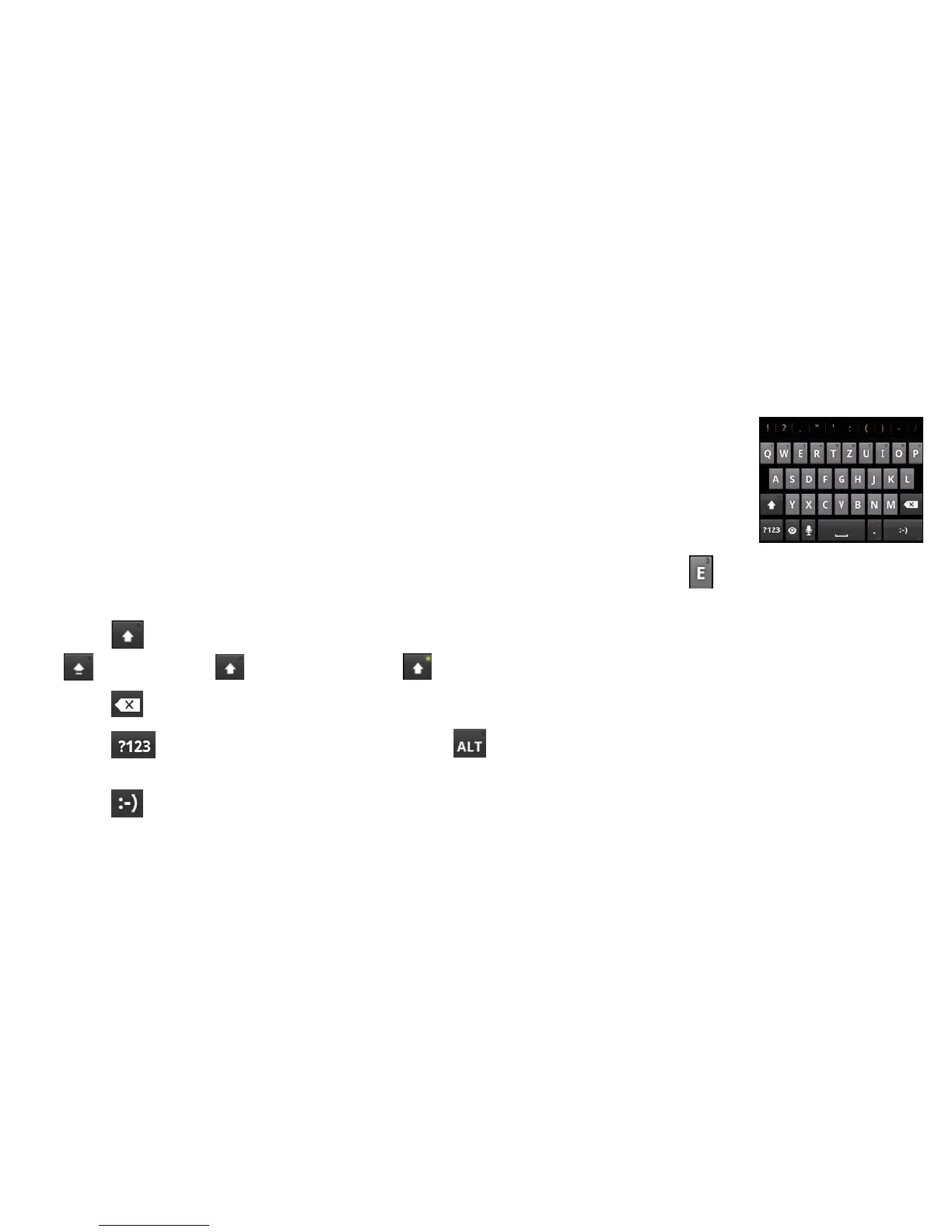
The Android Keyboard provides a layout similar to a desktop computer keyboard. Turn the device sideways
and the keyboard will change from portrait to landscape.
In order to select the keyboard type, hold the input box and select Input method
from the pop-up menu to change the input method.
To use the landscape keyboard, just tick the Auto-rotate screen check box in
Settings > Display. (The landscape keyboard is not supported in all applications.)
• Tap the alphabetic keys to enter letters. Tap and hold some specific keys to enter
associated accented letters or numbers. For example, to enter È, tap and hold and the available
accented letters and number 3 appear. Then slide to choose È.
• Tap to use uppercase or lowercase. This key also changes to indicate the current case you are using:
for lowercase, for uppercase, and when locked in uppercase.
• Tap to delete the text before the cursor.
• Tap to select numbers and symbols. Tap to see more choices. Often used symbols are
displayed on top of the keyboard. Flick left or right to find the digit/symbol you need and tap to enter.
• Tap to enter a smiley face; hold the key and swipe to choose more emoticons.


 To Next Page