1918
Operating Your TV
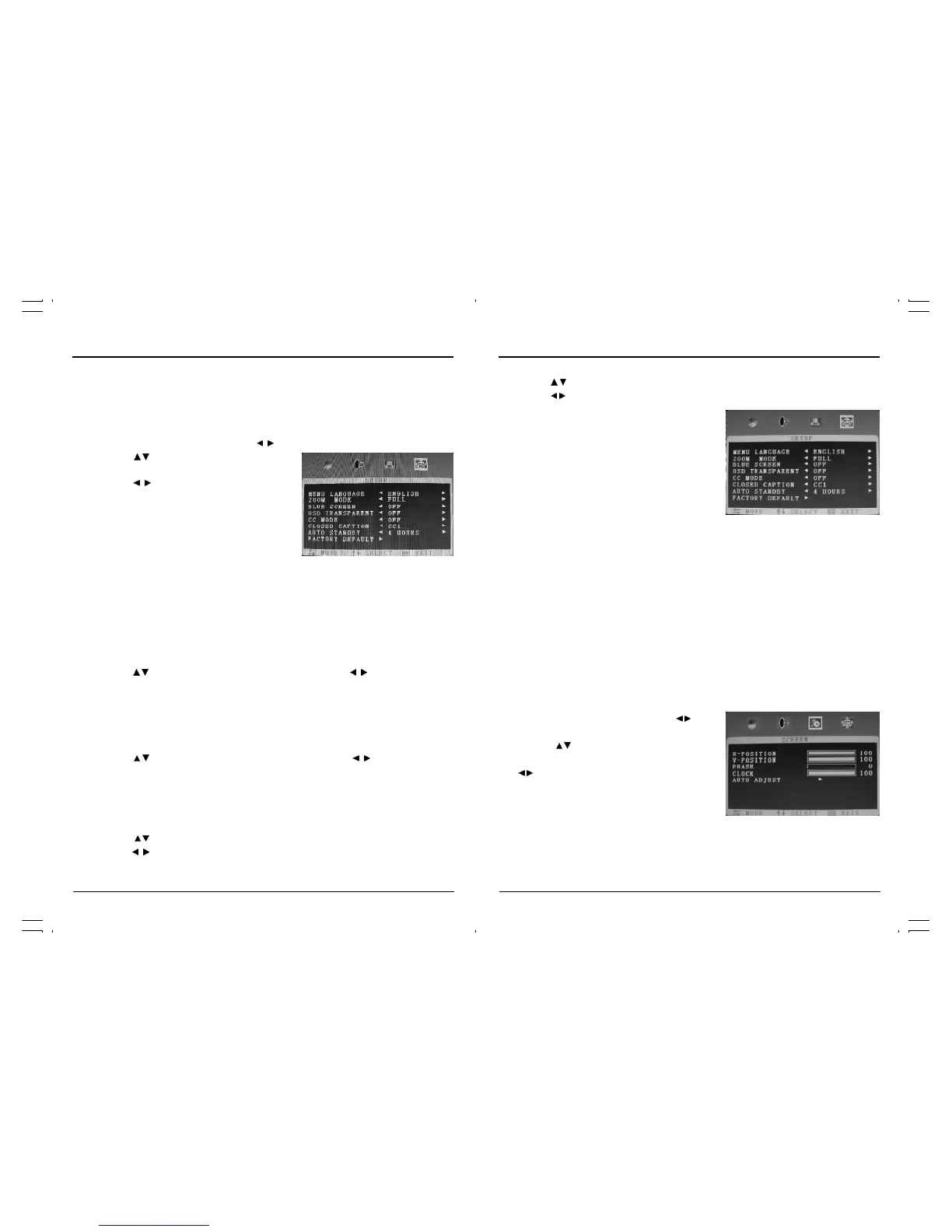
5. Adjusting PC Settings
The input signal format is recommended as 640x480, 800x600, 1024 x 768 @ 60Hz only, and
1024x768 @ 60Hz, If input signal frequency is higher than 60Hz the picture display may be
abnormal.
• Press the “INPUT” button to select PC Model
• Press the “MENU” button and press the “ / ”
button to highlight “SCREEN”.
• Press the “ / ” button to highlight desired item
which you want to adjust, then press the
“ / ” button to change the parameter of
selected item.
• H-Position
• V-Position
• Phase
• Clock
• Auto Config.
To change the aspect ratio of screen
• Press the “ / ” button to select “Zoom Model”.
• Press the “ / ” button to change the screen aspect ratio.
• Press the “MENU” button one or more times to close the menu.
Auto Standby
The TV can be switch off automatically when user
is not press any of control buttons on the remote
handset or unit. The time setting of Auto Standby is
4 hours, 6 hours, 8 hours.
Factory Default
Factory Default will restore the Factory setting.
Be careful when using this function, because it will
erase all the data and parameters that are set earlier
in the receiver. Once user made a factory default,
they will have to re-install their preferences.
This option will bring back all the user given settings
to the default values. All the stored Channels will be
removed from the database. All the current user set-
tings will be restored.
Changing the blue background
• When there is no TV reception, you can avoid the “snow”background on the screen
by selecting “Blue Screen” from the menu.
• Press the " / " button to select “Blue Screen” then press the " / "
button to select the Blue Background “On” or “Off”.
• Press the “MENU” button to exit.
To set closed caption
ATV program might be providing more than one set of captions or one set of text.
• Press the " / " button to select “Closed Caption”.
• Press the " / " button to select the desire caption Channel(CC1, CC2, CC3, CC4,
TEXT1,TEXT 2, TEXT 3, TEXT 4).
4. Additional Features
This section contains descriptions of the more advanced features of your TV.
Changing the Language of the On-screen Menus
You can choose to display the on-screen menus in English, Spanish or French .
To change the on-screen language:
• Press the “MENU” button and press the " / " button to select “SETUP” menu.
• Press the " / " button to select “Menu
Language”.
• Press the " / " button to select the desired
language.
• Press the “MENU” button to exit.
Captioning
Many TV shows contain “Closed Caption”. These captions are hidden words that can be
displayed on your TV screen. There are two types of these words: “caption” usually follow
the action on-screen, providing a written version of the dialogue, narration and sound effects.
“Text” is not usually related to the action on-screen, often providing information such as news
or weather.
CC Mode
• Press the " / " button to highlight “CC Mode”, then press the " / " button to
select “Off”, “On” or “CC on mute”.
Operating Your TV


 To Next Page