2120
DVD player operation,continued
1. GENERAL SETUP PAGE
In STOP mode press the SETUP button and highlight Gen-
eral setup then press the ENTER button to confirm.
Select the desired item by using the direction / , /
button. Always press the ENTER button to confirm the
selection.
TV Display
• Normal/PS
This is selected when the DVD player is connected to a
normal (4:3) TV. Wide-screen images are shown on the
screen but with the sides clipped so the full height of the
screen is filled.
• Normal/LB
This is selected when the player is connected to a normal
TV. Wide-screen images are shown on the screen, but
with a black bar on the top and bottom.
• Wide
This is selected when the player is connected to a wide-
screen TV.
OSD Language
This used to select the OSD language.
- English
- French
- German
- Spanish
- Italian
Screen Saver
Start the screen saver, the screen saver image appears
when the player stops or the image is frozen for a few
minutes. This saver will keep the screen from being
damaged.
• On (Enable the screen saver).
• Off (Disable the screen saver).
- - General Setup Page - -
TV Display LB
OSD Lang ENG
Screen Saver On
TV Mode P-Scan
Go To General Setup Page
- - General Setup Page - -
TV Display LB Normal/PS
OSD Lang ENG Normal/LB
Screen Saver On Wide
TV Mode P-Scan
Set TV Display Mode
- - General Setup Page - -
TV Display LB
OSD Lang ENG
Screen Saver On
Screen Saver
On
Off
TV Mode P-Scan
- - General Setup Page - -
TV Display LB
OSD Lang ENG
Screen Saver On
Set OSD Language
English
French
German
Spanish
Italian
TV Mode P-Scan
Playing Disks
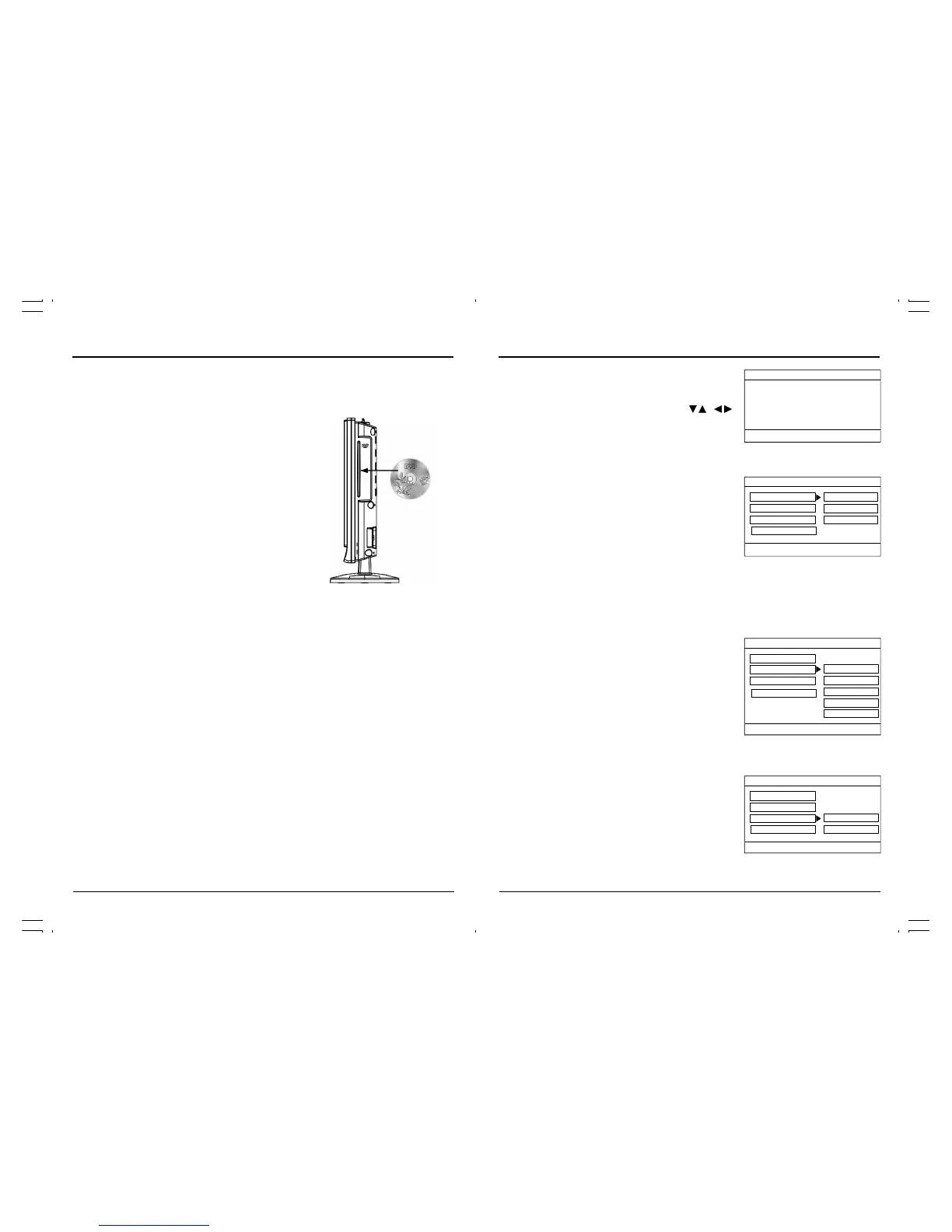
1. Place the Disc in to the disc slot.
The label side should be facing frontward. For a Double-sided DVD Disc, put the disc with
label A/1 up.
2. The Disc will be played automatically.
• If it is a DVD disc, it will show the Menu/Title Page on the screen.
• If it is a CD, it will play the first track directly.
3. Press the “STOP” button if you want to stop the Disc playback You can resume playback
by pressing the “PLAY” button and it will start at the location where you pressed stop
(Resume Play).
4. Press the “STOP” Button twice to completely stop the DVD.
DVD Setup Mode
• Setup Mode provides a menu for the configuration of general setup page, audio setup page,
preference page, exit setup page.
To enter the SETUP Menu press the “SETUP” button on the remote control.
The full setup menu is only available if the DVD is in the stop mode. If a DVD is playing,
and SETUP is selected, certain menu items will be greyed out and unavailable.
The available menu items depend on whether the DVD is in the prestop or play mode.
• Item selection in the SETUP menu is done by using the “NAVIGATION” buttons and the
“ENTER” button.
• To exit the SETUP mode, press the “SETUP” button again or select the EXIT SETUP and press
the “ENTER” button.
Basic Operation
1. Switch the unit out of standby by pressing the “STANDBY” button then press the “SOURCE”
button on the unit or press the “TV/DVD” button on the remote handset to turn DVD mode to
"ON".
2. Place a disk insert to the disc slot.
• Hold the disc without touching either of its surfaces,
position it with the printed title side frontward.
3. Press the “EJECT”button to eject the disc from disc
slot.
Note:
• The disc will load into slot again after 30 seconds
without taking out the disc from the disc slot.
• Suggest on take out the disc after disc is ejected,
otherwise the same disc cannot load into disc slot
by pressing the disc.
DVD Player Operation



 To Next Page