1312
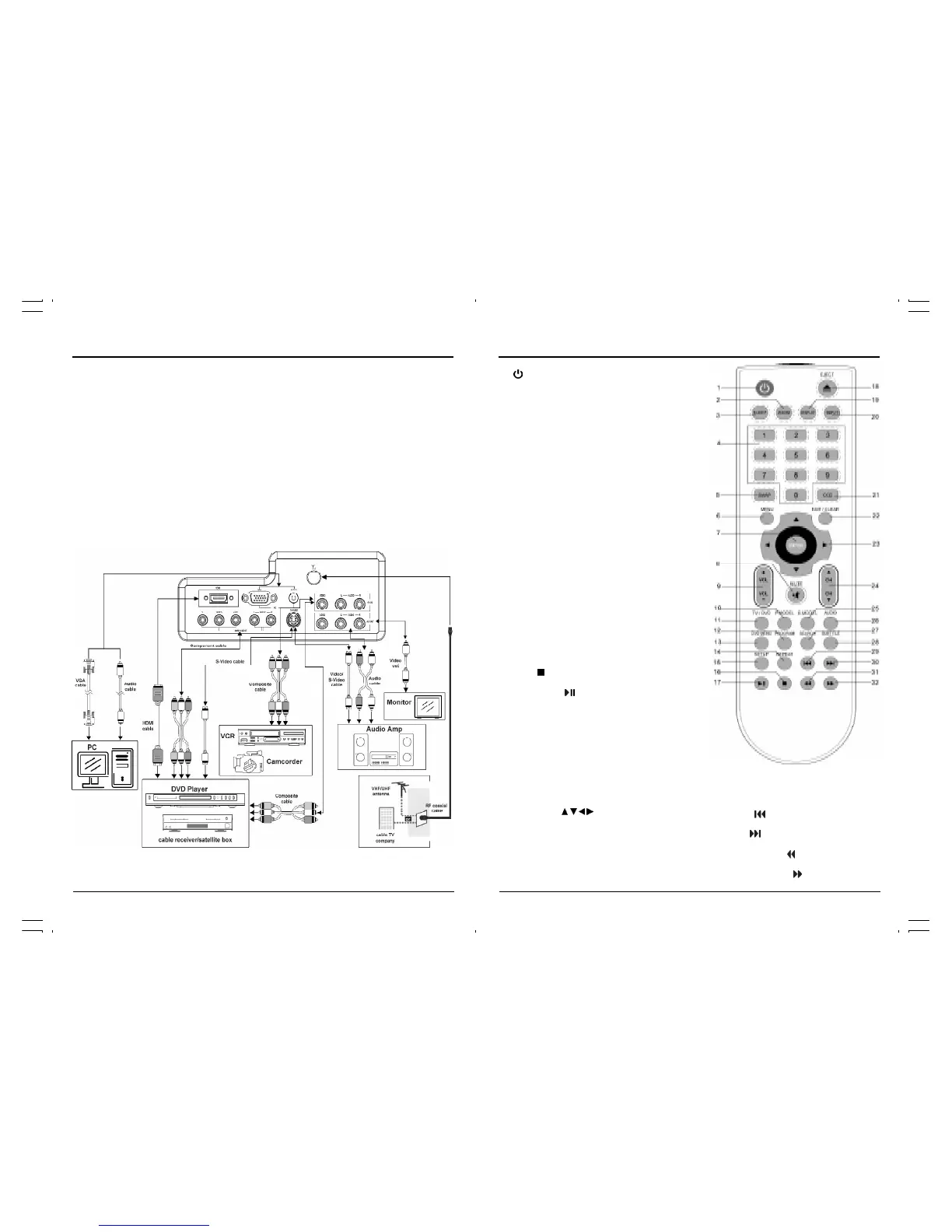
Remote Control
1. button
2. Zoom button
3. Sleep button
4. Numeric buttons
5. Swap button
6. Menu button
7. Enter button
8. Mute button
9. Volume Up/Down button
10. P.Model button
11. TV/DVD button
12. Program button
13. DVD Menu button
14. Repeat button
15. Setup button
16. Stop( ) button
17. Play/Pause( ) button
18. Eject button
19. Display button
20. Input button
21. CCD button
22. Exit/Clear button
23. Navigation( / / / ) button
24. Channel Up/Down button
25. S.Model button
26. Audio button
27. Search button
28. Subtitle button
29. Prev.( ) button
30. Next( ) button
31. Fast Forward( ) button
32. Fast Backward( ) button
You can enjoy picture, sound and a PC monitor by connecting a DVD player, video game system
or computer to the inputs located on the rear of the LCD TV set.
• For the cable, use a commercially available audio/video cable.
• For more information about external device connections, see the operation manuals of your
external devices.
• Make sure that the corresponding cables are connected to each input. Connecting other
cables may result in a malfunction.
• VIDEO and S-VIDEO inputs: If your external device has an S-VIDEO output, S-VIDEO
connection is recommended. S-video provides a finer, more detailed picture. If inputs are
connected, S-VIDEO input takes a priority.
• Component Input (YPbPr): Picture can be displayed only when a 480I or 480P signal is
received.
External Device Connections



 To Next Page