- 26
Change, delete, move, rename, restore stations
➠ Change stations can also be called via the station list
(page 18).
Call TV menu.
34 Select Settings,
6go to the menu line below.
34 Select Stations,
6go to the menu line below.
34 Select Change stations,
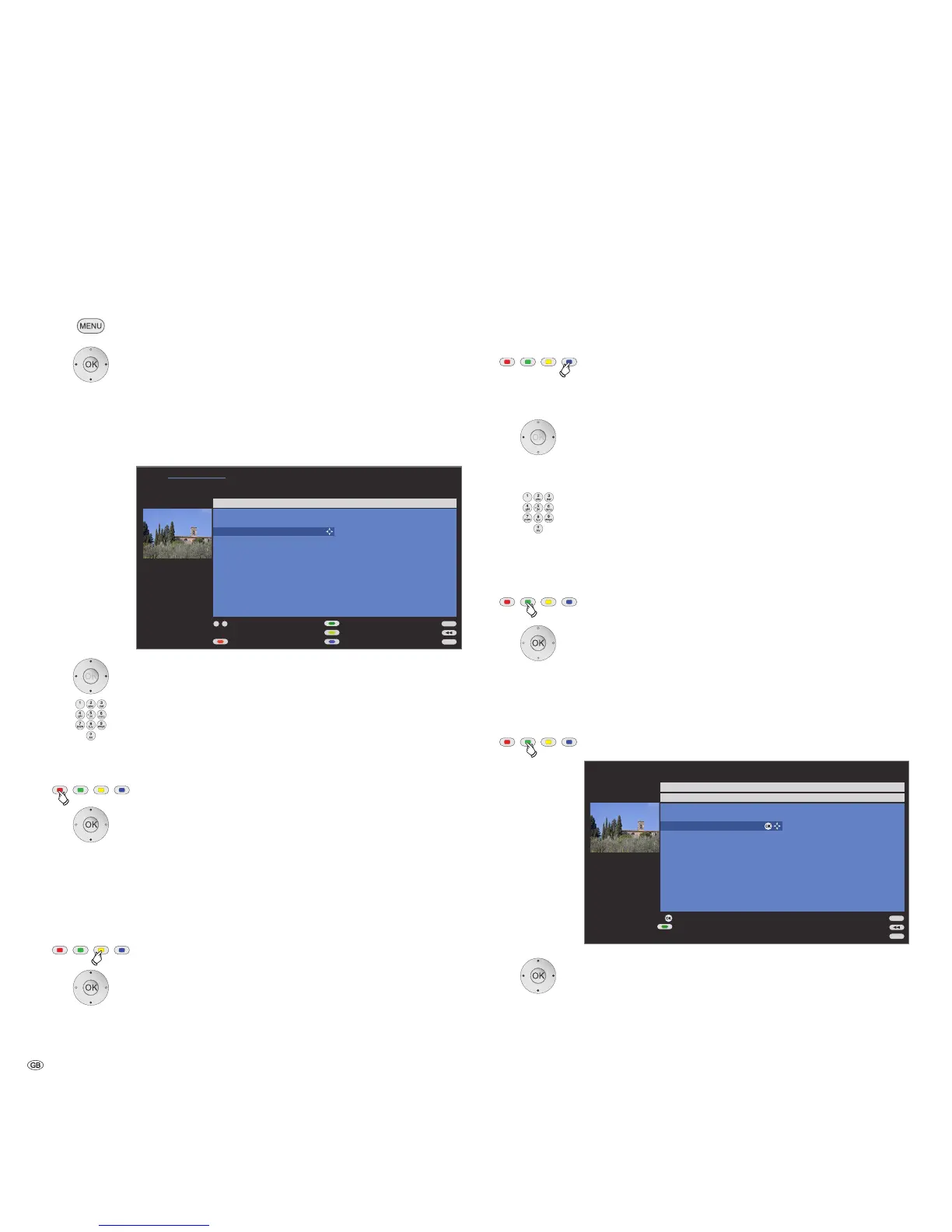
OKcall list of stations.
In this menu you can delete, move, rename or restore
stations.
346or numeric buttons:
Select the appropriate station.
Scroll with P+/P– if necessary.
Delete station
Red button: Starts Delete station.
6 mark several stations if needed,
OK to execute the delete.
Move station / Change order
➠ Not possible for MHEG-5 stations.
➠ Stations can only be resorted within their signal source
block.
Yellow button: Starts Move station.
6 mark several stations if needed,
OK to end marking.
6Selection insert position from which the marked
stations are to be inserted,
OK to execute the move.
Managing stations
Rename station
➠ Not possible for MHEG-5 stations.
➠ DVB stations for which the station name is also broadcast
cannot be renamed. In this case, the Rename function
is hidden.
Blue button: Starts Rename station.
Under the 1st letter of the name you will see a line indi-
cating the current input position.
4Input position one character to the right (also for
blanks).
3Input position one character to the left (deletes the
character).
Enter the letters one after another with the numeric
buttons on the remote control. Like using a mobile phone
keypad, press a numeric button until the desired character
appears. The available letters are printed respectively on
the buttons. Different special characters can be selected
with button 1.
Green button: Switch upper/lower case letters.
OK to save new name.
Restore stations
Stations which have been deleted from the station list can be restored.
Green button: Starts Restore stations.
634Select station,
OK
station is restored.
The restored station is sorted in according to its signal
source at the end of the respective signal block
.


 To Next Page