- 88
english
MHP
MHP (Multimedia Home Platform) is a DVB standard for transmitting and
displaying interactive content on digital television based on the Java™
programming language.
MHP enables radio based services such as information pages (extended
videotext) and games.
➠ MHP is only available for some channels in Italy via DVB-T. The device
location must be set to Italy.
➠ You will need a Loewe MHP stick (USB stick with MHP software) to use
MHP. In the case of TV sets for the Italian market, this will be inserted
in the lower USB port of the TV set at the factory from September
2011 onwards (see page 11 or 13, item
6
).
Before starting the TV set, please check whether the MHP stick is still
correctly inserted. It may have come loose while the TV was being
transported.
➠ The MHP stick can be purchased later as an accessory from your dealer
for sets available on the market (from Chassis SL15x). The device soft-
ware must be updated to package version 7.x to use MHP.
➠ The MHP stick must be inserted directly at a USB port of the TV set.
Operation with a USB hub is not possible.
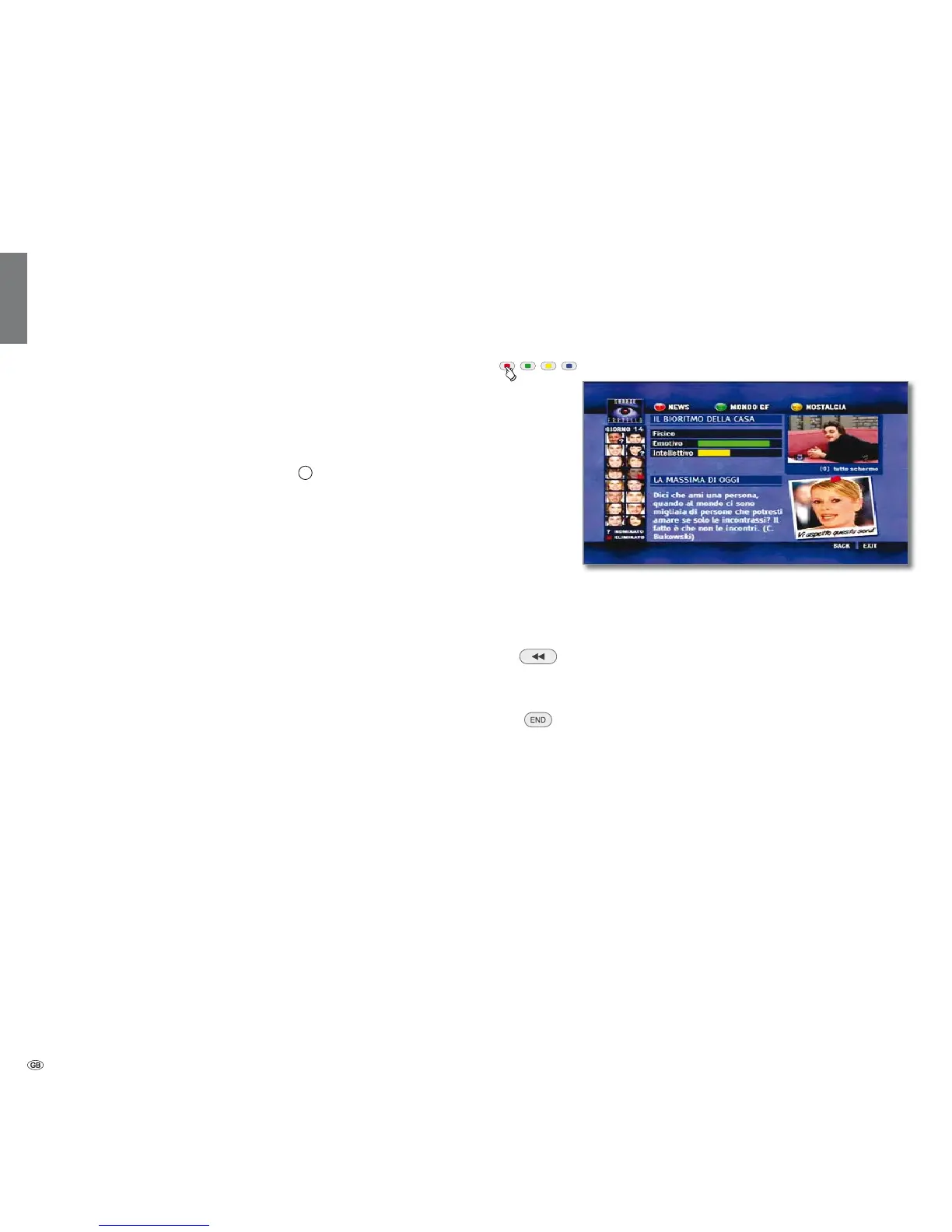
➠ The red coloured button is used for showing the applications with
the interactive data services HbbTV and MHP. To avoid complications
when using MHP, we recommend switching off HbbTV mode (see
HbbTV mode on/off on page 87).
Opening an MHP application
If an MHP application is available for the selected channel after the chan-
nel has been changed, a message will appear on screen to that effect.
➠ Loewe MHP USB stick is plugged in.
➠ MHP is offered by the selected channel.
Red button: Display the MHP application.
The appearance, key assignment and available functions
of the MHP application are dependent on the provider.
Loewe takes no responsibility for the accessibility,
functionality or content of MHP applications.
Go back one step inside the application (BACK).
Hiding an MHP application
END: Hide the MHP application (EXIT).
After hiding an MHP application, it may be the case that
the OK button is not properly enabled by the MHP appli-
cation.
It is not then possible to call up the list of stations/favour-
ites with the OK button.
Change the station with P+/– to restore the original func-
tion of the OK button.
Settings for MHP
You can specify settings for MHP and open applications directly by using
the Applications list button in the MediaPortal (see page 16).
Interactive data services



 To Next Page