EasyManua.ls Logo

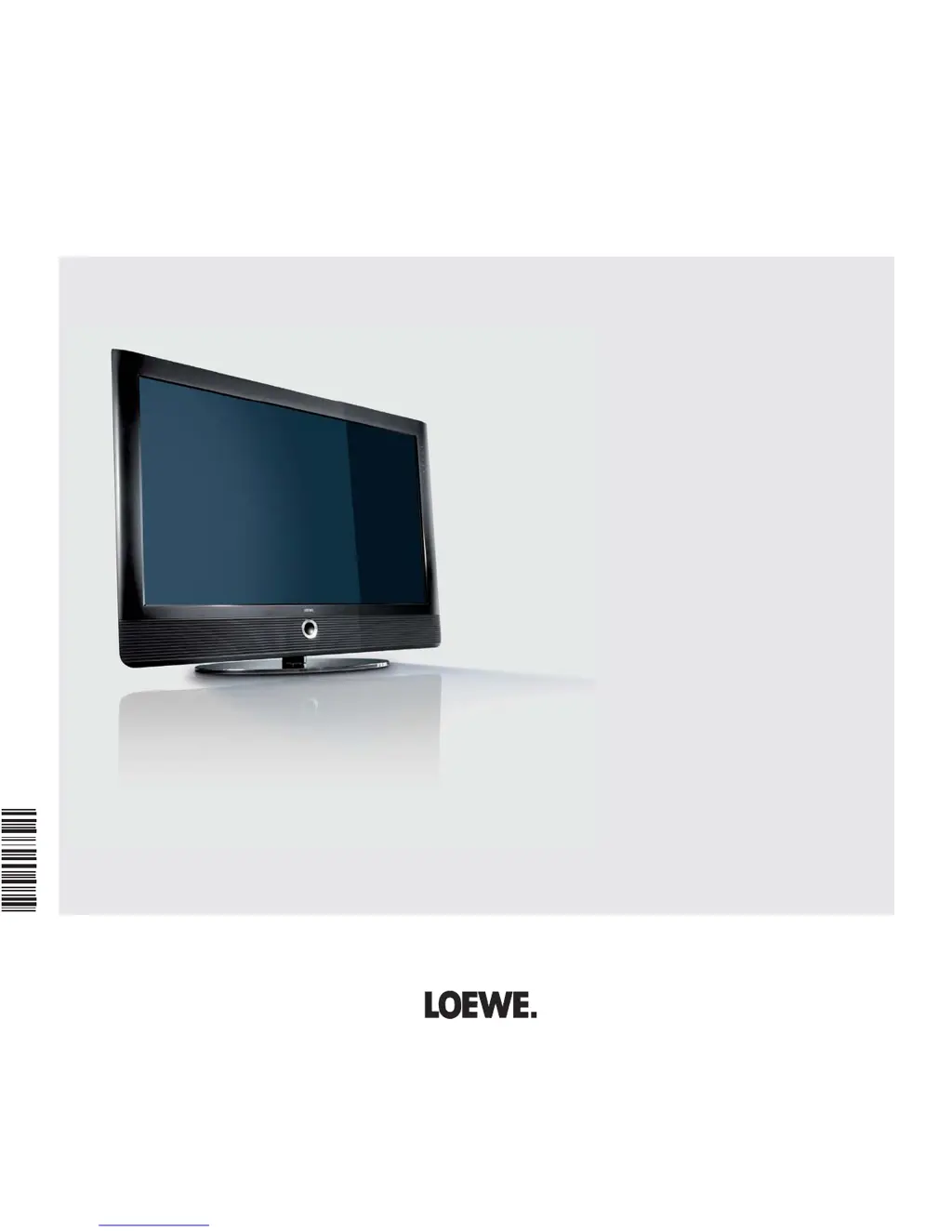
Loewe Xelos 32 SL - User Manual

Loewe Xelos 32 SL
76 pages
Print Icon
To Next Page IconTo Next Page
Loading...
Operating instructions
Xelos 42 SL
Xelos 37 SL
Xelos 32 SL
TV
233–34175.021

Table of Contents

Questions and Answers

  • J
    Jennifer RosalesAug 17, 2025
    Why I'm having general problems connecting external devices via AV input to my Loewe Xelos 32 SL LCD TV?
    • K
      Kenneth JimenezAug 17, 2025
      To resolve issues connecting external devices to your Loewe LCD TV via an AV input, first, check the connection wizard in the TV menu under CONNECTIONS AV to ensure the device is correctly logged in and connected as shown in the connection diagram. If the connection is correct, verify that the AV standard and signal type are correctly set. Incorrect settings, especially with signals that don't comply with standards when set to "Automatic," can cause errors. Refer to your external device's operating manual for the correct standard and signal settings.
  • W
    William LopezAug 20, 2025
    How to fix incorrect character display in Teletext on my Loewe Xelos 32 SL LCD TV?
    • J
      John DominguezAug 20, 2025
      If your Loewe LCD TV displays Teletext with incorrect character sets, it's likely that the wrong character set is selected in the Teletext menu. To fix this, navigate to the Teletext menu and select SETTINGS CHERACTE? SET STANDOUT or the appropriate character set for your region.
  • R
    Rebecca BrownAug 22, 2025
    Why is there no sound via the external digital audio amplifier on my Loewe Xelos 32 SL?
    • J
      jack13Aug 22, 2025
      If you're not getting sound through your external digital audio amplifier with your Loewe LCD TV, there are a couple of things to check. First, ensure that the external digital audio amplifier supports the selected sound format (Dolby Digital, dts, MPEG). If not, set PCM stereo on the DVD player or switch to stereo in the Status display (END) – Language/sound (green button) for DVB stations on the TV. Also, verify that the AUDIO DIGITAL OUT from the TV is connected to a digital input on the amplifier, and that you've selected the correct input on the amplifier.
  • P
    Philip CarpenterAug 26, 2025
    Why are the control functions of the Loewe Recorder and Timer not working on my Loewe LCD TV?
    • J
      Jeffrey WilliamsAug 26, 2025
      If the control functions for your Loewe Recorder and Timer aren't working correctly with your Loewe LCD TV, ensure that the Digital Link function is activated on the recorder (refer to the recorder's operating instructions). Also, check that the EURO-AV cable is properly connected and that the recorder is registered. To register the recorder, see page 44 of the manual.
  • D
    dfosterAug 27, 2025
    Why can't I call the timer even though the picture from my Loewe Xelos 32 SL connected recorder is visible?
    • V
      Victoria JimenezAug 28, 2025
      If the picture from your connected external recorder is visible on your Loewe LCD TV, but the timer cannot be activated, it's likely that the device isn't correctly registered in the connection wizard or is connected differently than shown in the connection diagram. To fix this, go to the connection wizard (TV menu ??????????? ??) and compare the connection diagram with your actual setup. Ensure everything is connected as illustrated.
  • X
    xchavezAug 30, 2025
    What to do if my Loewe LCD TV shows 'no recorder available' error message even when the picture from the connected recorder is visible?
    • J
      Joel WhiteAug 30, 2025
      If you see the picture from your external recorder connected to your Loewe LCD TV but still get the 'no recorder available' error message, it means that the device is not correctly registered in the connection wizard or is connected differently than shown in the connection diagram. To resolve this, use the connection wizard (TV menu ??????????? ??) and compare the connection diagram with the actual installation, and connect as illustrated.
  • S
    Sharon MarshallSep 1, 2025
    How to fix a decoder connection that isn't functioning properly on my Loewe LCD TV?
    • M
      michellecoxSep 2, 2025
      To resolve issues with a decoder connection on your Loewe LCD TV, use the connection wizard (TV menu ??????????? ??) and select the appropriate decoder transmitter. If the sound is missing in decoder mode, use the connection wizard to assign the correct audio source (Decoder, TV or Autom.).
  • E
    Edward WyattSep 4, 2025
    How to change the menu language on my Loewe Xelos 32 SL?
    • M
      Mrs. Jamie Schroeder PhDSep 4, 2025
      If your Loewe LCD TV displays all menus in the wrong language, it means the menu language was set incorrectly. To change it, press the INFO button in TV mode (Index), select the first key word, and press OK. Then, choose the correct language and confirm with OK.
  • J
    Julia DuranSep 6, 2025
    Why is Digital Link Plus not working on my Loewe Xelos 32 SL?
    • C
      Clifford HansenSep 6, 2025
      If Digital Link Plus isn't working on your Loewe LCD TV, it could be due to a EURO-AV cable that isn't fully wired (pin 10 not wired). Try replacing the EURO-AV cable. Also, some recorders can only adopt stations during the initial TV installation; in this case, restore the recorder to its original state (refer to the recorder's operating manual).
  • V
    valerie80Sep 9, 2025
    Why can't I access the Connections menu on my Loewe LCD TV?
    • F
      Frederick GrahamSep 9, 2025
      If you are unable to call the Connections menu in the TV menu of your Loewe LCD TV, it is likely because a timer recording is in progress. You should wait until the timer recording finishes or delete the timer recording.

Summary

Remote Control TV Functions

Power and Mode Control Buttons

Buttons for switching on/off, standby, TV mode, and recorder operation.

Rear Panel Connections (Xelos 32 SL)

Rear Panel Connections (Xelos 37 SL; Xelos 42 SL)

Audio;Video Input and Output Ports

Describes AV, Component, HDMI, PC, and Audio connections.

Antenna and Satellite Inputs

Lists the various antenna and satellite input sockets.

Specialized Interfaces

Describes IR-Link, CONTROL, RS-232C, and SERVICE ports.

Safety and Environmental Protection

General Safety Guidelines

Covers proper use, power supply, air circulation, and placement safety.

Specific Safety Precautions

Covers repairs, supervision, cleaning, thunderstorms, and LCD screen handling.

Environmental Responsibility

Guidelines on energy consumption, packaging, batteries, and disposal.

Initial Installation Steps

Installing the TV Set

Planning installation, using table mounts, and considering accessories.

Connecting the Antenna

Connecting DVB-T/C and Satellite antennas.

Connecting the TV Set to Power

Connecting the TV to the mains power outlet.

Initial Installation Settings

Antenna, Signal Source, and DVB Settings

Configuring antenna types, signal sources, and DVB parameters.

Initial Installation Procedures

Start Automatic Station Search

Initiating the automatic search for TV and radio stations.

Connecting Additional Devices Wizard

Using the wizard to log in and connect external equipment.

Positioning and Aligning the DVB-T Antenna

Optimizing antenna reception for DVB-T signals.

Daily Operation Tasks

Selecting TV Stations

Methods for changing channels using the remote or numeric keys.

Using the Station List

Navigating and sorting stations via the station list.

Switching Video Sources

Selecting and switching between different input sources (AV, HDMI, etc.).

Managing Favourites Lists

Creating, modifying, and using favourite station lists.

Sound Adjustment

Picture Adjustment

Picture Format and Adjustment Details

Operation Without Remote Control

Controlling TV functions using buttons on the unit.

Managing Stations

Search;Update Stations with Wizard

Finding and updating TV and radio stations using the search wizard.

Explanation of Search Settings

Details on country, signal source, and DVB-specific search parameters.

Station Search and Handling

Manual Station Search and Data Entry

Performing a manual search and editing station data.

Managing Found and Deleted Stations

Handling stations found during search or those no longer available.

Explanation of Manual Search Settings

Details on channel, frequency, TV standard, and colour standard.

Station Management Options

Change, Delete, Rename, and Restore Stations

Managing existing stations: changing order, deleting, renaming, restoring.

Station Deletion and Movement

Procedures for deleting and reordering stations.

Favourites List Management

Creating and Modifying Favourites Lists

Putting together and changing favourite station lists.

Adding and Deleting Stations from Favourites

Instructions for adding and removing stations from favourite lists.

Reordering and Renaming Favourites Lists

Changing the order of stations and renaming favourite lists.

Picture in Picture (PIP)

Configuring Picture in Picture (PIP)

Electronic Programme Guide (EPG)

EPG Configuration and Recording

Advanced Teletext Features

Programming Timer Recordings via Teletext

Setting up recordings using Teletext data.

Digital Radio Operations

Radio Mode Activation and Control

How to switch to radio mode, change stations, and adjust volume.

Digital Radio Features

Audio Playback from External Devices

Playing audio from external devices like MP3 players or DVD players.

DVB Software Updates

TV Base and DVB Software Updates

Information on updating the TV's base software and DVB software.

Manual Software Search

How to manually search for new software versions.

Software Update Procedure

Starting the Software Update Process

Steps to start the software update and select software type.

Choosing Software Loading Options

Selecting when to load the new software (now or after standby).

Conditional Access Module (CA Module)

Other Settings

Parental Lock Setup

Setting parental controls to prevent unauthorized use.

Defining and Managing the Access Code (PIN)

Creating, changing, and using the PIN for parental lock.

Timer Functions and Language Settings

Timer Functions for Alarms and Switch-off

Setting alarms to switch the TV on/off automatically.

Language Settings for Menus and DVB

Setting the menu language, DVB subtitles, and audio languages.

Operating Additional Equipment

Connection Wizard for Device Setup

Guiding through connecting and configuring accessory equipment.

Device Connection Configuration

Connecting Devices via AV Inputs

Connecting DVD Players and Camcorders

Connecting devices like DVD players and camcorders to AV inputs.

Connecting AV Equipment

HDMI and DVI Connections

Connecting Devices to HDMI;DVI Ports

Connecting devices via HDMI/DVI for digital video and audio transmission.

Concealed HDMI Device Installation

Setting up HDMI devices discreetly using Digital Link HD (CEC).

PC IN Connection

Connecting Devices to the PC IN Port

Connecting PCs or other equipment to use the TV as a monitor.

Component IN Connection

Connecting Devices to Component IN

Connecting devices like Set-Top-Boxes via Component IN for better picture quality.

Sound Components Wizard

Connecting Audio Amplifiers

Digital Audio Input and HDMI Connections

Assigning the Digital Audio Input

Assigning AV inputs to the digital audio input socket.

Audio Connection in HDMI (DVI) Devices

Handling audio connections for devices using HDMI/DVI interfaces.

Timer Recording and Programming

Programming Recordings via EPG

Setting up timer recordings using the Electronic Programme Guide.

Programming Recordings via Teletext

Setting up timer recordings using Teletext information.

Timer Overview and DR Archive Operations

Managing programmed recordings and copying from DR archive.

Timer Recording with External Devices

Recording with Digital Link Plus Recorders

Timer recording using external recorders with Digital Link Plus.

Recording Without Digital Link Plus

Timer recording with external recorders without Digital Link Plus.

PhotoViewer Operations

Rotating TV Set Functionality

Troubleshooting Common Issues

External Device Connection Problems

Resolving issues with AV inputs, decoders, and recorders.

Troubleshooting Specific Issues

Audio;Picture Issues with External Devices

Troubleshooting no sound, picture visibility, or timer calling problems.

Technical Data

General Technical Specifications

Details on type, dimensions, weight, display, power, and environment.

Electrical Data and Connections

Information on power supply, chassis, standards, tuners, and all ports.

Upgrade Kits and Equipment Variants

Available Upgrade Kits

Details on Digital Satellite Tuners, USB extension, and RS232C/Motor Unit kits.

Loewe Xelos 32 SL Specifications

General IconGeneral
Child lockYes
DisplayLCD
Power requirements220 - 240 V, 50/60 Hz
Headphone connectivity3.5 mm
Number of AV connections6
Annual energy consumption183 kWh
Display diagonal32 \
Display brightness500 cd/m²
Native aspect ratio16:9
Native refresh rate100 Hz
Viewable size diagonal800 mm
Contrast ratio (dynamic)10000:1
Tuner typeAnalog & digital
Channels quantity2 channels
Analog signal format systemNTSC, PAL, Secam
RMS rated power20 W
Number of speakers2
RS-232 ports1
PC in (D-Sub)No
RF ports quantity0
USB 2.0 ports quantityUSB 2.0 ports have a data transmission speed of 480 Mbps, and are backwards compatible with USB 1.1 ports. You can connect all kinds of peripheral devices to them.
Product colorBlack
Power consumption (standby)0.9 W
Power consumption (typical)120 W
Weight and Dimensions IconWeight and Dimensions
Depth (without stand)95 mm
Width (without stand)796 mm
Height (without stand)602 mm
Weight (without stand)18000 g

Related product manuals