39
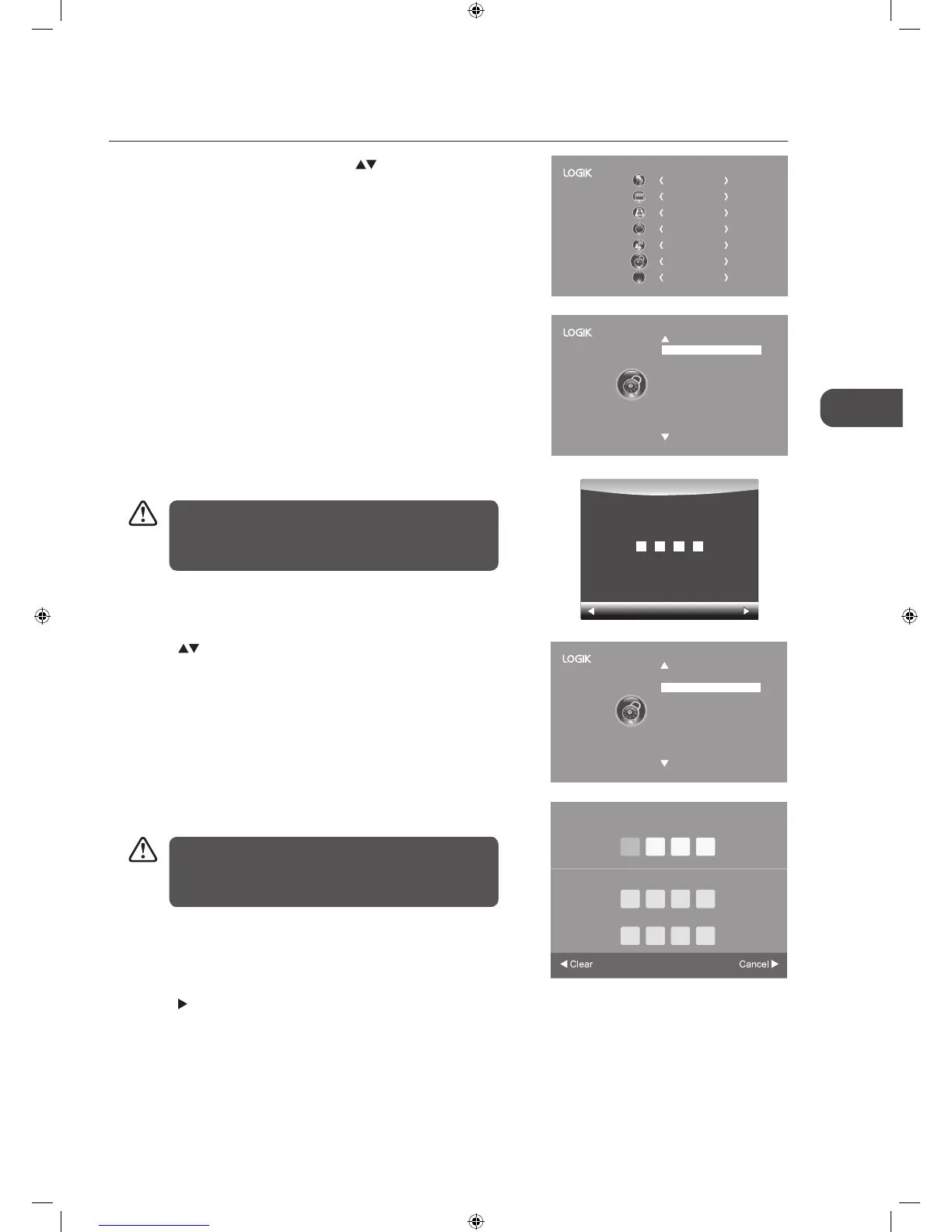
3. Use the 0-9 buttons to input a 4-digit password to enter the LOCK menu.
Lock System
Set Password
Block Channel
Parental Guidance Off
LOCK
Clear
Cancel
Please enter password
The default password is “6666”.
If you change the password, be sure to remember the new
password! If you forget the new password, enter the master
password“9527”.
Set Password
1. Press the MENU button and then press the buttons to select the
LOCK menu and then press the OK button.
CHANNEL
PICTURE
SOUND
TIME
OPTION
LOCK
EXIT
EXIT
2. Press the OK button to select Lock System.
5. Use the 0-9 buttons to input the old password and then input the new
4-digit password. Re-enter new password for confirmation.
4. Press the
buttons to select Set Password and then press the OK
button.
6. Press the
button to return to the previous menu. Press the MENU
button to return to the main menu.
7. Press the EXIT button to exit the menu.
The default password is “6666”.
If you change the password, be sure to remember the new
password! If you forget the new password, enter the master
password“9527”.
Lock System
Set Password
Block Channel
Parental Guidance Off
LOCK
Confirm new password
Please enter new password
Please enter old password
L22_24FED13_IB_RC131024_Annie.indd 39 24/10/13 5:38 PM



 To Next Page