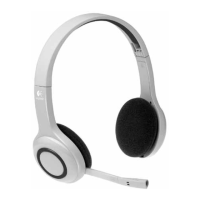
This document describes the use of a Logitech Bluetooth headset with a Logitech wireless hub, focusing on setup, connectivity, and troubleshooting.
Function Description:
The Logitech Bluetooth headset is designed for wireless audio communication, primarily for use with a computer via a Logitech wireless hub. It enables users to listen to streaming audio (news, music) and engage in voice chats through popular instant messaging applications such as MSN Messenger, Yahoo! Messenger, AOL Instant Messenger, and Skype. The wireless hub facilitates the Bluetooth connection between the headset and the computer, allowing for hands-free operation. The headset is intended to provide a seamless wireless audio experience for various computer-based communication and entertainment needs.
Important Technical Specifications (Inferred/General Bluetooth):
- Wireless Technology: Bluetooth®
- Range: Typically up to 10 meters (33 feet) from the wireless hub.
- Compatibility: Designed for use with the WIDCOMM® Bluetooth® software (stack) installed as part of Logitech SetPoint™ software. Most versions of the WIDCOMM® Bluetooth® stack are supported. Compatibility details are available at www.logitech.com/bluetooth/installation. While primarily designed for WIDCOMM, instructions for Microsoft® Windows® XP Service Pack 2's built-in Microsoft® stack are also mentioned.
- Pairing: Supports pairing with a computer via a Passkey (PIN Code), typically '0000' for many headsets, though specific models like the Nokia HDW-2 may have unique passkeys. Early Logitech headsets may not support multiple pairing, meaning pairing with a new device (e.g., computer) could erase a previous pairing (e.g., mobile phone).
- Power: The headset is rechargeable. Users are advised to ensure the headset is fully charged before use.
- Indicator Lights: Features an indicator light that flashes blue (three times, then fast blue and red for discoverable mode; three times red then stops for initial power-on/off; blue then red and blue for power-on) to indicate status.
Usage Features:
- Easy Setup: The connection process involves placing the headset in discoverable mode, using the Bluetooth Setup Wizard (accessible via the Connect button on the wireless hub, right-clicking the Bluetooth icon in the taskbar, or selecting "Add a Bluetooth Device" in My Bluetooth Places), searching for devices, selecting the Logitech headset, and entering a Passkey for pairing.
- Audio Playback: Works with any program for listening to news or music, including MusicMatch®, Windows Media® Player, and Microsoft® Internet Explorer. Users can switch computer sound to the headset by pressing the headset's connect button.
- Voice Chatting:
- MSN Messenger: Connect headset, launch MSN Messenger, run the Audio Tuning Wizard (ensuring 'Bluetooth Audio' is selected for Microphone and Speakers), and initiate a voice conversation with a contact.
- Yahoo! Messenger: Connect headset, launch Yahoo! Messenger, run the Audio Setup Wizard, and initiate a voice conversation or conference call. Users need to check the "Hands Free" box in the Voice Conference window for hands-free operation.
- AOL Instant Messenger: Connect headset, launch AOL Instant Messenger, and select "Connect to Talk" with a contact.
- Skype: Connect headset, launch Skype, and select "Call This Contact" with a contact.
- Connection Status Indicators: The Bluetooth® Neighborhood displays an icon for the headset, indicating whether it is "Not paired or connected," "Paired but not connected," or "Paired and connected."
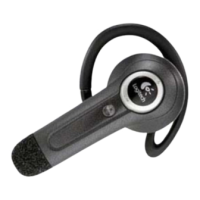
- Headset Controls: The headset features a button on the side for various functions, including connecting, turning on/off, and potentially adjusting volume or answering calls.
- Discoverable Mode: Activated by pressing and holding the headset button for up to 10 seconds until the indicator light flashes blue three times, then fast blue and red.
- Power On/Off: The headset can be turned off by pressing and holding the button for up to 10 seconds until the indicator light flashes red. It can be turned back on by pressing and holding the button for up to 10 seconds until the indicator light first flashes blue, then flashes red and blue.
Maintenance Features (Troubleshooting):
- Pairing Issues: If the headset doesn't pair, check if it's in discoverable mode, within range (less than 10 meters), and fully charged. Ensure it's not already paired with another device.
- Connection Issues: If paired but not connected, ensure the headset is on and within range. Re-attempt the pairing procedure.
- No Sound:
- Adjust headset volume.
- Press the button on the side of the headset.
- Verify Windows® sound and audio properties: In the Control Panel, select "Sounds and Audio Devices." On the "Audio" tab, ensure 'Bluetooth Audio' is selected for both "Sound playback" and "Sound recording." (For Windows® XP, also check the "Voice" tab for 'Bluetooth Audio' in "Voice playback" and "Voice recording.")
- Restart the audio program.
- Check computer volume (not set to 'Zero' or 'Mute').
- Instant Messenger Chat Issues:
- Follow "No Sound" troubleshooting steps.
- Exit and restart the instant messenger program (signing out is not sufficient).
- Re-run the Audio Tuning Wizard (MSN Messenger, Yahoo! Messenger) or check Sound Devices settings (Skype), ensuring 'Bluetooth Audio' is selected.
- For Yahoo! Messenger conference issues (not authorized), click OK, then "Voice Off" followed by "Voice" in the Voice Conference window.
- Speakers Not Working After Disconnecting Headset: If computer speakers don't work after disconnecting the headset, check Windows® sound and audio properties. In the Control Panel, select "Sounds and Audio Devices." On the "Audio" tab, ensure your sound card is selected for both "Sound playback" and "Sound recording." (For Windows® XP, also check the "Voice" tab for your sound card in "Voice playback" and "Voice recording.")
- Mobile Phone Can't See Headset After Disconnecting from Hub: If the headset was previously paired with a mobile phone and then paired with the computer, early Logitech headsets may lose the mobile phone pairing. Re-pair the headset with the mobile phone.
- User Guides: For specific details on other headset models, users are advised to refer to their headset's user guide.

 Need help?


 To Next Page
 General