Logitek mixIT Audio Console System/JET67 Manual
Creating or Editing an Analog Input
To create a new analog input, click Add Input under the Analog In column. To edit an existing
input, click the box for the desired input to open the editor.
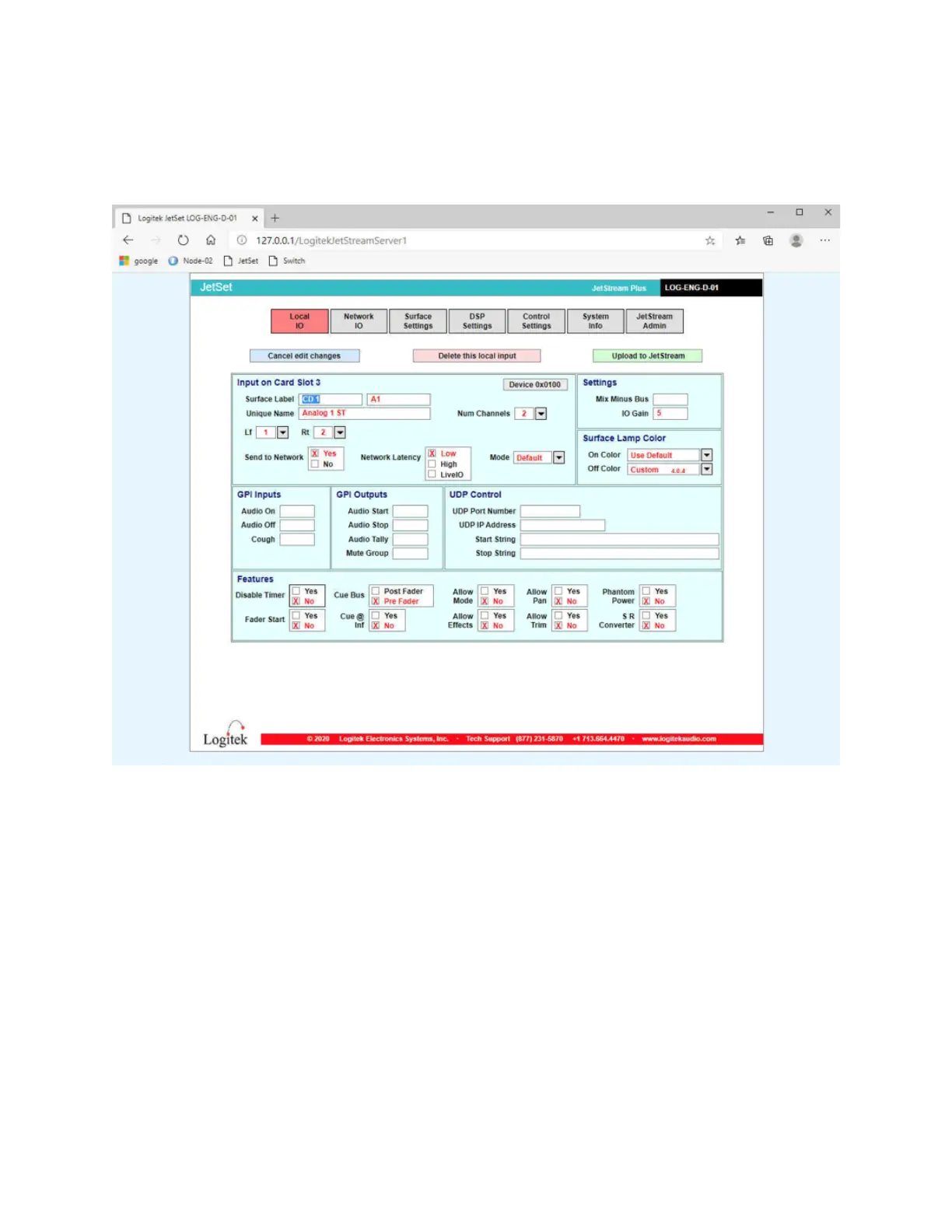
Figure 12 - The Local IO editor for an analog input
You will need to fill in the following information:
1. The Surface Label is what the operator will see on the console. There are two fields of 8
characters for the top and bottom line on the display.
2. Enter a Unique Name to identify the input.
3. Set the Number of Channels to 1 for mono, 2 for stereo.
4. Set the Lf channel to the left analog input number and the Rt to the right analog input
number. (if mono, there will only be the Lf box to fill.) Valid numbers on a mixIT-12 are
1-12. Valid numbers on a mixIT-6 are 1-6.
5. The Mode setting determines how the fader will handle the audio when the source is
routed to the fader. The choices are:
Default: if this source is two channels, it will be stereo. If this source is one channel, it
will be mono.
Mono: if selected, a two channel source will be summed when it is routed to the fader.
Phase: phase reverse a two channel source



 To Next Page