Chapter 2 – System Configuration
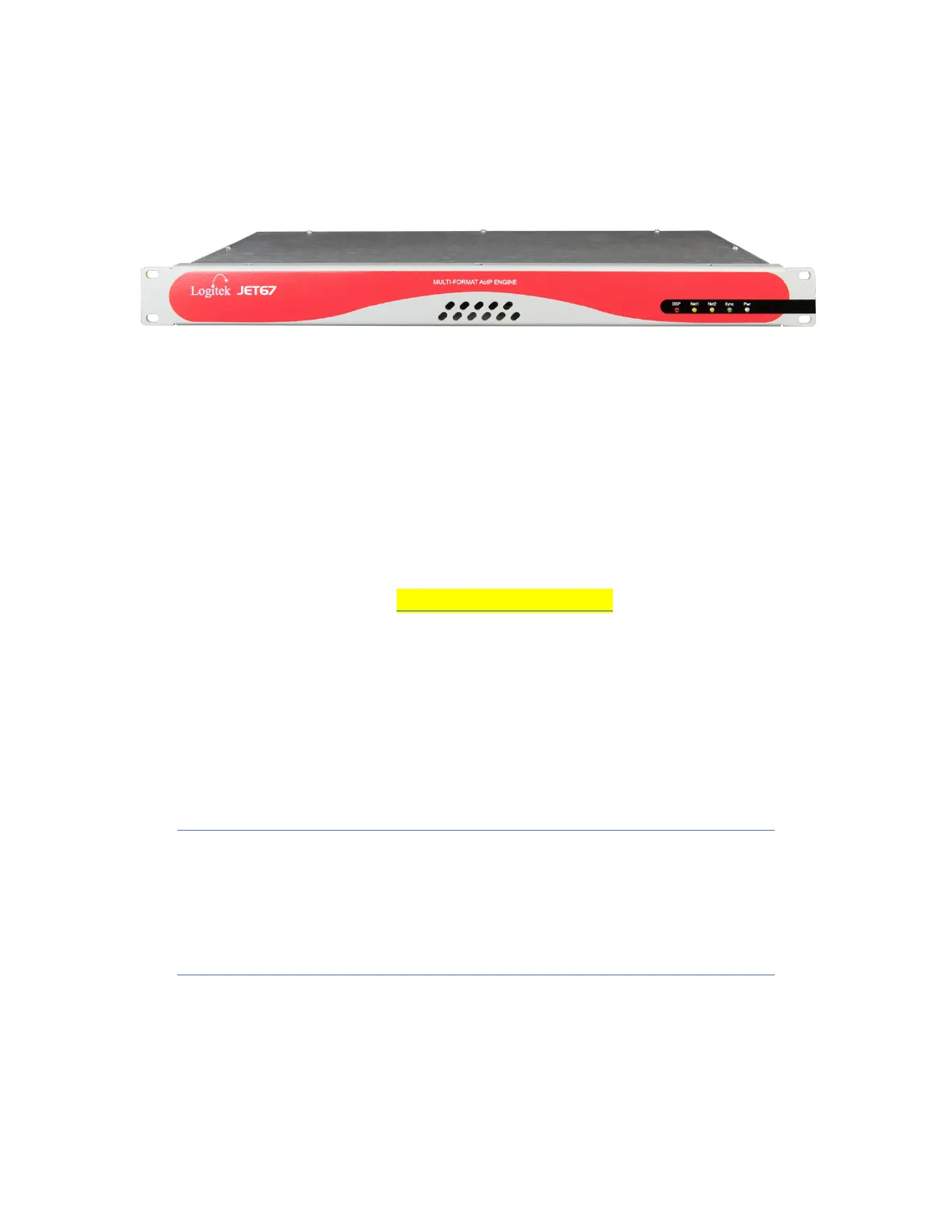
Figure 4 - Front view, JET67 Audio Engine
With its silent, fanless operation, the JET-67 Audio Engine is designed to be installed in the
studio with the audio console.
System Requirements
The following is necessary to configure your system:
• A computer running Windows 10
• An Ethernet adapter to connect your computer to the JET67
• JetStream Server, available at https://logitek.link/XXXXXXX
• A web browser, such as Chrome, Internet Explorer, or Microsoft Edge. Firefox is not
supported.
Connecting the Console to the JET-67 Audio Engine
Using the supplied standard CAT-5 cable, plug one end into the RJ-45 port on the back of the
JET-67 and the other end into the RJ-45 port on the back of the console.
While we use a standard Ethernet cable for this connection, this is NOT an
Ethernet connection, so don’t plug it into an Ethernet switch! The console and
JET-67 communicate via a RS-485 serial connection. We are also sending
power on one pair of wires and AES-3 digital audio on another pair of wires to
drive the cue speaker.
We recommend CAT-5 for this connection to adequately provide power to the console. CAT-6
and/or thin ribbon network cable generally use thinner wire which won’t work for this purpose.
Good old-fashioned CAT-5 or CAT-5e will always work, even at a distance of 25 feet.



 To Next Page