EasyManua.ls Logo

Lumens VC-A71PN - User Manual

Lumens VC-A71PN
50 pages
Print Icon
To Next Page IconTo Next Page
Loading...
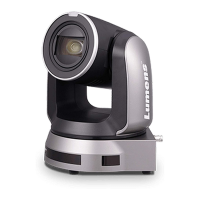
VC-A71P/VC-A71PN
4K PTZ Video Camera
To download the latest version of Quick Start Guide,
multilingual user manual, software, or driver, etc.,
please visit Lumens
https://www.MyLumens.com/support
User Manual - English

Questions and Answers

  • E
    Emily CarneyAug 18, 2025
    What to do if my Lumens Security Camera has no image output?
    • C
      Crystal HendersonAug 18, 2025
      If your Lumens Security Camera VC-A71P isn't displaying an image, check the power supply or PoE supply functions. Also, confirm the output signals are set to streaming output and the camera resolution is compatible with your monitor, especially if you're using 4K output. Finally, replace the cables to rule out any faults.
  • B
    Benjamin WilliamsAug 21, 2025
    How to fix Lumens Security Camera that won't boot?
    • H
      Holly JohnsonAug 21, 2025
      First, ensure the power cord is properly plugged in. If you're using a PoE connection, verify that the power supply supports the correct standard: PoE+ (IEEE802.3at) for VC-A71PN or PoE++ (IEEE802.3bt) for VC-A71P.
  • S
    Spencer OdonnellAug 23, 2025
    Why is Tracking Data Output delayed or not updated on my Lumens Security Camera?
    • G
      gonzalezbradleyAug 23, 2025
      The delay or lack of update in tracking data output on your Lumens Security Camera might be due to certain function settings. To resolve this, ensure the camera is not in conditions such as modified output resolution, camera mode, or HDMI format. Also check if the OSD menu is enabled, or if there are any streaming or audio settings modifications.
  • M
    Matthew GrahamAug 26, 2025
    What to do if my Lumens Security Camera does not save parameters after reboot?
    • J
      John AdamsAug 26, 2025
      If your Lumens Security Camera isn't saving parameters like PTZ or AWB after a reboot, check if the Initial Position is set to Last Operated Position. You can find this setting in the Setting Menu under System - Initial Position, or on the web page under Setting - Camera - Pan Tilt Zoom.
  • A
    Amanda MorganAug 27, 2025
    How to enable Tally lamp on Lumens Security Camera with RS232 setting?
    • D
      David McbrideAug 27, 2025
      If the Tally lamp isn't working with the RS232 setting on your Lumens Security Camera, make sure the Tally lamp function is enabled. You can find this setting in the Setting Menu under System - Tally Lamp, or on the web page under Setting - Camera - Tally Lamp.
  • L
    Lisa RichardsonAug 30, 2025
    How to fix RS-232 control issues with Lumens Security Camera?
    • I
      Isaac CooperAug 30, 2025
      If you're having trouble controlling your Lumens Security Camera via RS-232, first, confirm that the connection is correct, using the RS-232 In/Out ports. Then, ensure that the Baud rate setting matches that of the control equipment.
  • M
    mitchellkaufmanSep 1, 2025
    What to do if ONVIF software cannot locate Lumens Security Camera?
    • N
      ngriffinSep 1, 2025
      If the ONVIF software is unable to locate your Lumens Security Camera, it might be due to special characters or spaces in the camera's location settings. To fix this, use only English alphabets or numbers in [Setting]>[Video]> [Camera](Location) of the webpage.
  • M
    Mark WoodsSep 3, 2025
    What to do if there is no image output from Lumens VC-A71PN VC-A71P?
    • K
      Kayla DavisSep 3, 2025
      If your Lumens Camcorder VC-A71P isn't showing an image, first check the power supply and PoE functions. Ensure the output signals are set to streaming output. Verify that the camera resolution is compatible with your monitor, especially if using 4K output. Finally, try replacing the cables to rule out any faults.
  • D
    Dennis AndersonSep 5, 2025
    Why my Lumens Camcorder won't boot?
    • L
      Laura JohnstonSep 5, 2025
      If your Lumens Camcorder doesn't boot, ensure the power cord is properly plugged in. If using a PoE connection, verify that the power supply supports the appropriate standard: PoE++ (IEEE802.3bt) for VC-A71P and PoE+ (IEEE802.3at) for VC-A71PN.
  • T
    Tyler JacksonSep 8, 2025
    How to fix RS-232 control issues with Lumens VC-A71PN?
    • A
      Amanda ChambersSep 8, 2025
      If you cannot control your Lumens Camcorder via RS-232, first confirm that the connection is correct, using the RS-232 In/Out ports. Also, ensure that the baud rate setting on the camcorder matches that of the control equipment.

Lumens VC-A71PN Specifications

General IconGeneral
Image Sensor1/2.8" CMOS
Optical Zoom20x
Digital Zoom12x
Audio Output3.5 mm Line out
PowerDC 12V
Camera TypePTZ Camera
Focal Lengthf=4.7mm~94mm
ApertureF1.6 to F3.5
Shutter Speed1/1 to 1/10000 sec
Video OutputHDMI
Video FormatH.264
Audio Input3.5mm Mic In
Control InterfaceRS-232
IP StreamingRTSP

Related product manuals