EasyManua.ls Logo

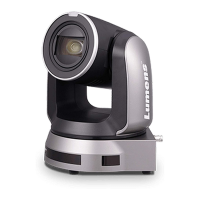
Lumens VC-A71P - User Manual

Lumens VC-A71P
54 pages
Print Icon
To Next Page IconTo Next Page
Loading...
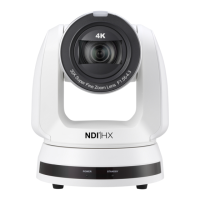
VC-A71P
4K PTZ Video Camera
User Manual - English
To download the latest version of Quick Start Guide,
multilingual user manual, software, or driver, etc.,
please visit Lumens
https://www.MyLumens.com/support

Other manuals for Lumens VC-A71P

Questions and Answers

  • D
    Deanna FowlerAug 19, 2025
    What to do if there is no image output from Lumens Camcorder VC-A71P?
    • D
      Dawn PalmerAug 19, 2025
      If your Lumens Camcorder VC-A71P isn't displaying an image, first verify that the power supply or PoE supply is working correctly. Then, ensure the output signals are set to streaming output. Check if the camera resolution is compatible with your monitor. If you're using 4K output, confirm your monitor supports it. Finally, try replacing the cables to rule out any faults.
  • S
    Sandra OnealAug 21, 2025
    Why RS-232 cannot be controlled on Lumens Camcorder?
    • M
      Melissa DavisAug 22, 2025
      If you cannot control the RS-232 on your Lumens Camcorder, first confirm that the connection is correct (RS-232 In/ Out). Also, ensure that the Baud rate setting is the same as the control equipment.
  • R
    rowlandbrittanyAug 25, 2025
    What to do if my Lumens Security Camera has no image output?
    • J
      Joseph SmithAug 25, 2025
      If your Lumens Security Camera VC-A71P isn't displaying an image, check the power supply or PoE supply functions. Also, confirm the output signals are set to streaming output and the camera resolution is compatible with your monitor, especially if you're using 4K output. Finally, replace the cables to rule out any faults.
  • P
    Paul PruittAug 26, 2025
    How to fix Lumens Security Camera that won't boot?
    • D
      David ReidAug 26, 2025
      First, ensure the power cord is properly plugged in. If you're using a PoE connection, verify that the power supply supports the correct standard: PoE+ (IEEE802.3at) for VC-A71PN or PoE++ (IEEE802.3bt) for VC-A71P.
  • J
    John PerezAug 28, 2025
    Why is Tracking Data Output delayed or not updated on my Lumens Security Camera?
    • T
      thomasdonaldAug 28, 2025
      The delay or lack of update in tracking data output on your Lumens Security Camera might be due to certain function settings. To resolve this, ensure the camera is not in conditions such as modified output resolution, camera mode, or HDMI format. Also check if the OSD menu is enabled, or if there are any streaming or audio settings modifications.
  • L
    Laura PittmanAug 30, 2025
    What to do if my Lumens Security Camera does not save parameters after reboot?
    • J
      Jennifer SharpAug 30, 2025
      If your Lumens Security Camera isn't saving parameters like PTZ or AWB after a reboot, check if the Initial Position is set to Last Operated Position. You can find this setting in the Setting Menu under System - Initial Position, or on the web page under Setting - Camera - Pan Tilt Zoom.
  • H
    Holly GouldSep 1, 2025
    How to enable Tally lamp on Lumens Security Camera with RS232 setting?
    • C
      Chad MarshallSep 1, 2025
      If the Tally lamp isn't working with the RS232 setting on your Lumens Security Camera, make sure the Tally lamp function is enabled. You can find this setting in the Setting Menu under System - Tally Lamp, or on the web page under Setting - Camera - Tally Lamp.
  • J
    jeffrey46Sep 3, 2025
    How to fix RS-232 control issues with Lumens Security Camera?
    • C
      Cathy WilliamsSep 4, 2025
      If you're having trouble controlling your Lumens Security Camera via RS-232, first, confirm that the connection is correct, using the RS-232 In/Out ports. Then, ensure that the Baud rate setting matches that of the control equipment.
  • M
    Maria WilsonSep 6, 2025
    What to do if ONVIF software cannot locate Lumens Security Camera?
    • A
      amyduranSep 6, 2025
      If the ONVIF software is unable to locate your Lumens Security Camera, it might be due to special characters or spaces in the camera's location settings. To fix this, use only English alphabets or numbers in [Setting]>[Video]> [Camera](Location) of the webpage.
  • W
    William PayneSep 8, 2025
    Why my Lumens VC-A71P Camcorder won't boot?
    • R
      ronald60Sep 8, 2025
      If your Lumens Camcorder doesn't boot, ensure the power cord is properly plugged in. If using a PoE connection, verify that the power supply supports the appropriate standard: PoE++ (IEEE802.3bt) for VC-A71P and PoE+ (IEEE802.3at) for VC-A71PN.

Lumens VC-A71P Specifications

General IconGeneral
BrandLumens
ModelVC-A71P
CategoryCamcorder
LanguageEnglish

Related product manuals