EasyManua.ls Logo

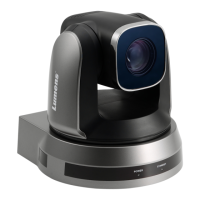
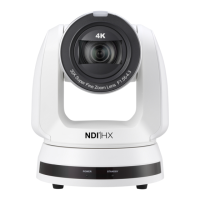
Lumens VC-A61P - User Manual

Lumens VC-A61P
52 pages
Print Icon
To Next Page IconTo Next Page
Loading...
To download the latest version of Quick Start
Guide, multilingual user manual, software, or
driver, etc., please visit Lumens
https://www.MyLumens.com/support
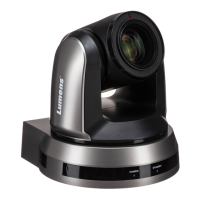
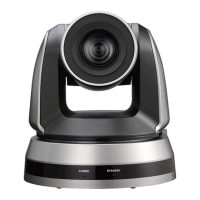
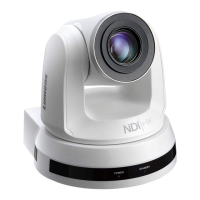
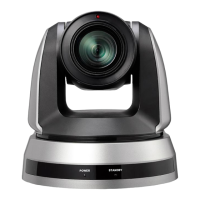
VC-A61P / VC-A61PN
HD camera
(PTZ Video Camera)
User Manual - English
Version VCAW207f
NDI
®
is a registered trademark of Vizrt Group

Other manuals for Lumens VC-A61P

Questions and Answers

  • A
    Amanda PatelSep 10, 2025
    How to fix RS-232 control issues with Lumens Webcam?
    • D
      Denise RobertsSep 10, 2025
      If you're having trouble controlling your Lumens Webcam via RS-232, first, double-check that the connection is correct, paying attention to the RS-232 In/Out ports. Second, ensure that the baud rate setting on the camera matches the baud rate of your control equipment.
  • P
    Peter YoderAug 23, 2025
    What to do if there is no image output from Lumens IP Camera?
    • C
      Carolyn FreemanAug 23, 2025
      If there is no image output from the Lumens IP Camera, check the power supply or PoE supply functions. Confirm the output signals are in streaming output. Verify if the camera resolution is compatible with the monitor equipment, especially if using 4K output. Also, replace the cables to ensure they are not faulty.
  • K
    Kevin FernandezAug 25, 2025
    Why is Lumens IP Camera image severely delayed?
    • O
      Oscar NormanAug 25, 2025
      If the Lumens IP Camera image is severely delayed, try using 1080p or 720p at 60/50 fps instead of 25/30 fps signals.
  • Z
    Zachary TurnerAug 27, 2025
    How to fix RS-232 control issues with Lumens IP Camera?
    • L
      leachamyAug 27, 2025
      To resolve RS-232 control issues with the Lumens IP Camera, first, confirm the connection is correct (RS-232 In/ Out). Then, ensure that the Baud rate setting is the same as the control equipment.
  • J
    Jeremy RandolphAug 28, 2025
    What to do if Lumens IP Camera doesn't boot?
    • R
      Roger PattonAug 28, 2025
      If the Lumens IP Camera does not boot, ensure that the power cord is properly plugged in. If using a PoE connection, verify that the power supply supports POE+ (IEEE 802.3at) hubs.
  • T
    tammy51Aug 29, 2025
    What to do if there is no image for 3G-SDI output resolution 3840x2160 29.97/ 25 on Lumens IP Camera?
    • D
      David AguilarAug 29, 2025
      Please confirm the screen menu/ Dip Switch setting 3G-SDI supports output resolutions up to 1080p 59.94/50.
  • K
    Kelly ParksSep 18, 2025
    Why is there no image for 3G-SDI output resolution 3840x2160 29.97/25 on Lumens Webcam?
    • D
      Donna GonzalezSep 18, 2025
      If you're not getting an image with a 3G-SDI output resolution of 3840x2160 29.97/25 on your Lumens Webcam, confirm that the screen menu or Dip Switch setting is configured correctly, as 3G-SDI supports output resolutions up to 1080p 59.94/50.
  • W
    woodjosephSep 12, 2025
    What to do if Lumens Webcam image is severely delayed?
    • M
      Michelle BrownSep 12, 2025
      If your Lumens Webcam image is experiencing significant delays, try using 1080p or 720p at 60/50 fps instead of 25/30 fps signals to improve performance.
  • K
    Kimberly WilsonSep 8, 2025
    What to do if ONVIF software cannot locate Lumens Webcam?
    • A
      Ashley JensenSep 8, 2025
      If the ONVIF software is unable to locate your Lumens Webcam, ensure that you are using only standard English alphabets or numbers in the [Setting]>[Video]>[Camera](Location) field on the webpage. Special characters or spaces can prevent the software from locating the device. Also, for VC-A61PN models, verify that NDI is turned [Off] in the [Setting]>[Video]>[NDI|HX] section of the web page, as either NDI or ONVIF can be used, but not simultaneously.
  • O
    oolsenSep 5, 2025
    Why RS-232 cannot be controlled on Lumens Camcorder?
    • D
      Dawn DavisSep 5, 2025
      If you cannot control the Lumens Camcorder via RS-232, confirm the connection is correct (RS-232 In/ Out). Also, ensure that the Baud rate setting matches the control equipment.

Summary

Safety Instructions

Product Operation Safety

General guidelines for safe product operation.

Installation, Storage, and Cleaning Safety

Safety for installation, storage, cleaning, and battery handling.

Function Introduction

Installation Guide

Preparation and Desk Mounting

Steps and considerations before desk installation.

Ceiling Mounting Procedure

Detailed steps for installing the camera on a ceiling.

Remote Control and Settings

Remote Control Functions

Explains the various functions accessible via the remote control.

Network Configuration and Management

DIP Switch Configuration

Troubleshooting Guide

Lumens VC-A61P Specifications

General IconGeneral
Sensor TypeCMOS
Day/NightYes
Frame Rate30fps
Resolution1280x720
Digital Zoom10x
Focal Length6.8~204 mm
Video CompressionH.264
Video OutputHDMI
Control InterfaceRS-485
Power SupplyDC 12V
PowerDC 12V

Related product manuals