EasyManua.ls Logo

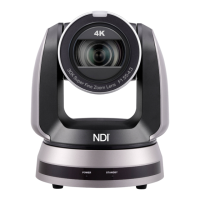
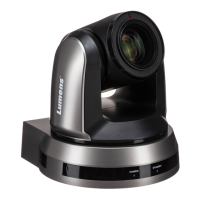
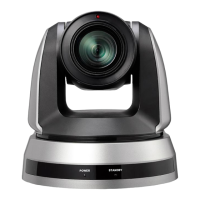
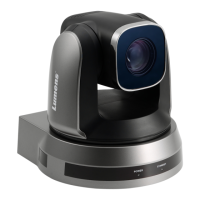
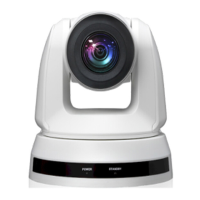
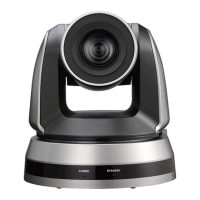
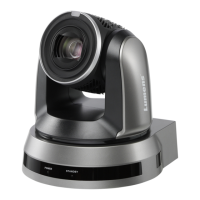
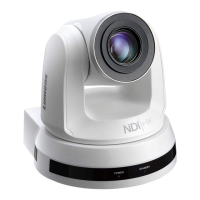
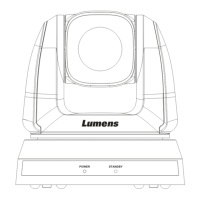
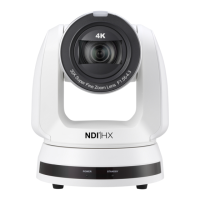
Lumens VC-A71SN - User Manual

Lumens VC-A71SN
42 pages
Print Icon
To Next Page IconTo Next Page
Loading...
1
VC-A71SN
Ultra HD camera
(4K PTZ Video Camera)
Version VCBC106d
User Manual - English
To download the latest versions of the Quick Start
Guide, multilingual user manual, software, driver,
etc., please visit Lumens
https://www.MyLumens.com/support

Other manuals for Lumens VC-A71SN

Questions and Answers

  • K
    Kristy DavisAug 6, 2025
    What to do if there is no image output from Lumens Camcorder VC-A71SN?
    • J
      John SavageAug 7, 2025
      If there's no image output from your Lumens VC-A71SN Camcorder, try these steps: First, check the power supply or PoE supply functions. Second, confirm the output signals are in streaming output. Third, check that the camera resolution is compatible with your monitor, especially if using 4K output. Finally, replace the cables to rule out any faults.
  • S
    Stephen OconnellAug 11, 2025
    Why is my Lumens Camcorder not saving parameters after reboot?
    • C
      Craig CaldwellAug 11, 2025
      If your Lumens Camcorder isn't saving parameters after a reboot, ensure that the Initial Position is set to Last Operated Position within the setting menu or web page.
  • C
    christophergreenAug 15, 2025
    How to fix delayed tracking data output on Lumens Camcorder?
    • B
      Brenda RomanAug 15, 2025
      If the tracking data output is delayed or not updated on your Lumens Camcorder, confirm that the camera is not currently modifying output resolution, camera mode, or HDMI format. Also, ensure that you are not using setting menu, streaming setting, or audio source setting.
  • M
    Michael AndersonAug 19, 2025
    What to do if my Lumens Camcorder won't boot?
    • J
      Jennifer MurilloAug 19, 2025
      If your Lumens Camcorder won't boot, ensure that the power cord is properly plugged in. If using a PoE connection, verify that the power supply supports POE++ (IEEE802.3bt) routers or hubs.
  • E
    Eric WarrenAug 25, 2025
    Why is RS-232 control not working on my Lumens Camcorder?
    • J
      jerry91Aug 25, 2025
      If RS-232 control isn't working on your Lumens Camcorder, first confirm that the connection is correct, paying attention to the RS-232 In/Out ports. Then, verify that the Baud rate setting on the camera matches that of the control equipment.
  • N
    noahgreerAug 28, 2025
    How to enable Tally lamp on Lumens Camcorder with RS232 setting?
    • R
      Richard LongAug 28, 2025
      If the Tally lamp isn't working on your Lumens Camcorder when applying the RS232 setting, make sure that the Tally lamp function is enabled within the setting menu or web page.
  • J
    Jennifer GonzalezSep 1, 2025
    What to do if NDI/Onvif software cannot find Lumens Camcorder?
    • J
      jasonallenSep 2, 2025
      If the NDI/Onvif software cannot find your Lumens Camcorder, ensure that the settings on the [Setting] > [Video] > [NDI|HX] page are configured correctly.

Lumens VC-A71SN Specifications

General IconGeneral
Digital Zoom12x
Preset Positions128
Shutter Speed1/10, 000 sec
IP StreamingRTSP/RTMP
Control InterfaceRS-485
PowerDC 12V
LensYes
Day/NightYes
Power Consumption12W

Related product manuals