10|Page
UV CONCIERGE MODULE
MODEL # MOD-APP
TheUVConciergemoduleconnectstoyourwirelessnetwork(WiFi)andtransmitsyourUV
system’sstatustotheuvconcierge.comwebpage.Youcanthenviewyourstatusonlinefrom
anywhereyouhaveinternetaccess,andreceiveemailorSMSnocaonsofyoursystem’s
status on your mobile device.
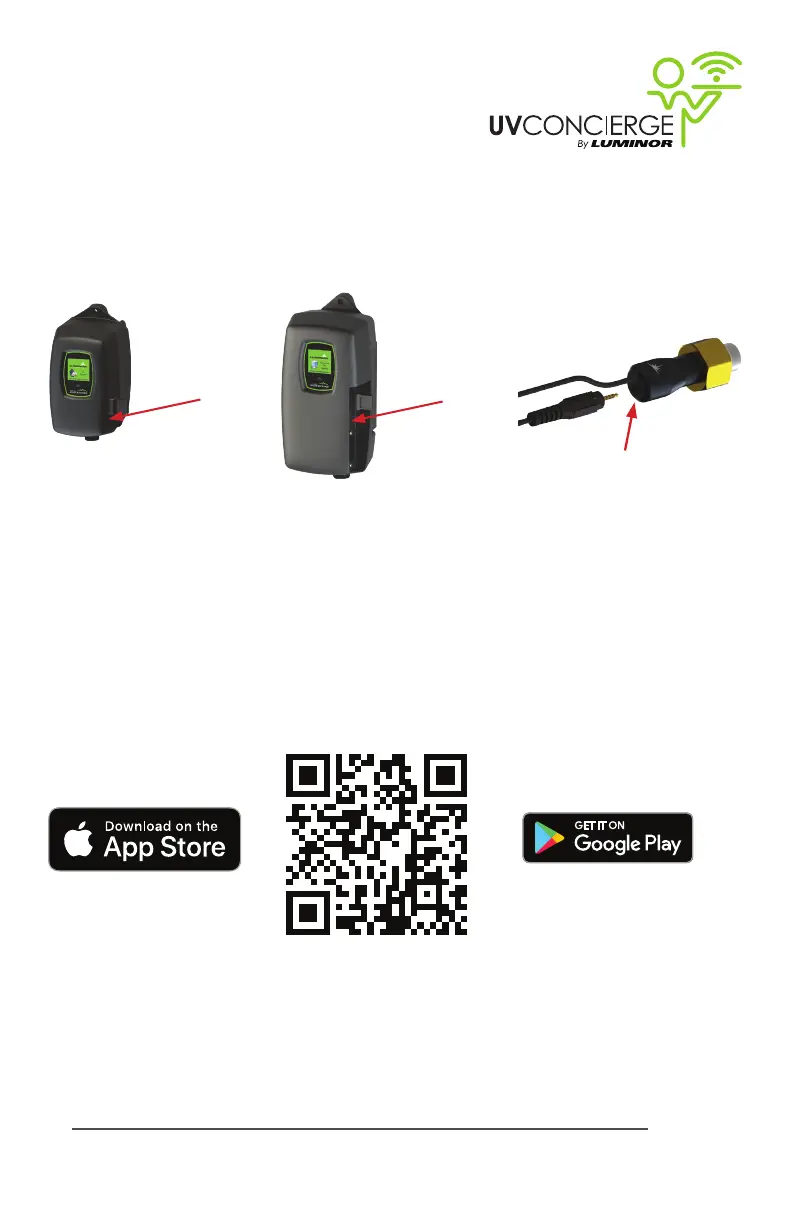
TheUVConciergemodulecomeswithbothamaleandfemaleIEPconnecon(Innite
ExpandabilityPort).ToiniatethemodulesimplyplugthemaleplugintotheIEPonthe
StandardorHighOutputcontroller,orintoanyotherBLACKCOMBmodulethatcontainsanIEP
(sensor,4-20mAmodule,solenoidmodule,etc.),plugintheincludedpoweradaptertothe
wallandyourUVConciergemodule,andthenrestarttheUVsystem.
Oncethesystemisiniatedasabove,youwillneedtoprovideyourWiFilogincredenalsto
thesystem.InstalltheUVConciergeapponyouriOSorAndroiddevicebysearchingforitin
youriOSAppStoreorGooglePlaystore,orscantheQRcodebelow:
Fromtheapp,clicktheConnectDevicebuon,andfollowthepromptstoselectyourWiFi
networkandenterinyourpassword.
Oncetheappreportsthemoduleisconnected,addthedevicetoyouraccountbyoneofthe
threefollowingmethods:
Sensor IEP
Installaon
IEP
connecon
BLACKCOMB
Controller
BLACKCOMB-HO
Controller
IEP
connecon
IEP
connecon



 To Next Page