6
Internal
2-3. Software Installation
For optimal computer system protection, install UPS monitoring software to fully configure UPS shutdown.
3. Operations
3-1. Button Operation
Button Function
ON/Enter Button
Turn on the UPS: Press and hold the button more than 1s to turn on the
UPS.
Enter Ke
: Press this button to confirm the selection in settin
menu.
OFF/ESC Button
Turn off the UPS: Press and hold the button more than 1s to turn off the
UPS.
Esc key: Press this button to return to last menu in setting menu.
Test/Up Button
Battery test: Press and hold the button more than 1s to test the battery
while in AC mode, or CVCF mode.
UP key: Press this button to display Next selection in setting menu.
Mute/Down Button
Mute the alarm: Press and hold the button more than 1s to mute the
buzzer. Please refer to section 3-4 “Mute the buzzer” for details.
Down key: Press this button to display previous selection in setting menu.
Test/Up +
Mute/Down Button
Press and hold the two buttons simultaneous more than 1s to enter/escape
the settin
menu.
* CVCF mode means converter mode.
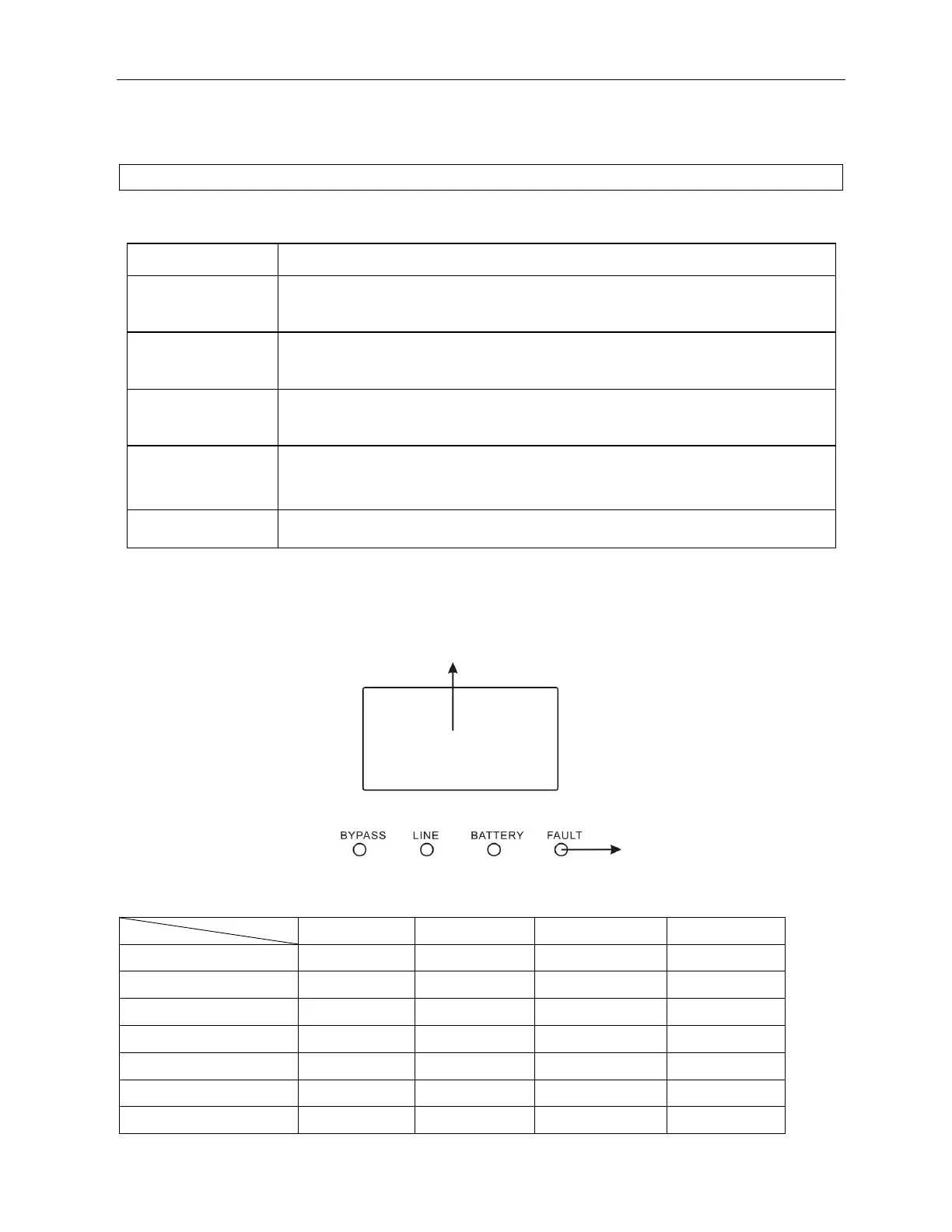
3-2. LED Indicators and LCD Panel
LED Indicators:
There are 4 LEDs on front panel to show the UPS working status:
Mode LED Bypass Line Battery Fault
UPS Startup
● ● ● ●
Bypass mode
●
○ ○ ○
AC mode
○
●
○ ○
Battery mode
○ ○
●
○
CVCF mode
○
●
○ ○
Battery Test
● ● ●
○
Fault
○ ○ ○
●
Note: ● means LED is lighting, and ○ means LED is faded.
LCD panel
LED indicators



 To Next Page