16
TRANSFERRING DATA TRANSFERRING DATA
TO B.BEATTO B.BEAT
All Audio, Video, Images and Midi materi-
al must be prepared through a DAW and
other Audio Video synchronization pro-
grams. Once the sound and video material
for your Show is properly assembled and
mixed you will be ready to transfer it to
B.Beat. For this we use B.Beat Manager, a
software made available in both Windows
and Mac versions.
If you have Audio Backing Tracks available
in Mp3 Stereo or Wav format you can up-
load them to B.Beat using the USB input,
with a flash drive. B.Beat reads the con-
tents of the flash drive and plays it in real
time, or it can import the files within its
memory.
To transfer the Backing Tracks repertoire,
Videos, Images and Midi Files synchro-
nized to audio you can use the B.BEAT
Manager software; below are the connec-
tion diagrams:
CONNECTING B.BEAT CONNECTING B.BEAT
TO COMPUTER TO COMPUTER
Here are the ways to connect B.Beat and
Computer, which can be PC or Mac:
The easiest way to connect B.Beat to the The easiest way to connect B.Beat to the
Computer is to use the Ethernet network.Computer is to use the Ethernet network.
It goes like this:
1.Connect the provided network cable be-
tween B.Beat and the Computer
2.Turn on B.Beat
3.Launch the B.Beat Manager App
4. After about 60 seconds the App will
detect the B.Beat connected, so you can
connect to the B.Beat by pressing the but-
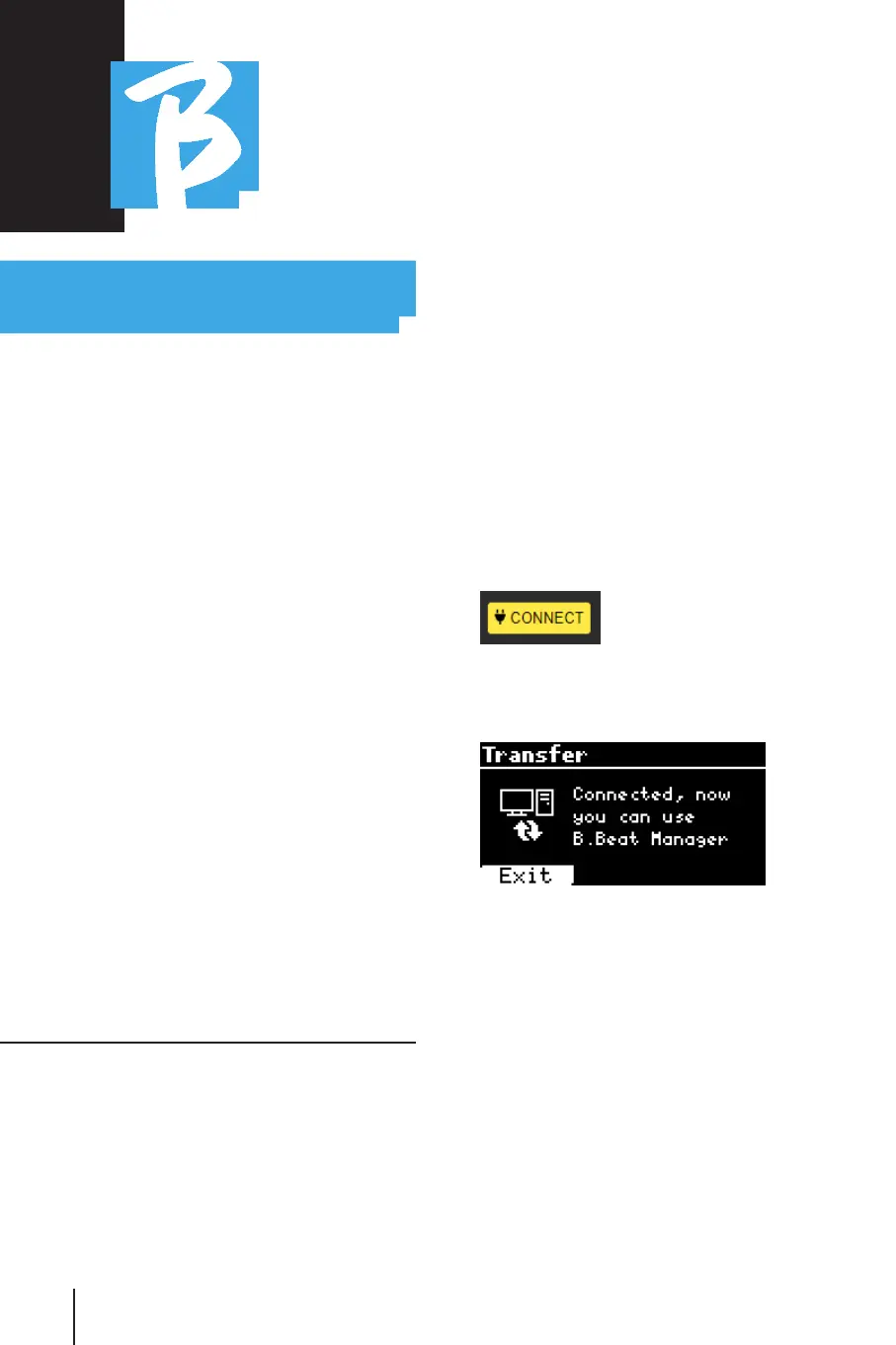
ton on B.Beat Manager:
5.The display of B.Beat shows this screen
confirming the connection made
If your PC does not have Ethernet input If your PC does not have Ethernet input
you have two options: you have two options:
1.Use a USB - Ethernet interface for PC.
2.Generate a Wi Fi Hotspot with B.Beat
to which the PC can connect. To generate
the hotspot, the optional Wi Fi Stick is
essential. The password to enter B.Beat
Hotspot by default is 12345678.
3.Connect the Computer to the hot spot
of B.Beat which will be detected automat-
ically. The default password is 12345678.



 To Next Page