22
USING THE USB FLASH DRIVEUSING THE USB FLASH DRIVE
B.Beat reads USB flash drives that can
contain Backing Tracks in Mp3 or Wav for-
mat.
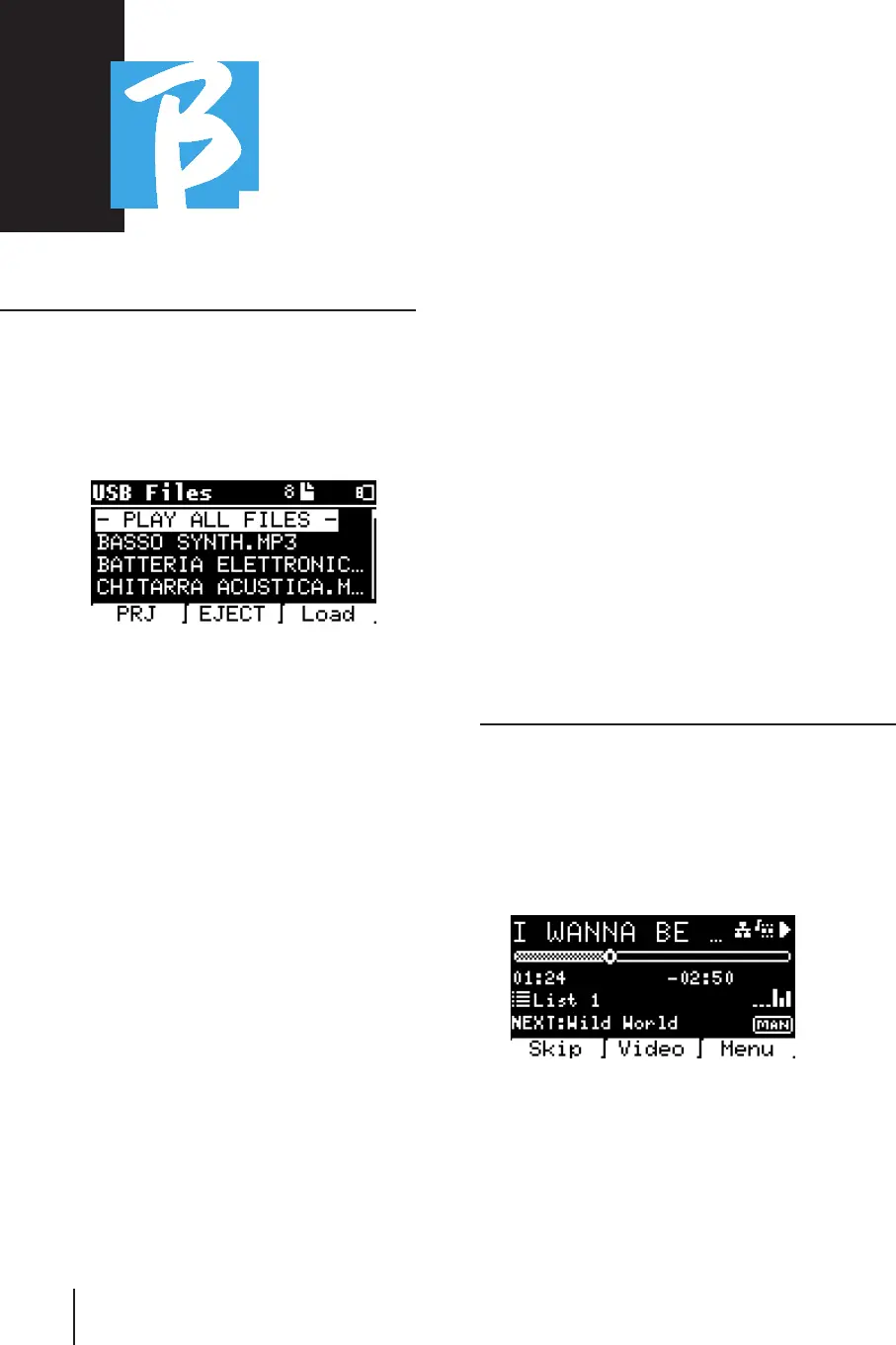
The following screen appears when insert-
ing a USB flash drive into the B.Beat drive:
From this screen, which lists the names
of the files contained on the flash drive,
you can:
1) Browse the flash drive archive
(through the Alpha Dial, Up Down keys).
2) Play the files directly (even in se-
quence if you select "Play all files"). Point
to a file and press Play to play it.
3) Import the files into B.Beat's
internal archive.
a) Point a file with Alpha Dial or up -
down
b) Press Enter on Alpha Dial
c) From the next screen, press
"Import"
4) Select a project as the Next Song
from the flash drive.
a) Point a file with Alpha Dial or up -
down
b) Press Enter on Alpha Dial
c) From the next screen, press Set
as next
d) Since then, the project is placed
in the Next Song location.
When a USB flash drive is inserted into
B.Beat, the internal memory can be ac-
cessed by pressing the LIBRARY key, and
the flash drive by pressing the F2 USB
key. If you want to eject the flash drive
press F2 Eject from the Flash Drive read
position.
PLAYING A BACKING TRACKSPLAYING A BACKING TRACKS
To play an Audio project:
1) Press [Library]
2) Turn [Alpha dial] or press [up and
down] to select the file
3) Press [Play] to play, the song
starts.
4) The Player screen appears
At the top is the title of the running File,
the icons on the right indicate that B.Beat
is connected to a network, the running file
has an associated Video, the file is in the
paused position.
Under the title is the Song Position Point-
er. We can move along the Song by turning



 To Next Page