21
OPERATING ENVIRONMENTSOPERATING ENVIRONMENTS
B.Beat during performance can be operat-
ed in 4 different operating environments
that can be reached by clicking the rele-
vant key. By default, B.Beat will turn on in
the Library environment, but then it will be
placed in the last selected environment
before turning off.
LIBRARYLIBRARY
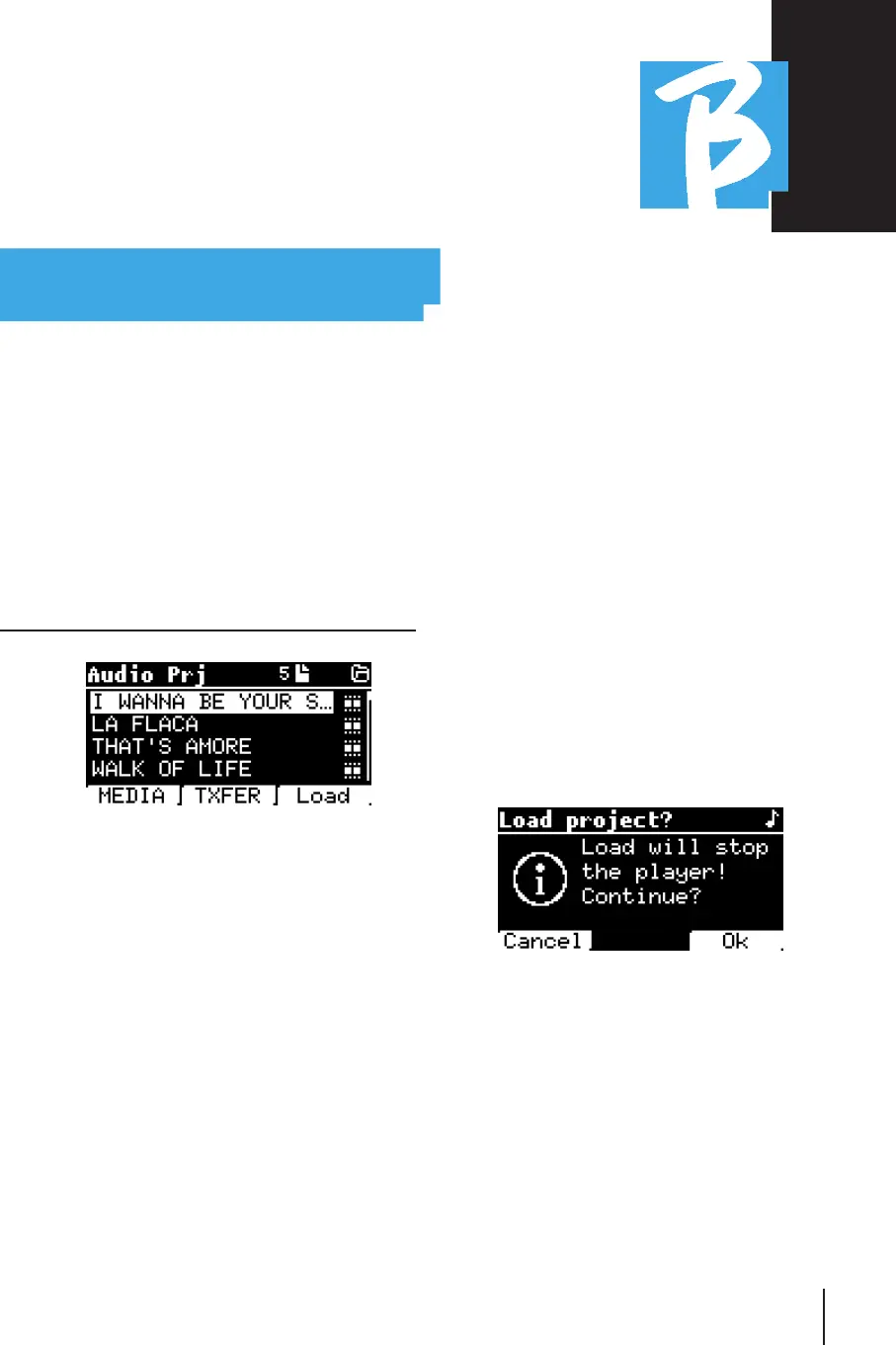
By pressing the Library key we enter the
general archive of all Audio or Video proj-
ects that have been imported from the
various sources (PC/USB FLASH DRIVE)
and by means of the Alpha Dial and the UP
and DOWN keys we can scroll through the
list. By selecting PRJ or MEDIA we choose
whether we are interested in the Audio or
Video archive. If we have inserted a USB
Flash Drive into the dedicated slot of
B.Beat the USB function giving access to
the flash drive will appear on the F2 key.
When you select a File these possibilities
open up:
1)PRESS PLAY:1)PRESS PLAY: sets the selected item
into play, if a song is already playing it will
switch to the new one immediately.
2)PRESS ENTER: 2)PRESS ENTER: enters a subpage from
which it is possible to:
a)Set as next: places the selected item
on the NEXT SONG location, in fact the
item will be ready to play at the end of the
current execution.
b)Delete: deletes the selected item. Se-
lecting this option will open a new window
to confirm or cancel your choice.
3)PRESS F3 LOAD:3)PRESS F3 LOAD: the chosen song is
loaded into memory, ready to be played. If
another song that is playing is loaded into
memory, a confirmation screen appears
because the current performance will be
stopped. Press OK to confirm or Cancel to
cancel.
When the USB Flash Drive is not plugged
in, the F2 key controls the TXFER function
that allows connecting to the B.Beat Man-
ager if connected to the PC.
Operating environments



 To Next Page