20
Midi track will be played by B.Beat through
the MIDI output. To properly transfer the
Midi file associated with the Audio proj-
ect, it is recommended that the Midi file
be saved to the same folder where the
Audio and Video tracks of the project are
contained. Switching to B.Beat from com-
puter can be done simply by pressing the
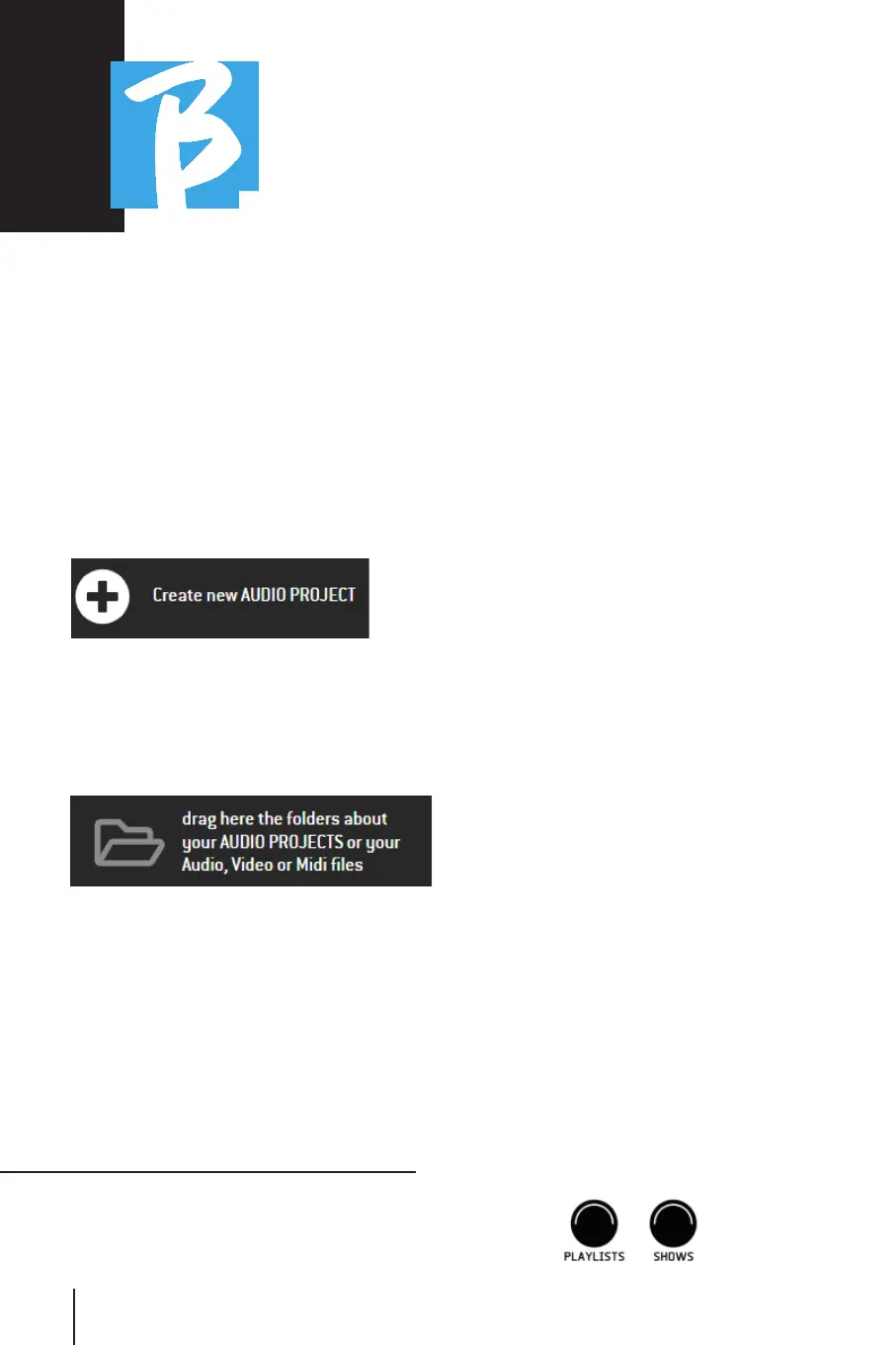
"+CREATE new AUDIO PROJECT" key from
the main screen of B.Beat Manager:
Then you can drag the folder that contains
the Backing Tracks and the associated
Midi File.
For further procedures for importing files
and creating Playlists and Shows, refer to
the B.Beat Manager online help.
PLAYLIST AND SHOWPLAYLIST AND SHOW
B.Beat can play single Backing Tracks,
accompanied by Video - Images and Midi
Files, or it can organize the repertoire into
Playlists that are built either on B.Beat
but even better on PC with the B.Beat
Manager software.
Playlists Playlists are setlists that can be changed
throughout the evening, either temporarily
or permanently. We will then see how you
can interact with the Playlist during a live
performance. The Playlist provides a lot
of flexibility between songs, and you can
make changes very easily.
The Show Show is a developed playlist. A Show
consists of several scenes. Scenes may
contain one or more items called SLOTs.
Shows can be built with B.Beat Manager
software. Show management allows com-
bining Music with Videos and/or images so
that your show is perfectly organized and
just press PLAY to start it. The sequences
between Audio and Video or images will
be automated, including pauses and other
connecting details between the various
scenes that make up the show. The Show
offers the advantage of having automatic
sequences that link music tracks to each
other, but you can also insert Pause or
you can create Slots where the only thing
playing is the Click or metronome.
Playlist and Show environments are easily
accessible with dedicated keys:



 To Next Page