32
lect with Enter and turn the Alpha Dial to
choose the option.
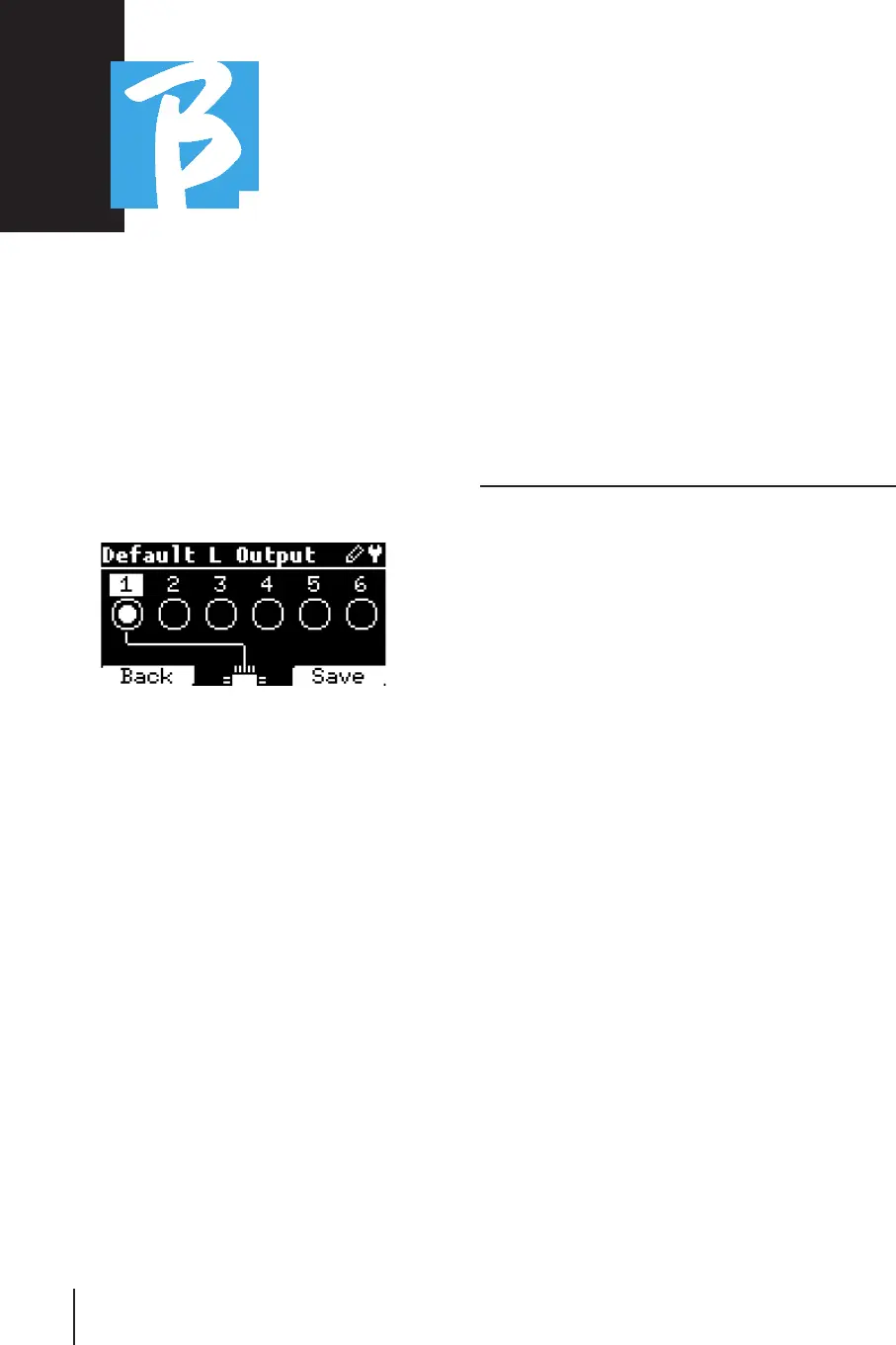
Default L Output: Default L Output: B.Beat has 6 audio out-
puts. You can select which of these is
assigned to the LEFT channel of a stereo
Audio track. Press Enter to enter the con-
figuration screen and turn the Alpha Dial
to choose the desired output. Press Enter
or F3 [SAVE] to set. Output 1 is selected
at purchase.
Default R Output:Default R Output: B.Beat has 6 audio out-
puts. You can select which of these is as-
signed to the RIGHT channel of a stereo
Audio track. Press Enter to enter the con-
figuration screen and turn the Alpha Dial
to choose the desired output. Press Enter
or F3 [SAVE] to set. Output 2 is selected
at purchase.
Default Click Output:Default Click Output: B.Beat has 6 audio
outputs. You can select which of these
is assigned to the CLICK track of a mul-
titrack backing track. Press Enter to en-
ter the configuration screen and turn the
Alpha Dial to choose the desired output.
Press Enter or F3 [SAVE] to set. Output 3
is selected at purchase.
Default Guide Output:Default Guide Output: B.Beat has 6 audio
outputs. You can select which of these is
assigned to the GUIDE track (voice sug-
gestions) of a multitrack backing track.
Press Enter to enter the configuration
screen and turn the Alpha Dial to choose
the desired output. Press Enter or F3
[SAVE] to set. Output 6 is selected at pur-
chase.
NETWORKNETWORK
B.Beat connects to different entities in
different manners.
B.Beat can connect to a computer via Eth-
ernet cable, or via Wi Fi (optional M-Pen
required) also can generate a Wi Fi Hot
Spot to connect to Smart Devices (Tab-
let or Smartphone) for using the Prompter
App and reading lyrics and sheet music.
Wi Fi or Hot Spot connection are alterna-
tives, if you use B.Beat as a Hotspot it
cannot connect to a Wi Fi network, and
vice versa. Wi Fi connection and Hot Spot
generation are possible only with the op-
tional M-Pen.
From the Network page we can check how
B.Beat is connected and change its set-
tings. In addition, we can obtain the data
to enter its Hot Spot.
Ethernet:Ethernet: this item signals connection
via network cable to a PC or network. By
pressing F2 [INFO] we can see the IP ad-
dress of the current connection.
Hotspot: Hotspot: this item reports whether or not



 To Next Page