100 Chapter 5: Applying Color, Strokes, and Fills
Customizing the Swatches panel
You can add, delete, replace, and sort color swatches or entire swatch groups using the Swatches
panel.
Note: Choosing Edit > Undo does not undo swatch additions or deletions.
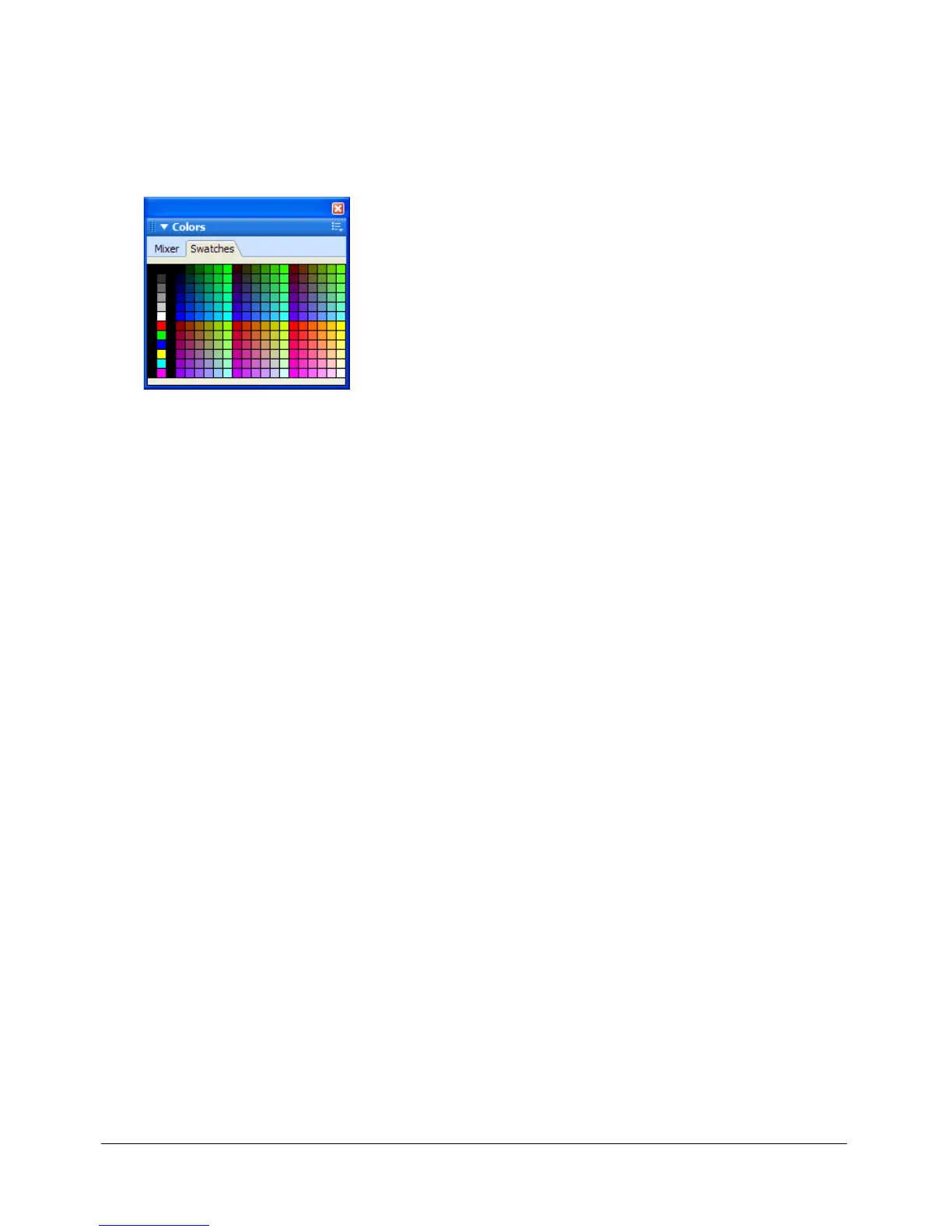
Swatches panel
To add a color to the Swatches panel:
1 Choose the Eyedropper tool from the Tools panel.
2 Choose the number of pixels to sample from the Sample pop-up menu in the Property
inspector: 1 pixel, 3x3 Average, or 5x5 Average.
3 Click anywhere inside any open Fireworks Document window to sample a color.
4 Move the tip of the eyedropper pointer to the open space after the last swatch in the
Swatches panel.
The eyedropper pointer becomes the paint bucket pointer.
5 Click to add the swatch.
Tip: When you choose Snap to Web Safe in the Options menu of the color pop-up window, any
non-websafe color you pick up with the eyedropper pointer is changed to the nearest websafe
color.
To replace a swatch with another color:
1 Choose the Eyedropper tool from the Tools panel.
2 Choose the number of pixels to sample from the Sample pop-up menu in the Property
inspector: 1 pixel, 3x3 Average, or 5x5 Average.
3 Click anywhere inside any Fireworks Document window to sample a color.
4 Hold down Shift and place the pointer over a swatch in the Swatches panel.
The pointer becomes the paint bucket pointer.
5 Click the swatch to replace it with the new color.
To delete a swatch from the Swatches panel:
1 Hold down Control (Windows) or Command (Macintosh) and place the pointer over a swatch.
The pointer becomes the scissors pointer.
2 Click the swatch to delete it from the Swatches panel.



 To Next Page