Adjusting bitmap color and tone 39
Cropping a selected bitmap
You can isolate a single bitmap object in a Fireworks document and crop only that bitmap object,
leaving other objects on the canvas intact.
To crop a bitmap image without affecting other objects in the document:
1 Select a bitmap object by clicking the object on the canvas or by clicking its thumbnail in the
Layers panel, or draw a selection marquee using a bitmap selection tool.
2 Choose Edit > Crop Selected Bitmap.
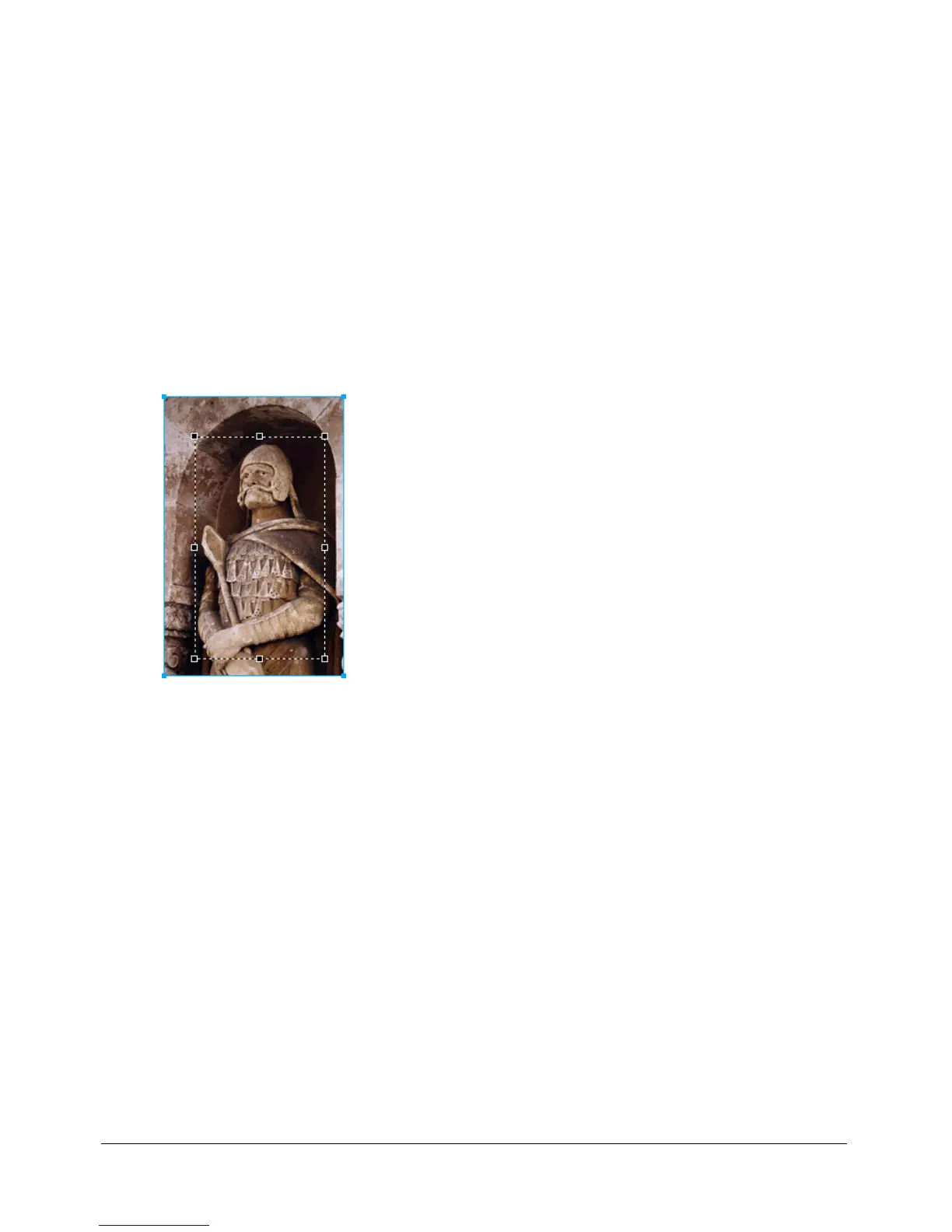
The crop handles appear around the entire selected bitmap or around the selection marquee, if
you drew one in step 1.
3 Adjust the crop handles until the bounding box surrounds the area of the bitmap image that
you want to keep.
Note: To cancel a crop selection, press Escape.
Bounding box
4 Double-click inside the bounding box or press Enter to crop the selection.
Every pixel in the selected bitmap outside the bounding box is removed, but other objects in
the document remain.
Adjusting bitmap color and tone
Fireworks has color- and tone-adjustment filters to help you improve and enhance the colors in
your bitmap images. You can adjust the contrast and brightness, the tonal range, and the hue and
color saturation of your images.
Applying filters as Live Effects from the Property inspector is nondestructive. Live Effects do not
permanently alter the pixels; you can remove or edit them anytime.
If you prefer to apply filters in an irreversible, permanent way, you can choose them from the
Filters menu. However, Macromedia recommends that you use filters as Live Effects whenever
possible.



 To Next Page