Applying gradient and pattern fills 113
Editing a gradient fill
You can edit the current gradient fill by clicking any Fill Color box and then using the Edit
Gradient pop-up window.
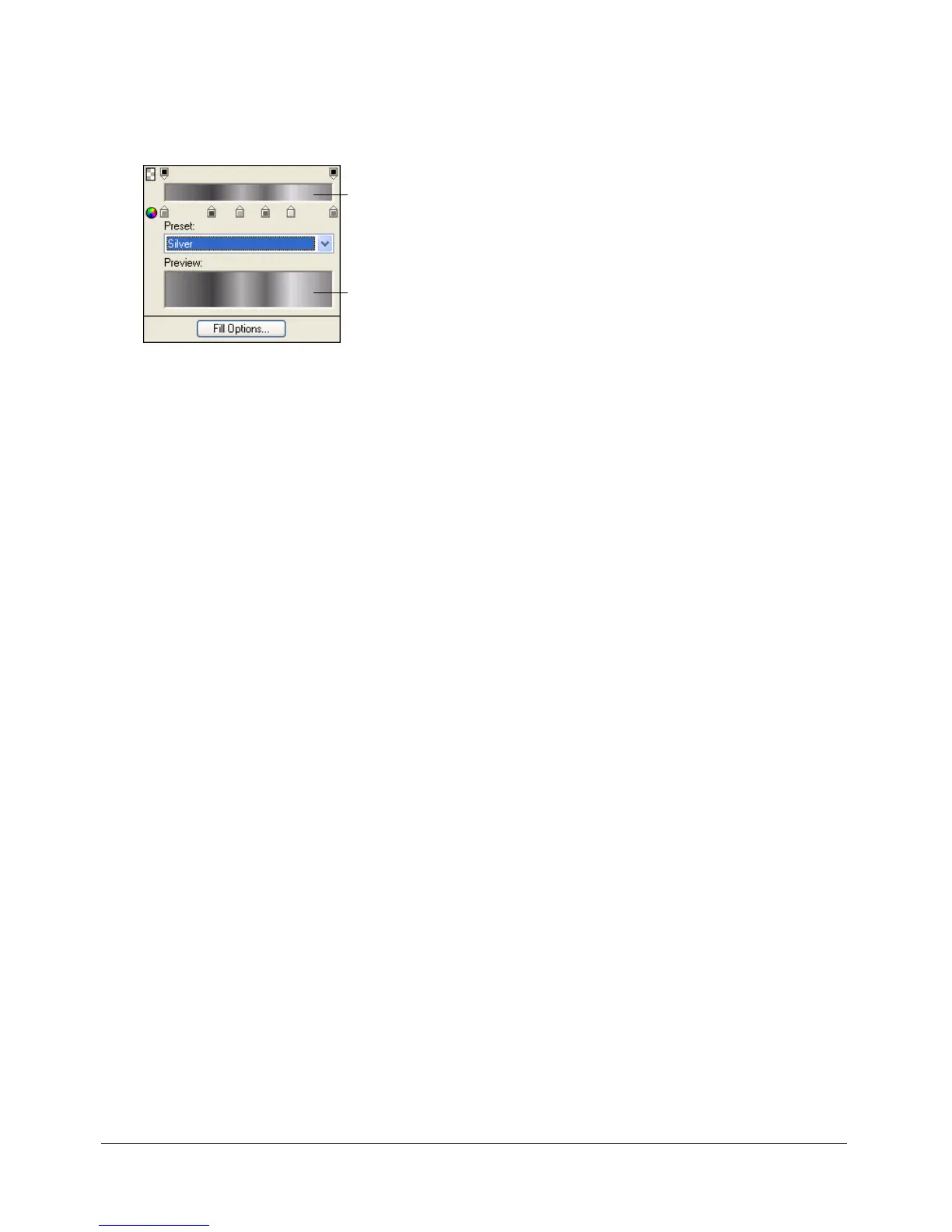
Edit Gradient pop-up window
To open the Edit Gradient pop-up window:
1 Select an object that has a gradient fill or choose a gradient fill from the Fill Options pop-up
menu in the Property inspector.
2 Click the Fill Color box in the Property inspector or Tools panel to open the pop-up window.
The Edit Gradient pop-up window opens with the current gradient in the color ramp
and preview.
To add a new color or opacity swatch to the gradient, do one of the following:
• To add a color swatch, click the area below the gradient color ramp.
• To add an opacity swatch, click the area above the gradient color ramp.
To remove a color or opacity swatch from the gradient:
• Drag the swatch away from the Edit Gradient pop-up window.
To set or change the color of a color swatch:
1 Click the color swatch.
2 Choose a color from the pop-up window.
To set or change the transparency of an opacity swatch:
1 Click the opacity swatch.
2 Do one of the following:
■ Drag the slider to the percentage of transparency, where 0 is completely transparent and 100
is completely opaque.
■ Enter a numeric value from 0 to 100 to set the opacity value.
Note: The transparency checkerboard shows through the gradient in transparent areas.
3 When you have finished editing the gradient, press Enter or click outside the Edit Gradient
pop-up window. The gradient fill appears in any selected objects and becomes the active fill.
To adjust the transition between colors in the fill:
• Drag color swatches left or right.
Color ramp
Preview



 To Next Page