144 Chapter 7: Layers, Masking, and Blending
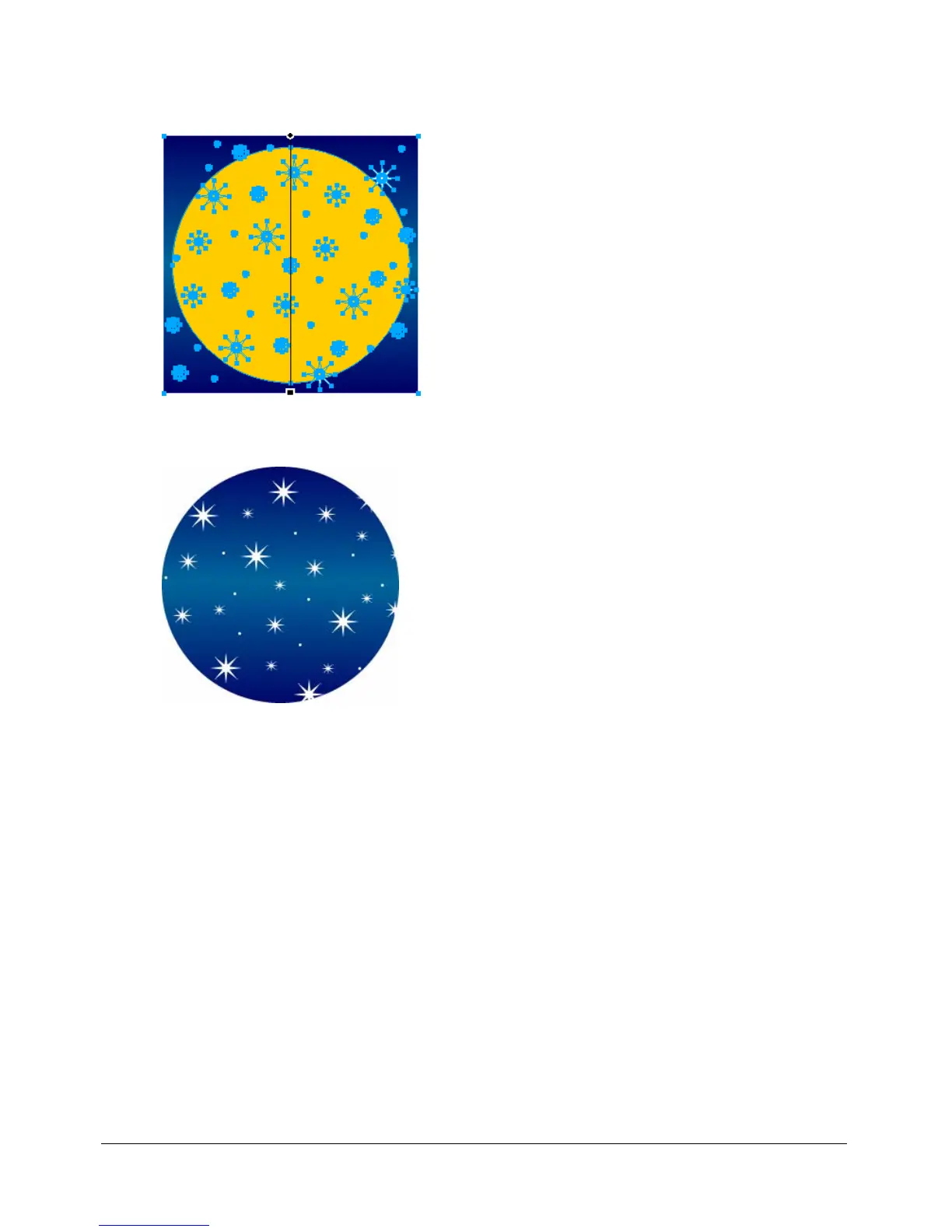
To group objects to form a mask:
1 Shift-click two or more overlapping objects.
You can select objects from different layers.
2 Choose Modify > Mask > Group as Mask.
Editing masks
You can modify masks in many ways. By modifying a mask’s position, shape, and color, you can
change the visibility of masked objects. You can also change a mask’s type and the way it is
applied. In addition, masks can be replaced, disabled, or deleted.
The results of editing a mask are immediately visible, even if the mask object itself is not visible
on the canvas. The mask thumbnail in the Layers panel displays the edits you make to the mask.
Masked objects can also be modified. You can rearrange masked objects without moving the
mask. You can also add additional masked objects to an existing mask group.
Selecting masks and masked objects using mask thumbnails
Masks and masked objects can be easily identified and selected using the thumbnails in the Layers
panel. Thumbnails allow you to easily select and edit just the mask or the masked objects, without
affecting the other objects.



 To Next Page