146 Chapter 7: Layers, Masking, and Blending
Moving masks and masked objects
You can reposition masks and masked objects. They can be moved together or independently.
To move a mask and its masked objects together:
1 Select the mask on the canvas using the Pointer tool.
2 Drag the mask to a new location, but don’t drag the move handle unless you want to move the
masked object separately from the mask.
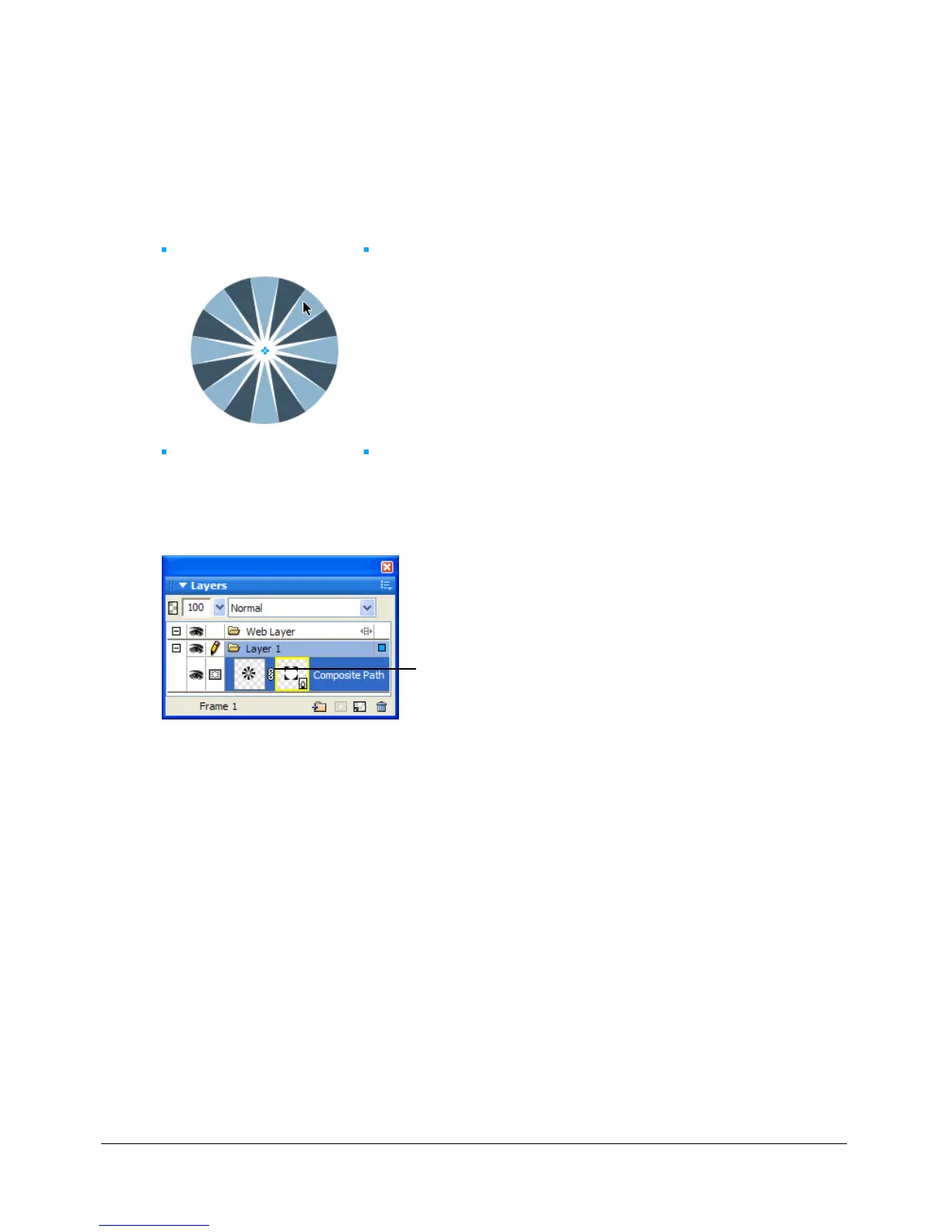
To move masks and masked objects independently by unlinking:
1 Click the link icon on the mask in the Layers panel.
This unlinks masks from masked objects so that they can be moved independently.
2 Select the thumbnail of the object you want to move: the mask or the masked objects.
3 Drag the object or objects on the canvas with the Pointer tool.
Note: If there is more than one masked object, all masked objects move together.
4 Click between the mask thumbnails in the Layers panel. This relinks the masked objects
to the mask.
Link icon



 To Next Page