Selecting pixels 17
Selecting an area around an existing marquee
You can create an additional marquee to frame an existing marquee at a specified width. This lets
you create special graphics effects, such as feathering the edges of a pixel selection.
To select an area around an existing marquee:
1 After drawing a marquee, choose Select > Border Marquee.
2 Enter the width of the marquee that you want to place around the existing marquee, and
click OK.
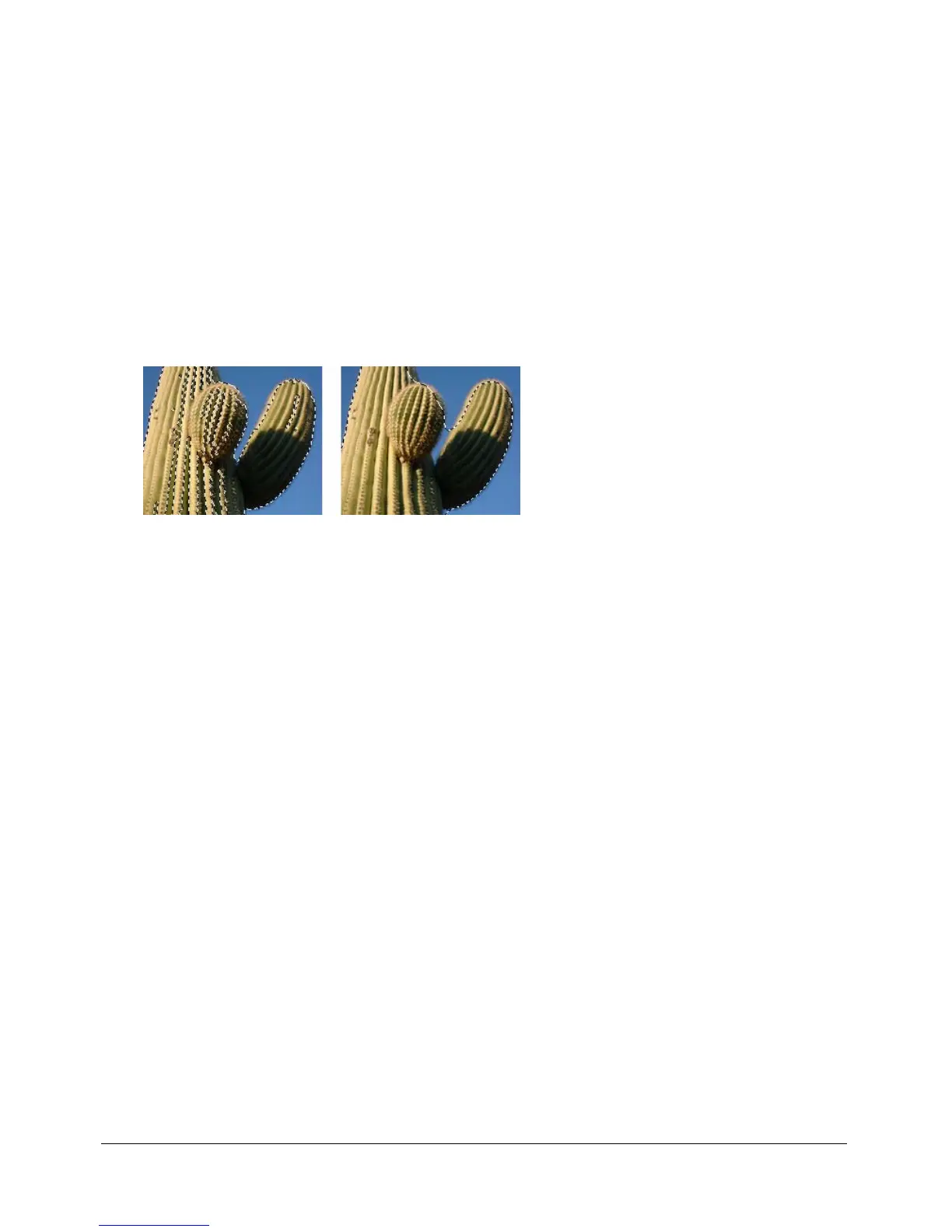
Smoothing the border of a marquee
You can eliminate excess pixels along the edges of a pixel selection. This is useful if excess pixels
appear along the border of a pixel selection or marquee after you use the Magic Wand tool.
A pixel selection before and after smoothing
To smooth the border of a marquee:
1 Choose Select > Smooth Marquee.
2 Enter a sample radius to specify the desired degree of smoothing, and click OK.
Transferring a marquee selection
You can transfer a marquee selection from one bitmap to another bitmap object on the same layer
or one on a different layer. You can also transfer the marquee selection to a mask.
To transfer a marquee selection to another bitmap object:
1 Make a selection by drawing the marquee.
2 In the Layers panel, select a different bitmap object on the same layer or an object on a
different layer.
The marquee is transferred to that object.
Note: Fireworks treats masks and masked objects as separate objects. For more information on
masks, see “Masking images” on page 134.



 To Next Page