208 Chapter 10: Creating Buttons and Pop-up Menus
Positioning pop-up menus and submenus
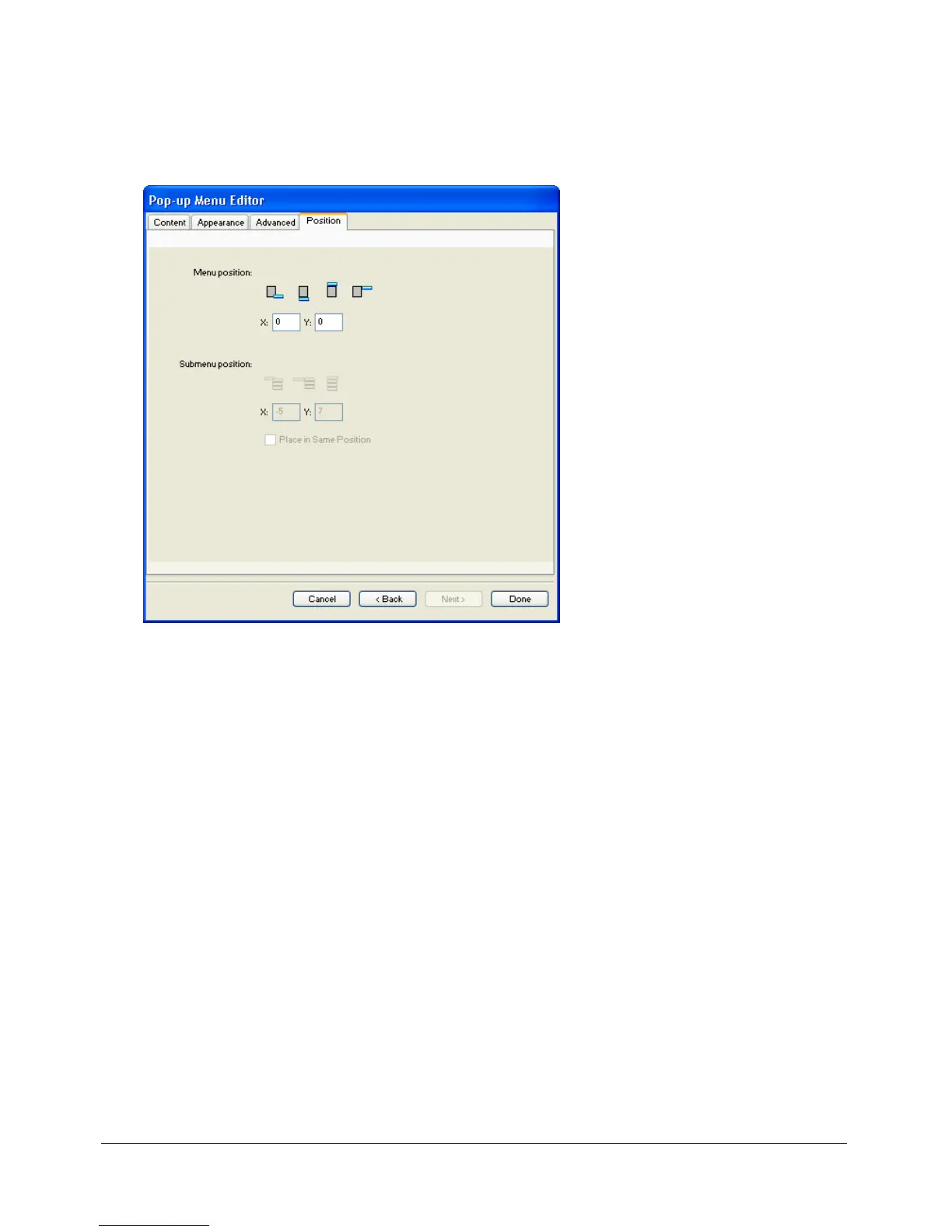
The Position tab of the Pop-up Menu Editor lets you specify a pop-up menu’s position. You can
also position a top-level pop-up menu by dragging its outline in the workspace when the Web
Layer is visible.
To set the position for a pop-up menu using the Pop-up Menu Editor:
1 With the desired pop-up menu open in the Pop-up Menu Editor, click the Position tab.
For information on opening an existing pop-up menu in the Pop-up Menu Editor, see
“Editing pop-up menus” on page 209.
2 Do one of the following to define the menu position:
■ Click a Position button to position the pop-up menu relative to the slice that triggers it.
■ Enter x and y coordinates. Coordinates of 0,0 align the upper left corner of the pop-up
menu with the upper left corner of the slice or hotspot that triggers it.
3 Do one of the following:
■ If you have submenus, position them as described in the next procedure.
■ Click Back to modify properties on other tabs.
■ Click Done to close the Pop-up Menu Editor.



 To Next Page