Working with frames 219
To share a layer across frames:
1 Double-click the layer.
2 Select Share Across Frames.
Note: All the contents in a shared layer appear in every frame.
To disable the sharing of a layer across frames:
1 Double-click the shared layer.
2 Deselect Share Across Frames.
3 Choose one of the following options for how to copy objects to frames:
■ Leave the contents of the shared layer in the current frame only.
■ Copy the contents of the shared layer to all frames.
Viewing objects in a specific frame
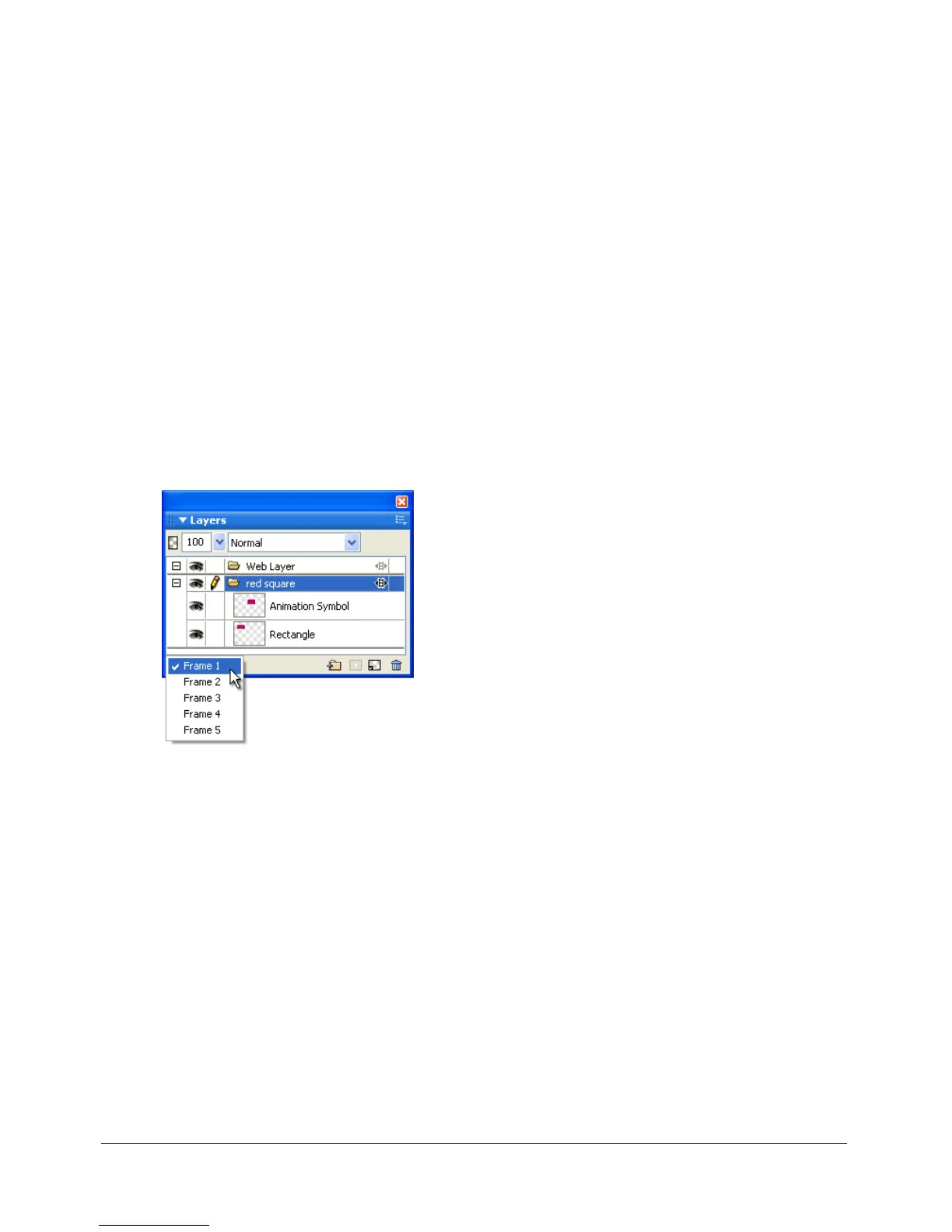
You can easily view objects in a specific frame using the Frame pop-up menu in the Layers panel.
To view objects in a specific frame:
• Choose the desired frame from the Frame pop-up menu at the bottom of the Layers panel.
All objects in the selected frame are listed in the Layers panel and displayed on the canvas.



 To Next Page