Organizing objects 25
Grouping objects
You can group individual selected objects and then manipulate them as if they were a single
object. For example, after drawing the petals of a flower as individual objects, you can group them
to select and move the entire flower as a single object.
You can edit groups without ungrouping them. You can select an individual object in a group for
editing without ungrouping the objects. You can also ungroup the objects at any time.
To group two or more selected objects:
• Choose Modify > Group.
To ungroup selected objects:
• Choose Modify > Ungroup.
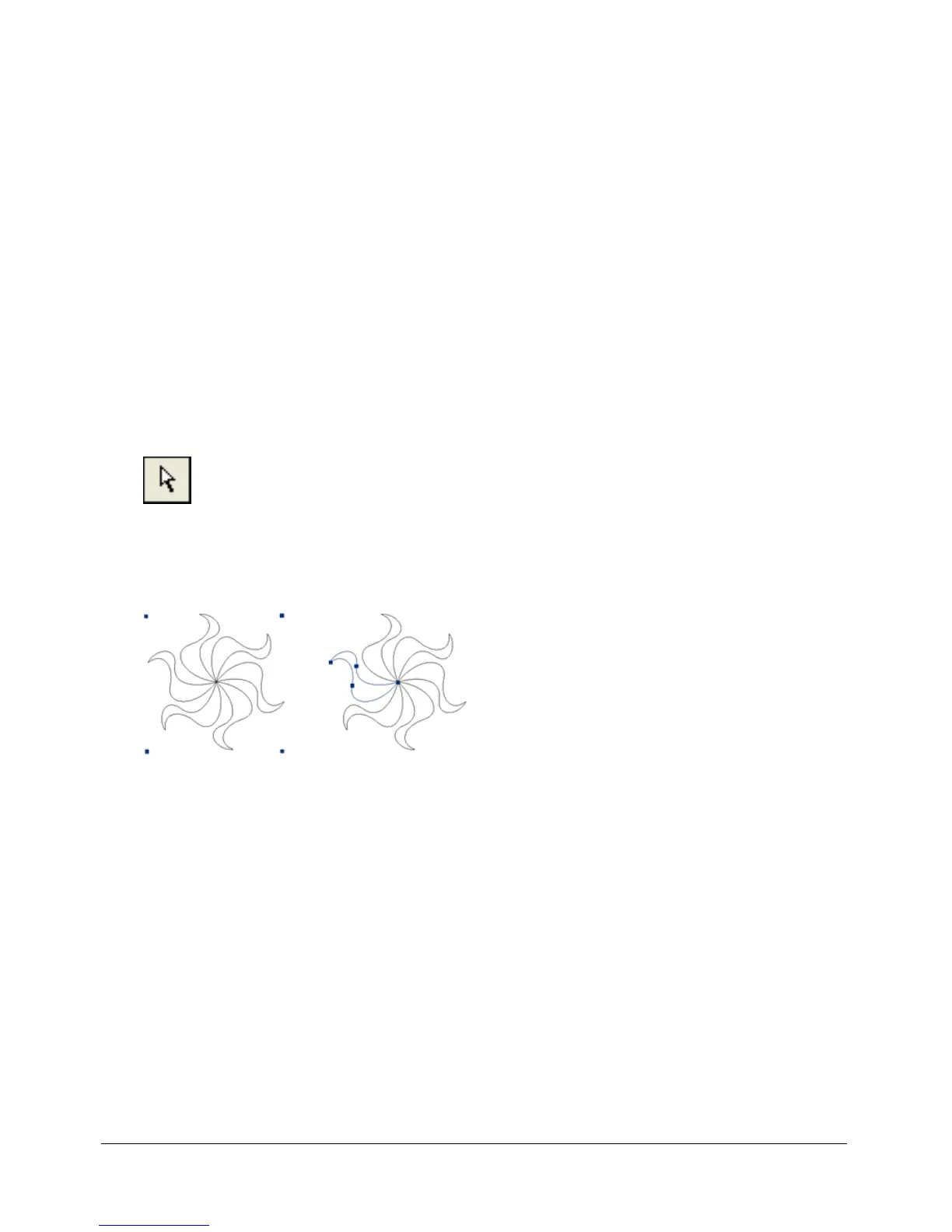
Selecting objects within groups
To work with individual objects within a group, you can either ungroup the objects or use the
Subselection tool to select individual objects while leaving the group intact.
Subselection tool
Modifying the attributes of a subselected object changes only the subselected object, not the
entire group. Moving a subselected object to another layer removes the object from the group.
Subselecting an object within a group
To select an object that is part of a group:
• Choose the Subselection tool and click the object or drag a selection area around it. To add
objects to or remove them from the selection, hold down Shift as you click or drag.
To select the group that contains a subselected object, do one of the following:
• Right-click (Windows) or Control-click (Macintosh) anywhere in the group and choose
Select > Superselect from the context menu.
• Choose Select > Superselect.
To select all objects within a selected group, do one of the following:
• Right-click (Windows) or Control-click (Macintosh) anywhere on the group and choose
Select > Subselect from the context menu.
• Choose Select > Subselect.



 To Next Page