268 Chapter 13: Automating Repetitive Tasks
To batch-process files:
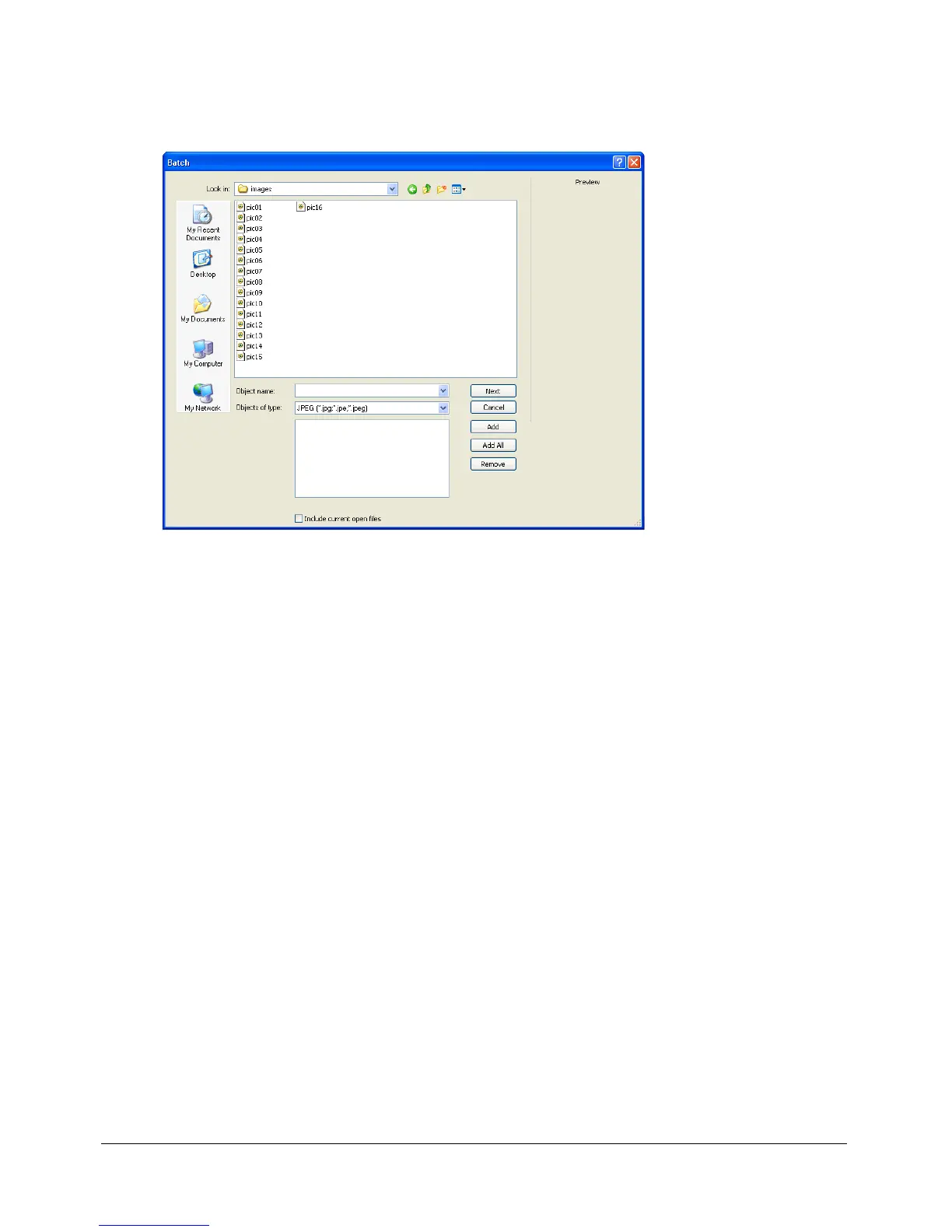
1 Choose File > Batch Process, and select the files to process. You can select files from different
folders or group them by file type.
Note: If the files you select are locked or checked in from a Dreamweaver site, you are prompted
to unlock them or check them out before proceeding.
2 Click one of the following in the Batch (Windows) or Batch Process (Macintosh) dialog box:
Add adds selected files and folders to the list of files to batch-process. If a folder is selected, all
valid, readable files in the folder are added to the batch process.
Note: Valid files are files that have been created, named, and saved. If the latest file version is not
saved, you are asked to save it, and you can then continue the batch process. If you don’t save the
file, the entire batch process ends.
Add All
adds all valid files in the currently selected folder to the list of files to batch-process.
Remove removes selected files from the list of files to batch-process.
3 Choose Include Current Open Files to add all currently open files.
These files do not appear in the list of files to batch-process, but they are included in
the process.



 To Next Page