Retouching bitmaps 37
Removing red-eye from photos
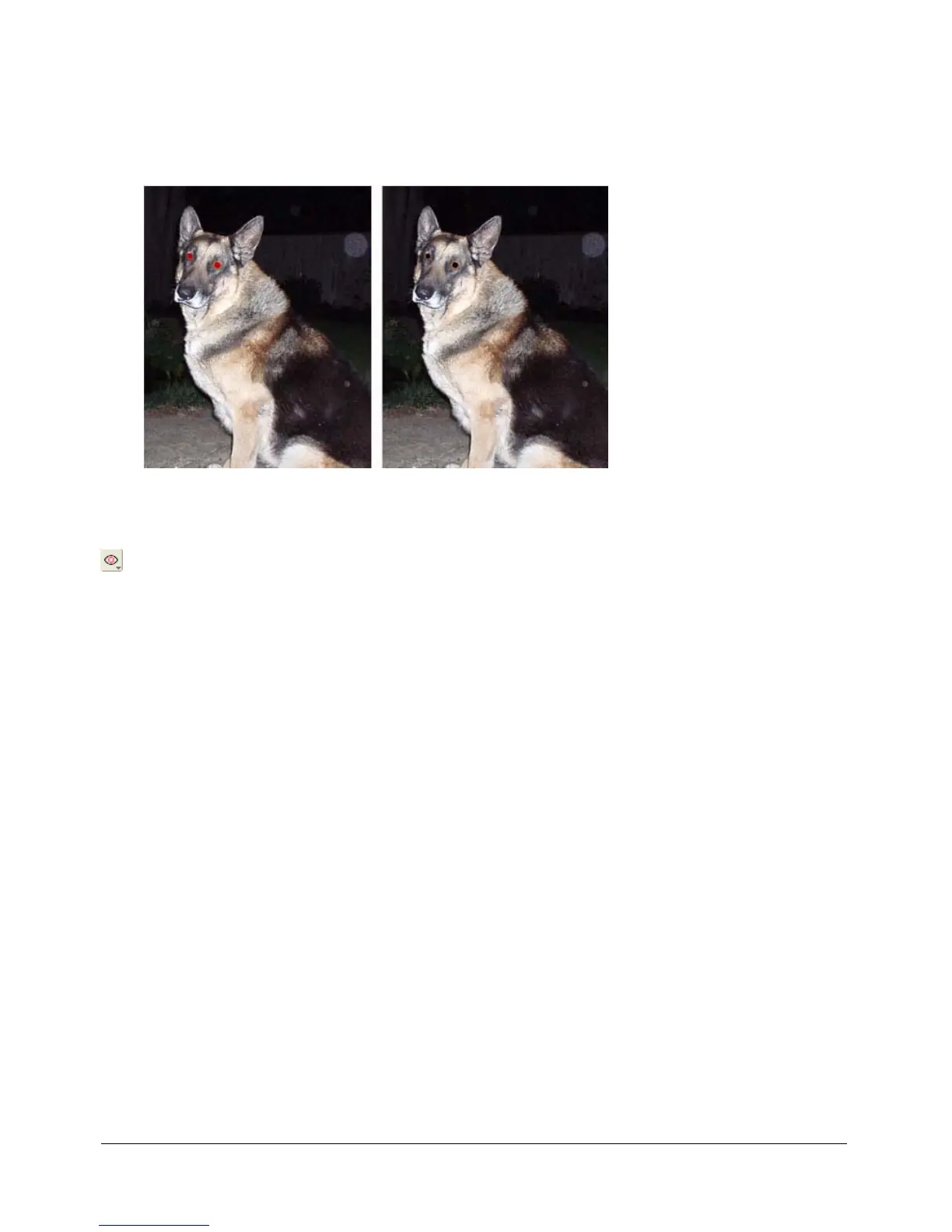
In some photographs, the subjects’ pupils are an unnatural shade of red. You can use the Red-eye
Removal tool to correct this red-eye effect. The Red-eye Removal tool paints red areas of a
photograph only, replacing reddish colors with grays and blacks.
Original photograph; after using the Red-eye Removal tool
To correct the red-eye effect in a photograph:
1 Choose the Red-eye Removal tool from its pop-up menu.
2 Set the stroke attributes in the Property inspector:
Size sets the size of the brush tip.
Shape sets a round or square brush tip shape.
Tolerance determines the range of hues to replace (0 replaces only red; 255 replaces all hues
that contain red).
Strength sets the darkness of the grays used to replace reddish colors.
3 Drag or click the red pupils in the photograph.



 To Next Page