48 Chapter 2: Working with Bitmaps
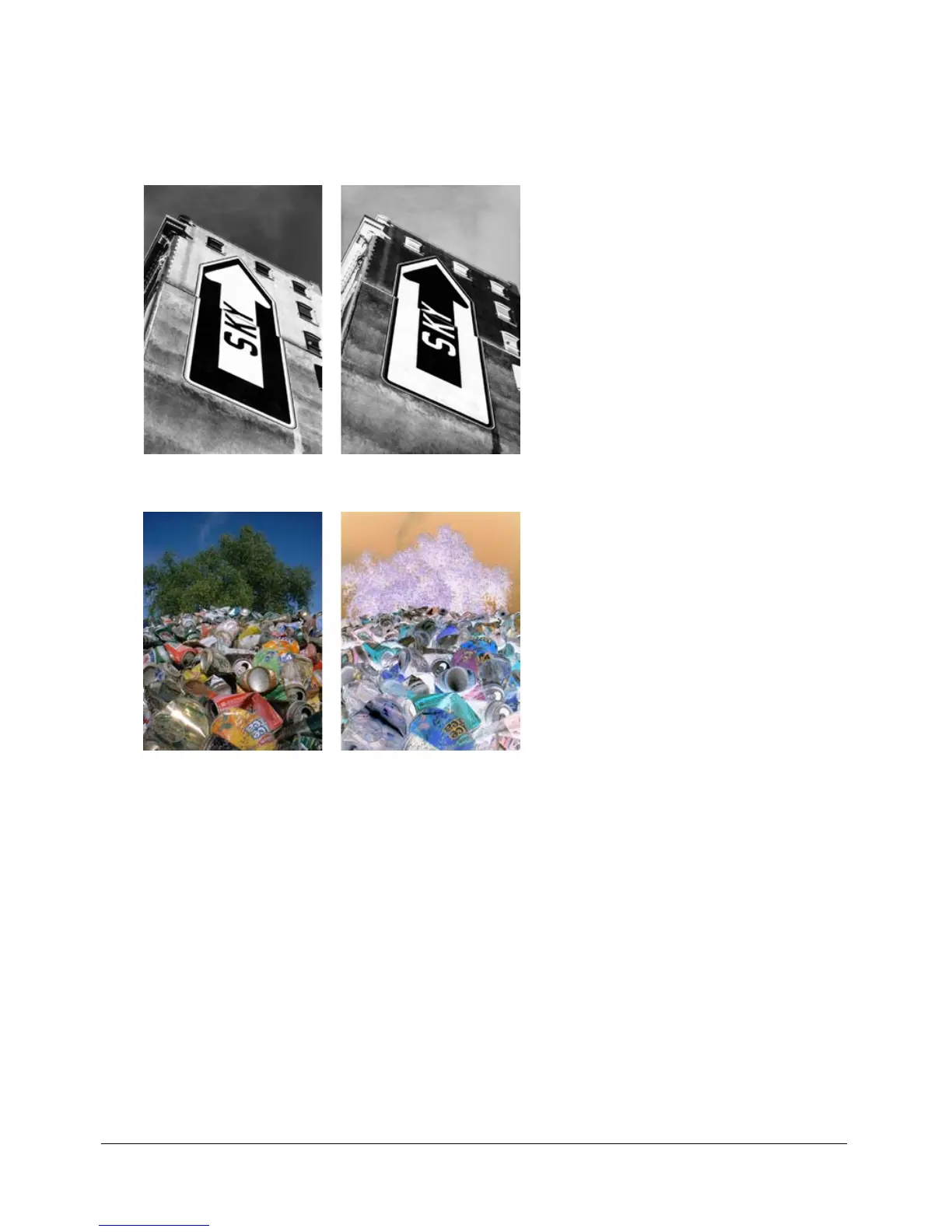
Inverting an image’s color values
You can use Invert to change each color in an image to its inverse on the color wheel. For
example, applying the filter to a red object (R=255, G=0, B=0) changes the color to light blue
(R=0, G=255, B=255).
A monochrome image; after inverting
A color image; after inverting
To invert colors:
1 Select the image.
2 Do one of the following:
■ In the Property inspector, click the Add Effects button, and then choose Adjust Color >
Invert from the Add Effects pop-up menu.
■ Choose Filters > Adjust Color > Invert.
Note: Applying a filter from the Filters menu is destructive; that is, it cannot be undone except
when Edit > Undo is an option. To maintain the ability to adjust, turn off, or remove this filter, apply it
as a Live Effect, as described in the first bulleted option in this step. For more information, see
“Using Live Effects” on page 119.



 To Next Page