76 Chapter 3: Working with Vector Objects
To combine selected closed paths as one path enclosing the entire area of the
original paths:
• Choose Modify > Combine Paths > Union. The resulting path assumes the stroke and fill
attributes of the object that is placed farthest back.
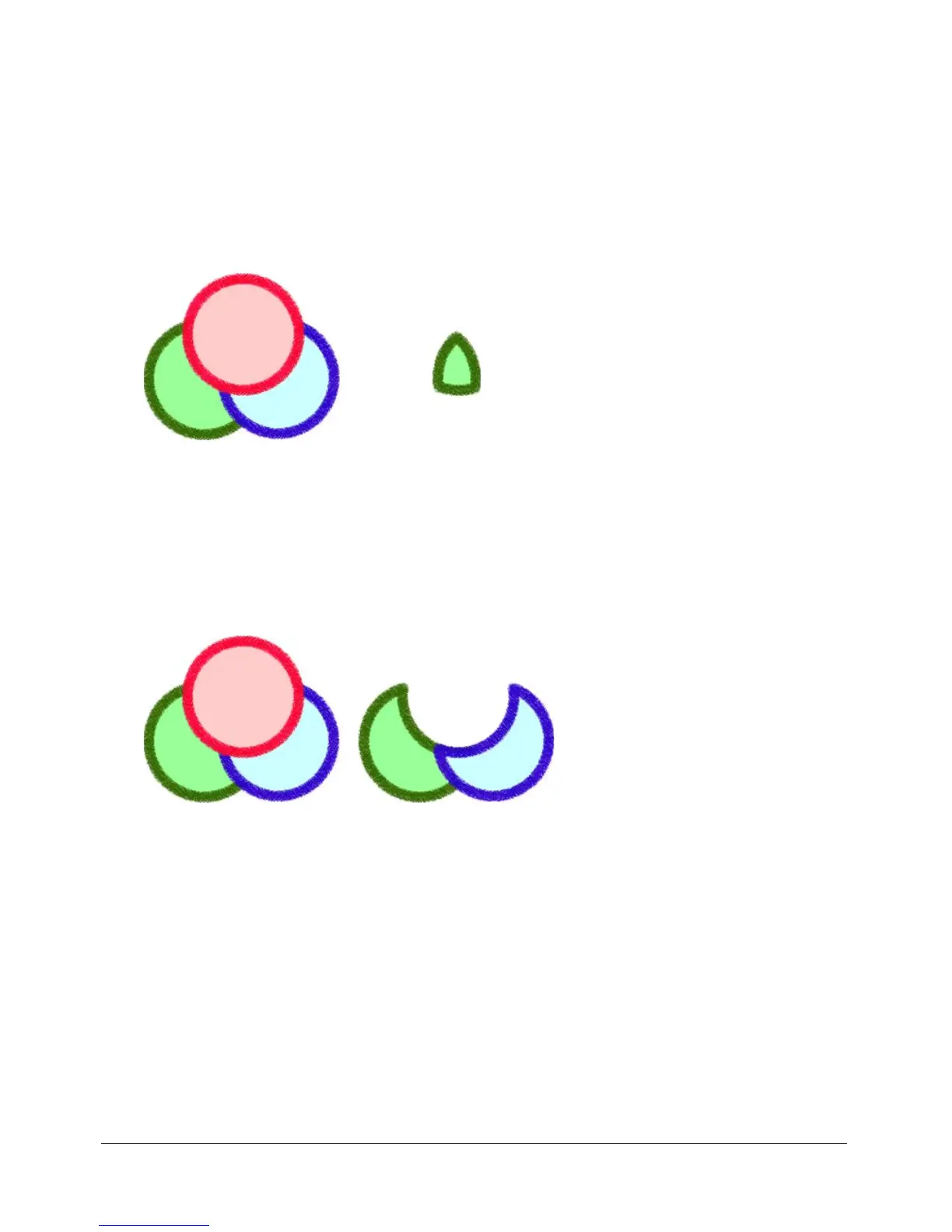
Creating an object from the intersection of other objects
Using the Intersect command, you can create an object from the intersection of two or more
objects.
To create a closed path that encloses the area common to all selected closed paths:
• Choose Modify > Combine Paths > Intersect. The resulting path assumes the stroke and fill
attributes of the object that is placed farthest back.
Removing portions of a path object
You can remove portions of a selected path object as defined by the overlapping portions of
another selected path object arranged in front of it.
To remove portions of a path object:
1 Select the path object that defines the area to be removed.
2 Choose Modify > Arrange > Bring to Front.
3 Hold down Shift and add to the selection the path object from which the portions are to
be removed.
4 Choose Modify > Combine Paths > Punch.
Stroke and fill attributes remain unchanged.



 To Next Page