Attaching text to a path 91
To edit the shape of the path:
1 Choose Text > Detach from Path.
2 Edit the path.
3 Place the text back on the path.
Changing text orientation and direction on a path
The order in which you draw a path establishes the direction of the text attached to it.
For example, if you draw a path from right to left, the attached text appears backward and
upside down.
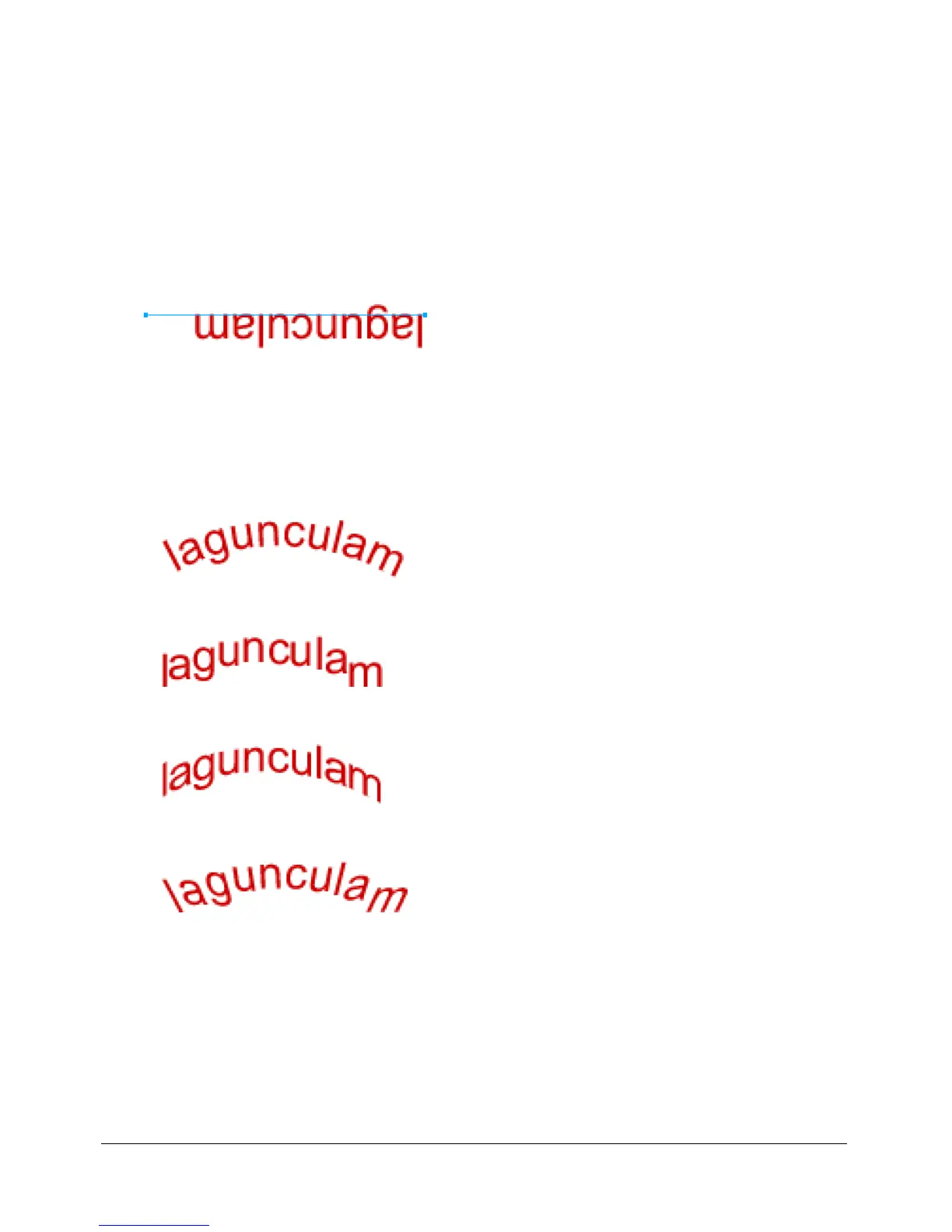
Text attached to a path drawn right to left
You can change the orientation or reverse the direction of the text attached to a path. You can also
change the starting point of text on a path.
To change the orientation of text on a selected path:
• Choose Text > Orientation and select an orientation.
Text rotated around a path
Text oriented vertically on a path
Text skewed vertically around a path
Text skewed horizontally around a path
To reverse the direction of text on a selected path:
• Choose Text > Reverse Direction.



 To Next Page