11
ENG
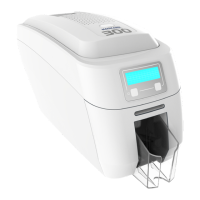
To prevent the card slipping on the rollers we
recommend that you clean your printer using a
cleaning card each time you replace the dye-film.
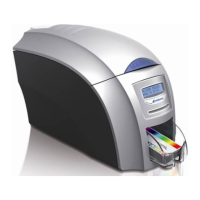
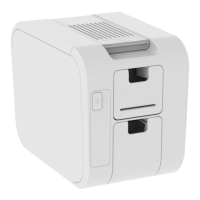
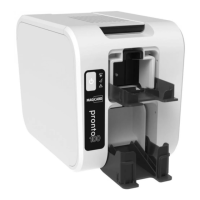
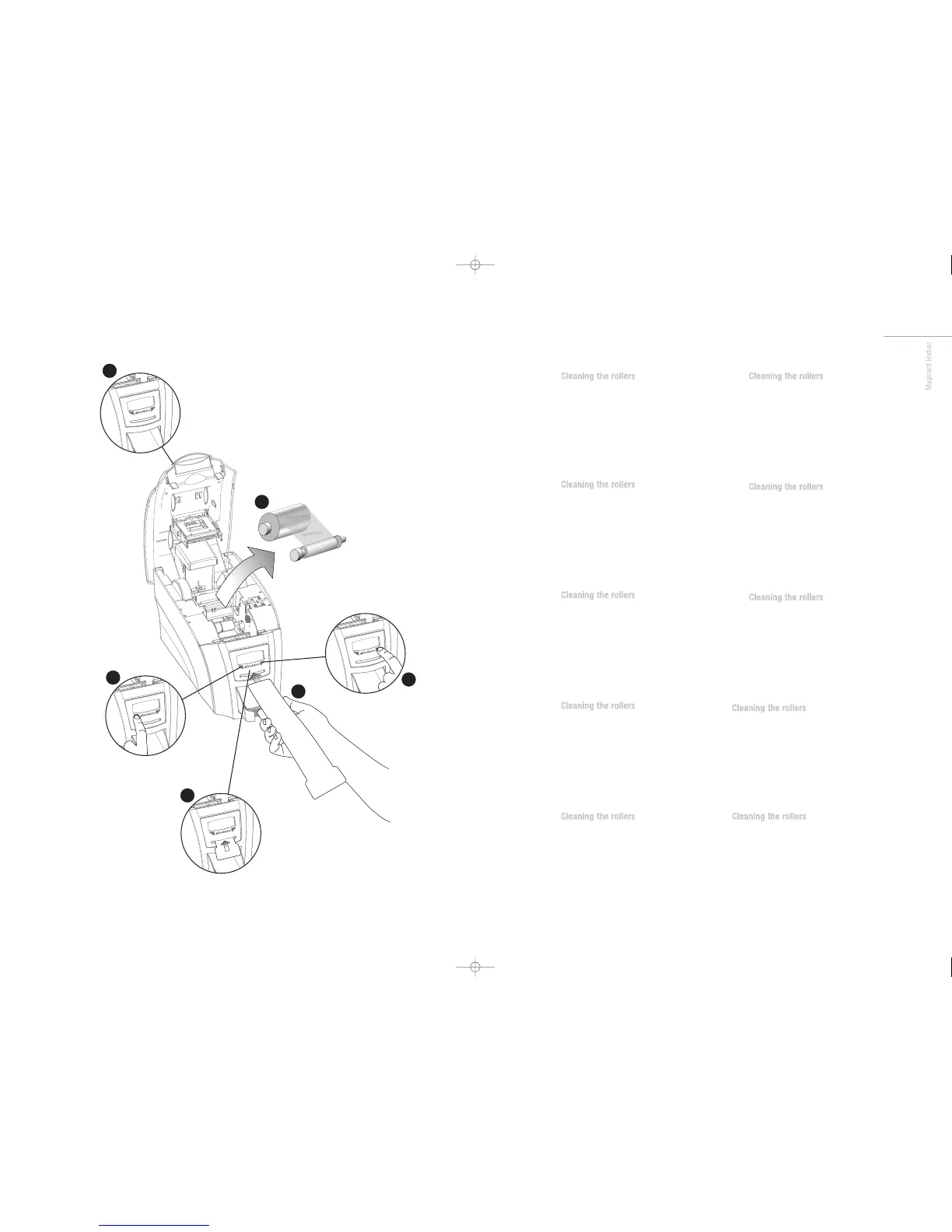
1 Open printer and leave lid open.
2 Remove the dye film.
3 Press the ‘left button’ once on LCD screenl
4 Then press ‘rignt button’ to validate.
5 Take a new cleaning card from its packaging and when
prompted place the card into the front card feeder slot.
6 The cleaning card will now automatically enter the printer.
When cleaning cycle is finshed, turn the cleaning over
and repeat steps 3-4.
FR
To prevent the card slipping on the rollers we
recommend that you clean your printer using a
cleaning card each time you replace the dye-film.
1 Open printer and leave lid open.
2 Remove the dye film.
3 Press the ‘left button’ once on LCD screenl
4 Then press ‘rignt button’ to validate.
5 Take a new cleaning card from its packaging and when
prompted place the card into the front card feeder slot.
6 The cleaning card will now automatically enter the printer.
When cleaning cycle is finshed, turn the cleaning over
and repeat steps 3-4.
ES
To prevent the card slipping on the rollers we
recommend that you clean your printer using a
cleaning card each time you replace the dye-film.
1 Open printer and leave lid open.
2 Remove the dye film.
3 Press the ‘left button’ once on LCD screenl
4 Then press ‘rignt button’ to validate.
5 Take a new cleaning card from its packaging and when
prompted place the card into the front card feeder slot.
6 The cleaning card will now automatically enter the printer.
When cleaning cycle is finshed, turn the cleaning over
and repeat steps 3-4.
PT
To prevent the card slipping on the rollers we
recommend that you clean your printer using a
cleaning card each time you replace the dye-film.
1 Open printer and leave lid open.
2 Remove the dye film.
3 Press the ‘left button’ once on LCD screenl
4 Then press ‘rignt button’ to validate.
5 Take a new cleaning card from its packaging and when
prompted place the card into the front card feeder slot.
6 The cleaning card will now automatically enter the printer.
When cleaning cycle is finshed, turn the cleaning over
and repeat steps 3-4.
IT
To prevent the card slipping on the rollers we
recommend that you clean your printer using a
cleaning card each time you replace the dye-film.
1 Open printer and leave lid open.
2 Remove the dye film.
3 Press the ‘left button’ once on LCD screenl
4 Then press ‘rignt button’ to validate.
5 Take a new cleaning card from its packaging and when
prompted place the card into the front card feeder slot.
6 The cleaning card will now automatically enter the printer.
When cleaning cycle is finshed, turn the cleaning over
and repeat steps 3-4.
DE
To prevent the card slipping on the rollers we
recommend that you clean your printer using a
cleaning card each time you replace the dye-film.
1 Open printer and leave lid open.
2 Remove the dye film.
3 Press the ‘left button’ once on LCD screenl
4 Then press ‘rignt button’ to validate.
5 Take a new cleaning card from its packaging and when
prompted place the card into the front card feeder slot.
6 The cleaning card will now automatically enter the printer.
When cleaning cycle is finshed, turn the cleaning over
and repeat steps 3-4.
CN
To prevent the card slipping on the rollers we
recommend that you clean your printer using a
cleaning card each time you replace the dye-film.
1 Open printer and leave lid open.
2 Remove the dye film.
3 Press the ‘left button’ once on LCD screenl
4 Then press ‘rignt button’ to validate.
5 Take a new cleaning card from its packaging and when
prompted place the card into the front card feeder slot.
6 The cleaning card will now automatically enter the printer.
When cleaning cycle is finshed, turn the cleaning over
and repeat steps 3-4.
RU
To prevent the card slipping on the rollers we
recommend that you clean your printer using a
cleaning card each time you replace the dye-film.
1 Open printer and leave lid open.
2 Remove the dye film.
3 Press the ‘left button’ once on LCD screenl
4 Then press ‘rignt button’ to validate.
5 Take a new cleaning card from its packaging and when
prompted place the card into the front card feeder slot.
6 The cleaning card will now automatically enter the printer.
When cleaning cycle is finshed, turn the cleaning over
and repeat steps 3-4.
To prevent the card slipping on the rollers we
recommend that you clean your printer using a
cleaning card each time you replace the dye-film.
1 Open printer and leave lid open.
2 Remove the dye film.
3 Press the ‘left button’ once on LCD screenl
4 Then press ‘rignt button’ to validate.
5 Take a new cleaning card from its packaging and when
prompted place the card into the front card feeder slot.
6 The cleaning card will now automatically enter the printer.
When cleaning cycle is finshed, turn the cleaning over
and repeat steps 3-4.
To prevent the card slipping on the rollers we
recommend that you clean your printer using a
cleaning card each time you replace the dye-film.
1 Open printer and leave lid open.
2 Remove the dye film.
3 Press the ‘left button’ once on LCD screenl
4 Then press ‘rignt button’ to validate.
5 Take a new cleaning card from its packaging and when
prompted place the card into the front card feeder slot.
6 The cleaning card will now automatically enter the printer.
When cleaning cycle is finshed, turn the cleaning over
and repeat steps 3-4.


 To Next Page
 Loading...