P1
Functions & Settings
-
Chapter.04
Chapter.04
-
Functions &
Settings
2) How to
u
s
e
S
T
T
E
EP1
1
Open the
ET Manager window by
d
o
ub
l
e
-
c
li
c
k
i
ng
the
ET Manager icon
i
n
your P C
a Background
I
m
a
g
e
”
screen will
a
pp
ea
r
.
2
Search and select images from your files.(Choose from amon g the
f
o
l
d
e
r
s
3
first, and then select an image by checking off the small box beside
t
h
e
file
n
a
m
e
.
)
Click the file name to see the image on the Image
V
i
e
w
e
r
.
4
Click the
“
SA
VE
IMAGE IN SD
C
A
R
D
”
to save the selected images
a
s
5
background
f
il
e
s
.
STEP2
6
Search for your SD card and click it, an d then c lick o
k
.
(You will see the pr ogress bar movi ng which indicates that the fi les
a
r
e
being s
a
v
e
d
.
)
7
To make sure that the images were saved in the SD card, open the
S
D
card by clicking
“
M
y
C
o
m
pu
t
e
r
”
,
and then click
“
R
e
m
o
v
a
b
l
e
D
i
s
k
”
(
t
h
e
SD card folder). You will see a folder entitled
“
B
A
C
K
G
ROU
ND
”
,
click it
a
nd
you will see your image files converted to EBJ.file
f
o
r
m
a
t
.
STEP3
1
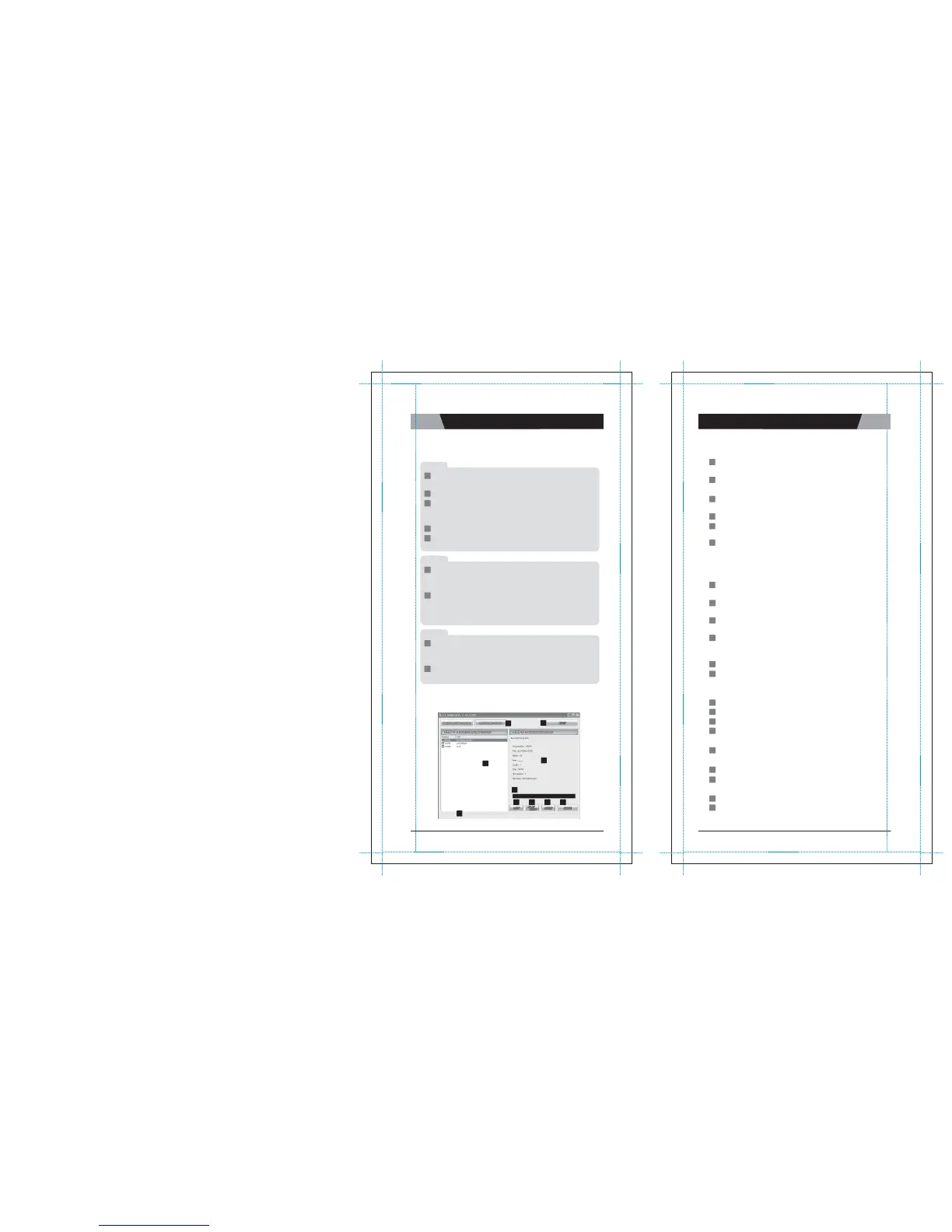
RECORDED SONG
: Click on the
"
R
E
COR
D
E
D
S
O
N
G
"
tab to work
w
it
h
Recorded
S
o
ngs
.
2
SONG LIST
:
When you click
“
L
I
ST
”
,
it
shows you the list of
t
h
e
song titles recorded in the recording pack. (if
t
h
e
r
e
’
s
a
n
y
)
3
RECORDED SONG INFO
:
Shows the song info. of a song
r
e
c
o
r
d
e
d
in the recording pack which is currently p
l
a
y
i
ng
.
4
SONG COUNTER BAR
:
Time counter of the song currently p
l
a
y
i
ng
.
5
LIST
:
Clicking on this tab shows you the song
titl
e
s
(
if
t
h
e
r
e
'
s
a
n
y
)
in the
"
S
o
ng
list"
w
i
nd
o
w
.
6
PLAY
/
STOP
:
Clicking on this
“
P
L
A
Y
”
tab plays the selected s
o
ng
(Select a song by checking off the box beside the song
t
i
t
l
e
.
)
Clicking on this
“
ST
O
P
”
tab stops the song currently
p
l
a
y
i
ng
.
(The
“
P
L
A
Y
”
button will be transformed into the
“
ST
O
P
”
bu
tt
o
n
as soon as the song starts
p
l
a
y
i
ng
.
)
7
NEXT
:
Clicking on this tab plays the next song on the
li
s
t
.
(Check off the box first beside the song title(s) you want to play
n
e
x
t
.
)
8
SAVE
:
Clicking on this tab saves the selected songs in y
o
u
r
PC as a MP2
f
il
e
.
9
DOWNLOAD PROGRESS BAR
:
Shows the length of the
r
e
c
o
r
ded
song currently p
l
a
y
i
ng
.
10
EXIT
:
Allows you to exit from the
“
R
E
COR
D
E
D
S
O
N
G
”
w
i
nd
o
w
.
8
Safely remov e the SD card from your
PC
and insert it into the SD card
s
l
o
t
located on the right si de of the MagicSing main station.(IMPORTANT :
T
H
E
MAIN STA TION SHOULD BE TURNED OFF
before inserting the .SD
c
a
r
d
)
9
Turn the main station
o
n
.
MagicSing will automatically display the images saved in the SD card on your T
V
.
B.
R
ec
o
r
d
1) User Interface La
y
o
u
t
.
1
10
2) How to
u
s
e
1
Insert a recording pack into the main station and turn on the
p
o
w
e
r
.
2
If there are recorded songs in the recording pack, just go to step
3.
If not, record your favorite songs first which you want to
c
o
n
v
e
r
t
a
nd
save into your
P
C
.
3
Connect t he main st ation to a PC by USB
c
a
b
l
e
.
4
Execute
“
E
T
M
A
N
A
GE
R
”
.
5
Click on the
“
R
E
COR
D
E
D
S
O
N
G
”
t
a
b
.
6
Click on the
“
L
I
ST
”
tab to show you the song titles (if
t
h
e
r
e
'
s
a
n
y
)
in the
“
S
o
ng
L
i
s
t
”
w
i
nd
o
w
.
7
Select a song from the song list by checking off the box
b
e
s
i
d
e
2
3
the
s
o
ng
.
8
Click on the
“
P
L
A
Y
/
S
T
OP
”
tab to hear the selected song on your
PC
.
9
Click on the
“
N
E
X
T
”
tab to play the next s
o
ng
.
4
(Check off the box first beside the song title(s) you want to play
n
e
x
t
.
)
5
6
7
8
9
10
Click on the
“
P
L
A
Y
/
ST
O
P
”
tab to stop the song currently
p
l
a
y
i
ng
.
11
Click on the
“
SA
VE
”
tab to save the selected song into your
P
C
as a MP2
f
il
e
.
CHAPTER.
04
|
24
VER.100
25
|
CHAPTER.
04
VER.100


 To Next Page