ON
POWER
Product Gui de
-
Chapter.03
Chapter.03
-
Product Guid e
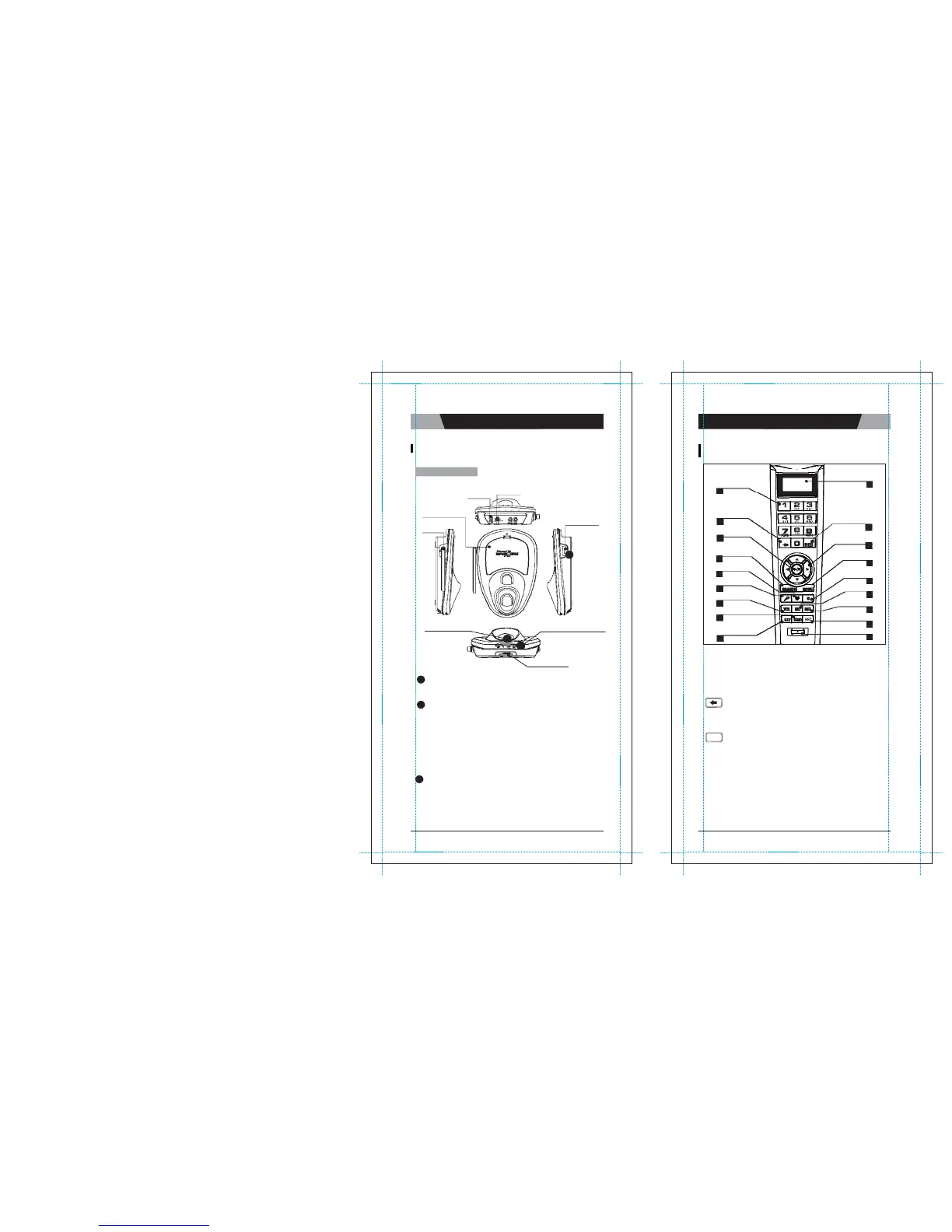
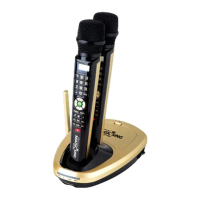
ET19KV MAIN STATION
ET19KV WIRELESS KARAOKE KEY
BUTTONS
ET19KV
Main Station
DC
IN
USB P ORT
Number
button
2
LCD
Display
1
SONG PACK COVER
POWER ON
/
OFF
SWITCH
ANTENA
A
Cancel
Button
3
Play
/
Stop
Button
6
Search
Button
7
MY-MIC
Button
9
Vocal
Assist Butt on
10
Volume
Button
12
Echo
Button
15
Reservation
Button
4
Navigation Button
5
MODE
Button
18
Pause
Button
11
MIC
Button
13
Melody Button
14
Record
Button
17
POWER INDICATOR
A
POWER ON
/
OFF
S
W
I
T
C
H
B
C
C
C
WIRELESS MIC INDICATOR
SD CA RD SLOT
Key
Button
Power
Button
16
8
1. LCD DISPLAY
2. NUMBER BUTTON
-
Turns on or off the main s
t
a
t
i
o
n
.
B
POWER
I
ND
I
C
A
T
O
R
-
A green light indicates that the ET19KV is turned on an d ready
f
o
r
u
s
e
.
-
A red light indicates that the ET19KV is in the standby
m
o
d
e
.
Press the power button on the remote control or turn off the
p
o
w
e
r
button on the main station and turn
it
on
a
g
a
i
n
.
-
No light indicates that the power button on the main station is
i
n
the off position. Please turn
it
o
n
.
C
WIRELESS MIC
I
ND
I
C
A
T
O
R
S
-
A blue light indicates that the wireless mic is connected
t
o
the main
s
t
a
t
i
o
n
.
3. CANCEL BUTTON
-
Press this button to erase one by one what you input or to
c
a
n
c
e
l
some function you
c
h
o
s
e
.
4. RESERVATION BUTTON
RES
-
Please select a song and press
[RES]
to reserve the
s
o
ng
(The song number will be displayed on the screen under
t
h
e
“
R
e
s
e
r
v
e
d
”
menu.)
-
Press
[MODE]
twice to exit the reservation list and go back
t
o
the
o
n
-
s
c
r
ee
n
list by pressing [
▼
],
[▲].
-
In case you want to delete a reserved song, select that song
i
n
the
“
r
e
s
e
r
v
e
d
”
list and press [
R
E
S
]
a
g
a
i
n
.
-
You can reserve up to 100 songs, but only 4 songs with
t
h
e
i
r
respective numbers will appear on a blue bar on the upper p
o
r
t
i
o
n
of the
s
c
r
ee
n
.
CHAPTER.
03
|
01
VER.100
02
|
CHAPTER.
03
VER.100


 To Next Page