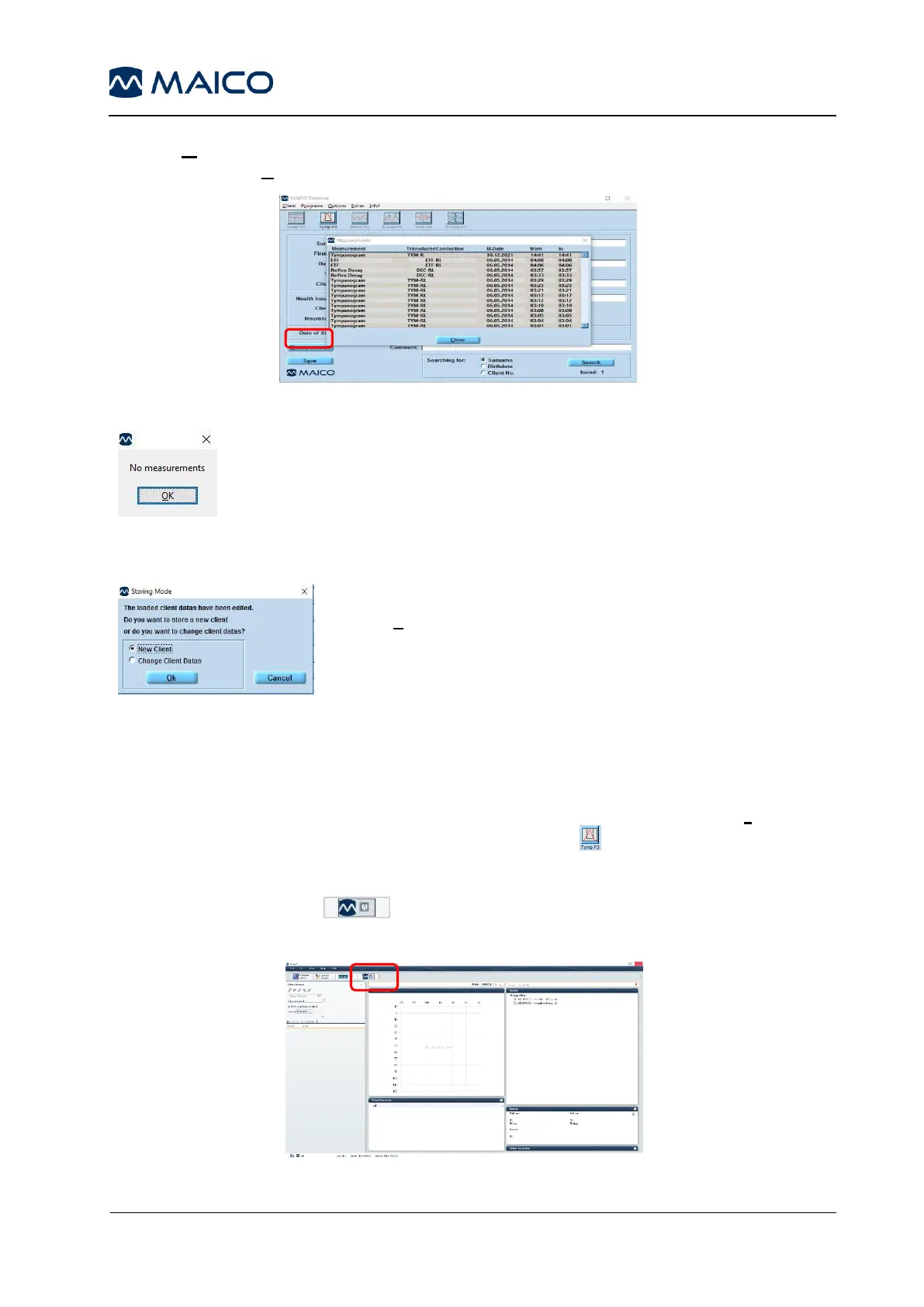
Click the Measurements button to view past tests for the selected client. A list of stored tests
is displayed. Press Close to leave the measurement view again (Figure 31).
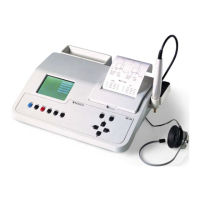
If no measurements are available a message box will be shown
(Figure 32).
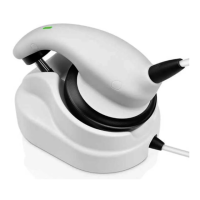
For changing a client data enter the new data in the fields and
press Save. A message box will appear asking if a new client
shall be saved or the client data shall be changed. Select
New client to save a new client or Change Client Datas to
change the current client data. Press Cancel to go back to
the main screen (Figure 33).
5.2.2.6 Starting the MA 33 Software
After having selected a client open the MA 33 Software using the menu (Programs –
MA 33), the shortcut F2 or via mouse-click on the Audio button.
5.2.3 Starting the MA 33 Software from Noah
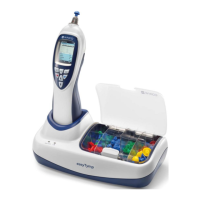
Choose the MAICO icon from the Noah Menu bar. Under Measurements an
overview of the installed Measurement modules will appear (Figure 34).



 To Next Page