Ensure the headphones are put on correctly: Red side on the right, blue side on the left.
Adjust the headband of the headphones so that the receivers are at the correct height
(the sound output grid exactly facing the ear canal).
Perform the test words.
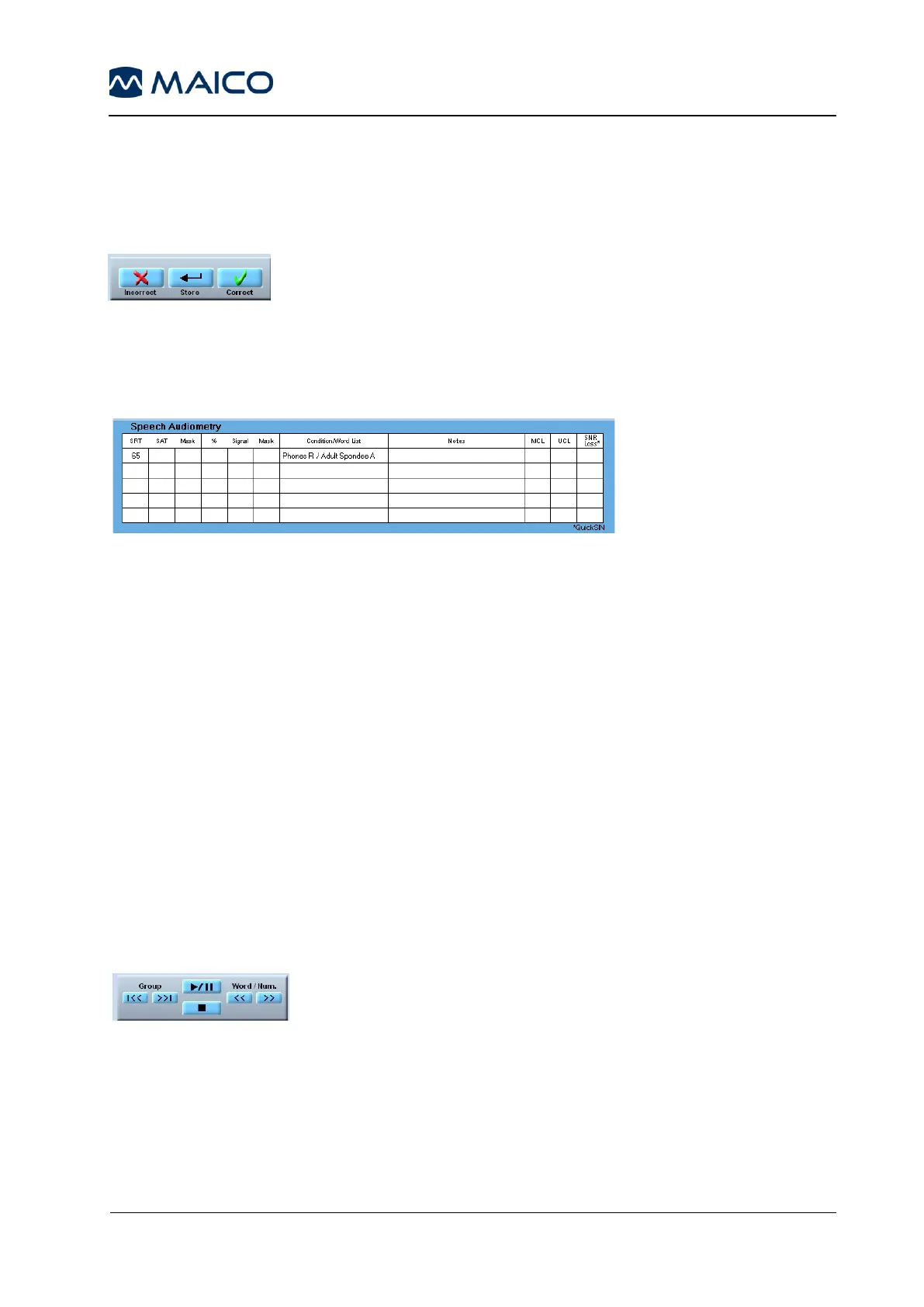
Score the patient´s response for each word using the Correct and
Incorrect buttons located at the right-hand, bottom corner of the
speech screen (Figure 79). If WAVE File is selected a correct
response will be highlighted in green and an incorrect response will
be highlighted in red. At the end of the test, the test finishes automatically. Save the test
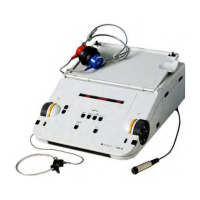
score by clicking on the STORE key in the control panel. Information about the test will
then be stored in the data table on the right side of the screen.
The scored word lists are saved as part of the patient’s record and can be viewed by
clicking on the appropriate list stored in the data table (Figure 80). If you use WAVE File
this full list will then be displayed in the Word list and the list can be reviewed.
To change the level of the currently active signal, use the ↑↓ keys.
To change the level of the currently active signal in binaural mode:
Right ear: right mouse click in the audiogram or use the ↑↓ keys.
Left ear: left mouse click in the audiogram or use the Page Up/Page Down cursors.
5.6.2.2 Speech test with WAVE File
After preparing the test person select a speech list to be displayed on the screen using
the buttons on the left side of the speech test player control panel.
Start anywhere in the word list by clicking on the word with which to start (It will highlight grey).
Arrows displayed in the lower right corner of the word list box, can be used to scroll to
another part of the list.
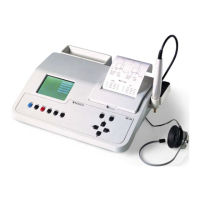
Start the presentation by clicking the Play/Pause button on the
speech test player control panel (Figure 81).
5.6.2.3 Speech test with CD-ROM
Put your CD with the recorded speech test material into the CD-ROM drive and click on
the CD-ROM button.



 To Next Page