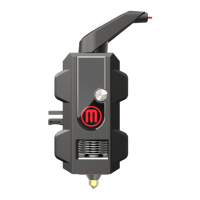
!
!
correct! distance! from! the! Smart! Extruder+! w hen! you! begin ! a! prin t.! To ! run ! th e!
calibration!routine,!select!Z'Calibration!and!then!select!Run'Home'Calibration.!
Manually'Adjusting'the'Z-Axis'Offset'
If!your!r af ts! a n d !fir st! la ye rs !a re !p r in tin g !p o o r ly! o r!if !your!filame n t!isn ’t!sticking!to!your!
build! plate,! the! Smart! Extruder+!is! probably!printing! a! little! too! far! from! the! build!
plate.!Similarly,!if! no! filament!is! com ing! out! of! the! nozzle,!or!you’re!he arin g!a!clicking!
noise!when! your! MakerBot!Replicator+!starts!a! print,!your! extruder!may! be!a! little!
too!close!to!the!build!plate.!
To!adjust!the!Z-axis!Offset,!you!will!need!to!have!your!printer!connected!to!MakerBot!
Print:!
1. Navigate!to!the!Printer!Panel!and!select!the!printer!whose!Z!Offset!you!wish!to!
manually!adjust.!
2. Select!Utilities.!
3. Select!Calibration.!
4. Select!Z-Axis'Offset.!
Next,! lower! or! raise! the! distance! between! the! extruder! nozzle! and! the! build! plate!
and! select!Apply' Changes.!We! recommend!changing!this!value!just!one!notch!at!a!
time.!Change s!w ill!only!affec t!the!n ext!p rint.!
Note:&Decreasing&the&offset&too&much&can&damage&your&build&plate.&
Smart'Extruder+'Tips'
These!are!some!tips!for!avoiding!clogs!and!extending!the!life!of!your!Smart!
Extruder+.!
• Your!MakerBot!3D!printer’s!cooling!process!is!designed!to!prevent!filament!
clogs.!Always!wait!for!the!extruder!to!cool!to!50°C!before!detaching!it!or!
turning!off!your!M a ke rBo t!3D !printer.!
• Wait!until!the!extruder!finishes!unloading!your!filament!before!pulling!it!free.!
Always!allow!the!Smart!Extruder+!to!do!most!of!the!w ork!w h en !un load ing!
filament.!
• Prevent!tangles!in!the!filament!by!keeping!filament!tightly!wound!when!
switching!spools.!
• When!changing!filament,!allow!plastic!to!extrude!for!several!seconds!to!
ensure!all!residue!and!partial!blockages!are!cleared!from!the!thermal!barrier!
tube.!


 To Next Page