EasyManua.ls Logo

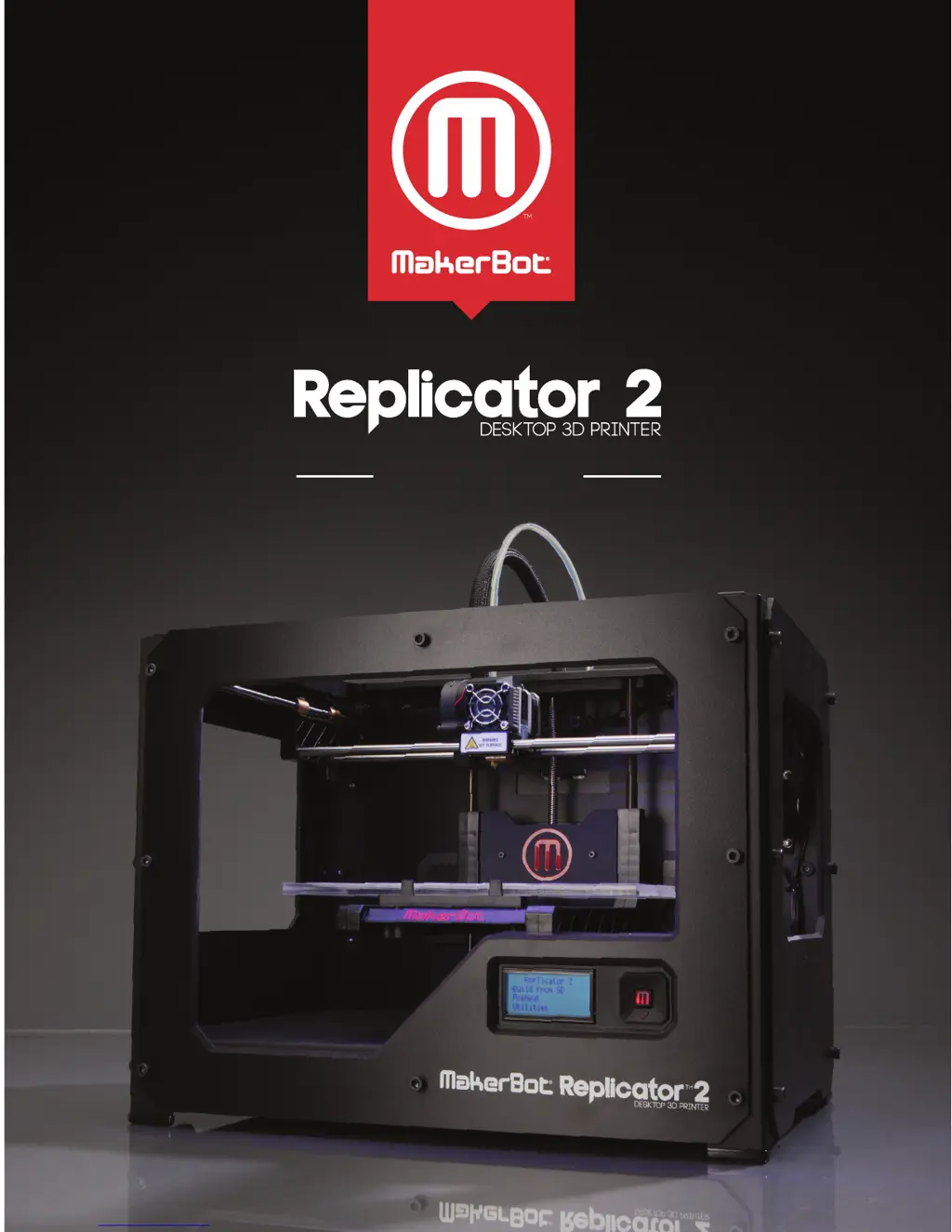
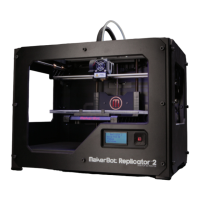
MakerBot Replicator 2 - User Manual

MakerBot Replicator 2
64 pages
Print Icon
To Next Page IconTo Next Page
Loading...
®
USER MANUAL

Other manuals for MakerBot Replicator 2

Questions and Answers

  • T
    tonya34Sep 3, 2025
    Why won't my object stick to the build plate on my MakerBot 3D Printer?
    • R
      rachelwebbSep 4, 2025
      Inconsistent plate height can cause adhesion issues. Relevel your build plate. Also, residue like tears, dust, or oil from your hands can interfere with adhesion. Ensure the plate is clean by wiping it down with a clean, lint-free cloth. If you're using blue tape, try building on the bare acrylic plate, as objects tend to adhere better to acrylic. If problems persist, slightly loosen each plate-leveling knob to bring the plate closer to the nozzle.
  • A
    audreytaylorSep 18, 2025
    How to fix MakerBot Replicator 2 extrusion stops during a build?
    • A
      alexandraclarkSep 18, 2025
      Your build plate might be so close to the extruder that it is preventing plastic from coming out of the nozzle. To resolve this, tighten each knob on the bottom of the build plate by a quarter turn to move the platform farther from the extruder nozzle. Extrusion could also stop if your MakerBot PLA filament has been kept heated for too long, so unload the filament, cut a fresh edge, and load the filament again.
  • M
    milleranthonySep 16, 2025
    What to do if object is stuck to build plate of MakerBot Replicator 2 3D Printers?
    • D
      dawn80Sep 16, 2025
      Wait for the object to cool down, as objects will detach more easily after they have cooled. If the object is still stuck, take a thin metal craft spatula and carefully work the blade under the edge of the object. When the blade is most of the way under the object, twist the handle slightly, and the object should come free. In the future, you can cover your build plate with blue tape to help objects stick to the build plate but be removed more easily.
  • R
    Rebecca JohnstonSep 14, 2025
    Why object won't stick to build plate on MakerBot 3D Printers?
    • S
      Susan BlackwellSep 14, 2025
      Inconsistent plate height may lead to inconsistent adhesion, so relevel your build plate. Also, ensure that the plate is clean because tears, dust, and oil from your hands can prevent objects from sticking to the plate. Wipe down the build plate with a clean, lint-free cloth. If you are building on blue tape, consider building on the bare acrylic plate instead because objects will adhere better to the acrylic. If you continue to have adhesion problems, loosen each of the plate-leveling knobs about a quarter of a turn to bring the plate slightly closer to the nozzle.
  • A
    anthony20Sep 12, 2025
    What to do if object is stuck to MakerBot 3D Printers build plate?
    • J
      James RobertsonSep 12, 2025
      If an object is stuck to the build plate of your MakerBot 3D Printer, gently pry it off using a craft spatula. To prevent this in the future, cover the build plate with painter’s tape. This allows objects to stick but be removed more easily.
  • A
    austinfrancoSep 12, 2025
    Why is the first layer of my MakerBot Replicator 2 very thin?
    • T
      Tammy TaylorSep 12, 2025
      If the first layer of your MakerBot 3D Printer objects is very thin and then the extruder stops, it might be because the build plate is too close to the extruder, preventing plastic from coming out of the nozzle. To fix this, tighten each knob on the bottom of the build plate by a quarter turn to move the platform farther from the extruder nozzle. If problems persist, run the leveling script from the LCD menu at Utilities > Level Build Plate.
  • M
    Michelle ChristianSep 9, 2025
    What to do to prevent objects from sticking too much to the build plate of my MakerBot 3D Printer?
    • J
      John ArnoldSep 9, 2025
      To prevent objects from sticking too much to the build plate in the future, consider covering your build plate with blue tape. This allows your objects to adhere to the build plate but be removed more easily.
  • G
    Gregory DuranSep 7, 2025
    How to remove object stuck to build plate of MakerBot 3D Printer?
    • N
      Nathaniel GordonSep 7, 2025
      To remove an object stuck to the build plate: First, wait for the object to cool down, as objects detach more easily after cooling. If it remains stuck, carefully slide a thin metal craft spatula under the edge of the object. Once the blade is mostly underneath, twist the handle slightly to free the object.
  • R
    Rickey LevineSep 5, 2025
    What to do if extrusion stops during a build with my MakerBot 3D Printer?
    • J
      Jermaine MartinSep 5, 2025
      Extrusion can stop during a build due to several reasons. Your build plate might be too close to the extruder, preventing plastic from exiting the nozzle. Try tightening each knob on the bottom of the build plate by a quarter turn to increase the distance between the platform and the nozzle. Also, if your MakerBot PLA filament has been heated for too long, unload it, cut a fresh edge, and then reload it.
  • M
    Michael NelsonAug 20, 2025
    What to do if my MakerBot 3D Printer extruder makes a clicking noise when loading MakerBot PLA Filament?
    • K
      Kevin CopelandAug 20, 2025
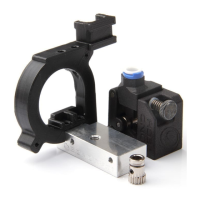
      If your extruder is clicking during filament loading, it might be due to a piece of filament stuck in the extruder. To resolve this, use the instructions in the “Cleaning the Drive Gear” section to remove the fan assembly and motor assembly. Additionally, any filament stuck in the lower portion of the extruder can be removed from the heated extruder using a pair of pliers.

Summary

Welcome, Lets Get Started

Safety and Compliance

Essential safety guidelines and compliance information for operating the 3D printer.

Product Specifications

Detailed technical specifications including printing, dimensions, software, electrical, and mechanical aspects.

How the Printer Works

Explanation of the fused deposition modeling process used by the MakerBot Replicator 2.

Setting Up Your MakerBot Replicator 2 Desktop 3 D Printer

Preparation and Unpacking

Covers accessory check, diagram, and unpacking procedures for the printer.

Component Installation

Guides for installing the build plate, filament guide tube, and spool holder.

Mounting and Powering On

Instructions for mounting the filament spool and powering on the printer.

Startup Process: Leveling, Loading, Testing

Leveling the Build Plate

Detailed steps for leveling the build plate to ensure proper print adhesion and quality.

Loading MakerBot PLA Filament

Instructions for loading PLA filament into the extruder for printing.

Making a Test Object from SD Card

Guide on selecting and printing a test object from the included SD card.

Making an Object with MakerBot MakerWare

Using MakerBot MakerWare Software

Overview of the MakerBot MakerWare software for preparing 3D models for printing.

Troubleshooting, Diagnostics, and Maintenance

Troubleshooting and Diagnostics

Guidance for common problems, LCD panel menus, and error resolution.

Printer Maintenance Procedures

Instructions for lubricating, cleaning, and updating firmware for optimal performance.

Glossary of Terms

Definitions of key terms and components related to the MakerBot Replicator 2.

Contact and Support Information

Details for reaching MakerBot support, sales, and providing feedback.

Terms of Service

Warranty, Returns, and Replacement Policy

Details on MakerBot's policy for product warranties, returns, and replacements.

General Terms of Use

Legal terms and conditions governing the use of the user manual and MakerBot products.

MakerBot Replicator 2 Specifications

General IconGeneral
Print technologyFused Filament Fabrication (FFF)
Printing materialABS, Polylactic acid (PLA)
Layer thickness (min)- mm
Number of printing colors-
Maximum build size (WxDxH)285 x 153 x 155 mm
Product colorBlack
Viewing windowYes
Housing materialPolyvinyl chloride (PVC), Steel
Model file formats supportedobj, stl, thing
Ethernet LANNo
Compatible memory cardsSD
Storage temperature (T-T)0 - 32 °C
Operating temperature (T-T)15 - 32 °C
Input current2 A
AC input voltage100-240 V
AC input frequency50 - 60 Hz
Weight and Dimensions IconWeight and Dimensions
Depth420 mm
Width490 mm
Height380 mm
Weight11500 g

Related product manuals