EasyManua.ls Logo

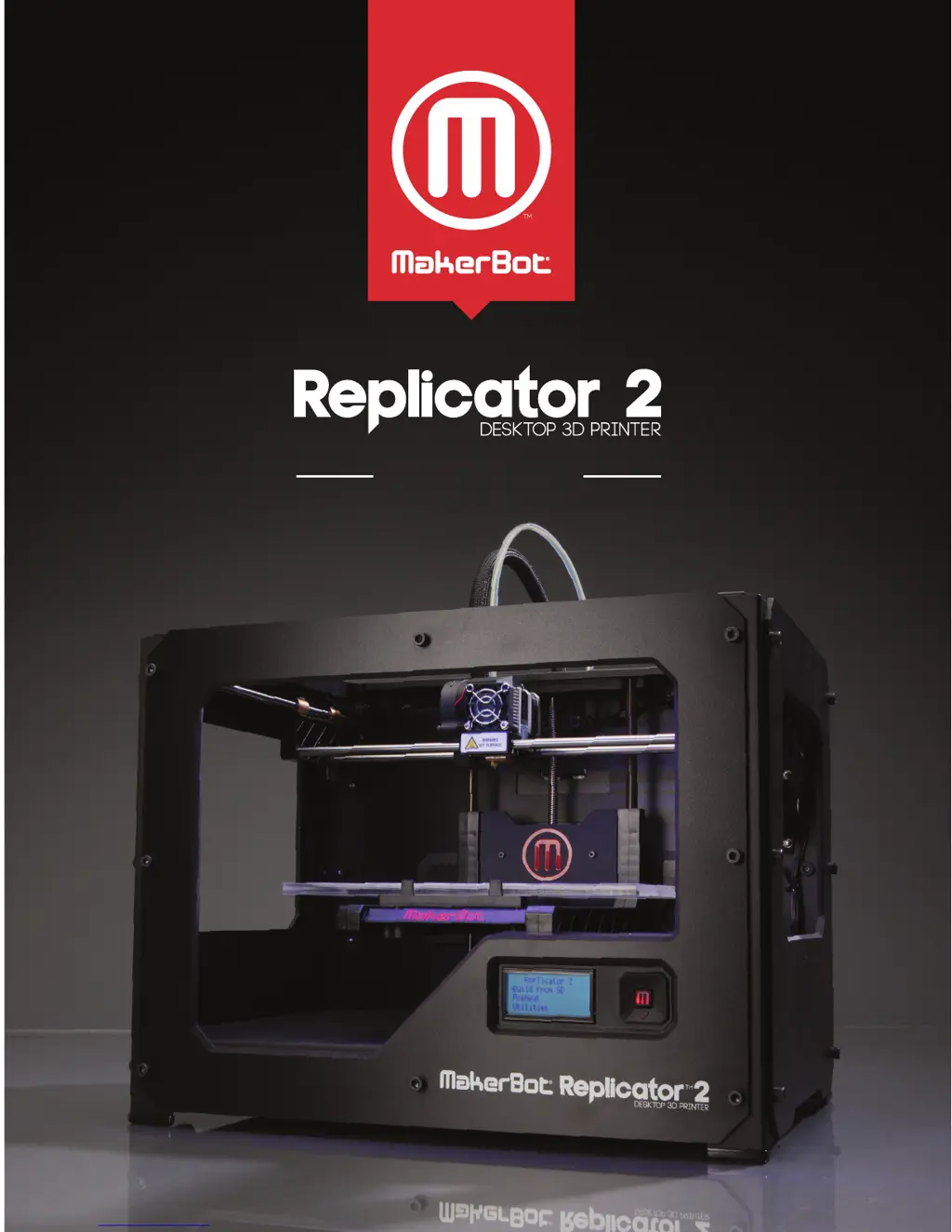
MakerBot Replicator 2 - User Manual

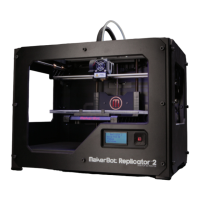
MakerBot Replicator 2
64 pages
Print Icon
To Next Page IconTo Next Page
Loading...
®
USER MANUAL

Other manuals for MakerBot Replicator 2

Questions and Answers

  • W
    Walter JacksonSep 2, 2025
    How to remove MakerBot PLA Filament from the Extruder of MakerBot Replicator 2 3D Printers?
    • A
      Adam PeckSep 2, 2025
      Press down on the extruder arm and push a short length of the filament through the heated extruder. Then, continuing to hold down the extruder arm, try pulling the filament free again.
  • L
    lunamichaelAug 31, 2025
    What to do if extruder makes a clicking noise when loading MakerBot PLA Filament on MakerBot Replicator 2 3D Printers?
    • C
      Cristina BarberAug 31, 2025
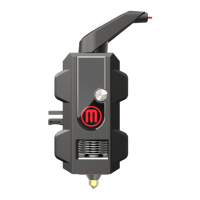
      This may mean a piece of filament is stuck in your extruder. To resolve this, use the 'Cleaning the Drive Gear' section beginning on Page 49 to remove the fan assembly and motor assembly. Any filament stuck in the lower portion of the extruder can be pulled from the heated extruder using a pair of pliers.
  • A
    Anna GonzalezAug 29, 2025
    How to load MakerBot PLA Filament in MakerBot 3D Printers?
    • W
      wochoaAug 29, 2025
      Make a fresh cut at the end of the MakerBot PLA Filament. Cut the filament at an angle—a narrow tip will help with loading. It is also important that the filament have no bends in it. If you are still having trouble, remove the fan assembly as described in the 'Cleaning the Drive Gear' section beginning on Page 49. Load the filament again, watching to see that it goes straight down through the extruder.
  • D
    Deborah BellAug 27, 2025
    How to load MakerBot Replicator 2 PLA Filament?
    • T
      Taylor FrostAug 27, 2025
      To load MakerBot PLA Filament, make a fresh cut at the end of the filament at an angle to create a narrow tip. This will help with loading. Use more force when pushing the filament into the middle of the hole on top of the extruder. For a better grip, hold the filament firmly, or use pliers. Ensure you insert the filament straight down, not diagonally. After you feel the motor grab the filament, maintain pressure for another five seconds.
  • J
    Joanna WebsterAug 26, 2025
    What to do if I can't remove MakerBot Replicator 2 PLA Filament from extruder?
    • F
      Frank MonroeAug 26, 2025
      To remove MakerBot PLA Filament from the extruder when unloading, run the filament load script in the onboard Utilities menu and let the filament advance for about five seconds. Then, run the unload script again.
  • B
    Barbara MaloneAug 25, 2025
    How to remove MakerBot PLA Filament from the Extruder of MakerBot 3D Printer?
    • J
      jamieyoderAug 25, 2025
      To remove MakerBot PLA Filament from the extruder, press down on the extruder arm and gently push a short length of the filament through the heated extruder. While continuing to hold down the extruder arm, attempt to pull the filament free once more.
  • C
    Christopher EricksonAug 22, 2025
    How to load MakerBot PLA Filament into my MakerBot 3D Printer?
    • S
      Stephanie PowellAug 22, 2025
      To load MakerBot PLA Filament: Begin by making a fresh cut at the end of the filament. Cut the filament at an angle to create a narrow tip, which aids in loading. Ensure the filament is free of any bends. If you're still encountering issues, remove the fan assembly and load the filament again, watching to ensure it goes straight down through the extruder.

Summary

Welcome, Lets Get Started

Safety and Compliance

Essential safety guidelines and compliance information for operating the 3D printer.

Product Specifications

Detailed technical specifications including printing, dimensions, software, electrical, and mechanical aspects.

How the Printer Works

Explanation of the fused deposition modeling process used by the MakerBot Replicator 2.

Setting Up Your MakerBot Replicator 2 Desktop 3 D Printer

Preparation and Unpacking

Covers accessory check, diagram, and unpacking procedures for the printer.

Component Installation

Guides for installing the build plate, filament guide tube, and spool holder.

Mounting and Powering On

Instructions for mounting the filament spool and powering on the printer.

Startup Process: Leveling, Loading, Testing

Leveling the Build Plate

Detailed steps for leveling the build plate to ensure proper print adhesion and quality.

Loading MakerBot PLA Filament

Instructions for loading PLA filament into the extruder for printing.

Making a Test Object from SD Card

Guide on selecting and printing a test object from the included SD card.

Making an Object with MakerBot MakerWare

Using MakerBot MakerWare Software

Overview of the MakerBot MakerWare software for preparing 3D models for printing.

Troubleshooting, Diagnostics, and Maintenance

Troubleshooting and Diagnostics

Guidance for common problems, LCD panel menus, and error resolution.

Printer Maintenance Procedures

Instructions for lubricating, cleaning, and updating firmware for optimal performance.

Glossary of Terms

Definitions of key terms and components related to the MakerBot Replicator 2.

Contact and Support Information

Details for reaching MakerBot support, sales, and providing feedback.

Terms of Service

Warranty, Returns, and Replacement Policy

Details on MakerBot's policy for product warranties, returns, and replacements.

General Terms of Use

Legal terms and conditions governing the use of the user manual and MakerBot products.

MakerBot Replicator 2 Specifications

General IconGeneral
Print technologyFused Filament Fabrication (FFF)
Printing materialABS, Polylactic acid (PLA)
Layer thickness (min)- mm
Number of printing colors-
Maximum build size (WxDxH)285 x 153 x 155 mm
Product colorBlack
Viewing windowYes
Housing materialPolyvinyl chloride (PVC), Steel
Model file formats supportedobj, stl, thing
Ethernet LANNo
Compatible memory cardsSD
Storage temperature (T-T)0 - 32 °C
Operating temperature (T-T)15 - 32 °C
Input current2 A
AC input voltage100-240 V
AC input frequency50 - 60 Hz
Weight and Dimensions IconWeight and Dimensions
Depth420 mm
Width490 mm
Height380 mm
Weight11500 g

Related product manuals